The item page
Clicking an item in the list opens it on the right. Everything about that item is on this one page: what it is, what it costs, how many you hold, what it is made of and how it got to that number.
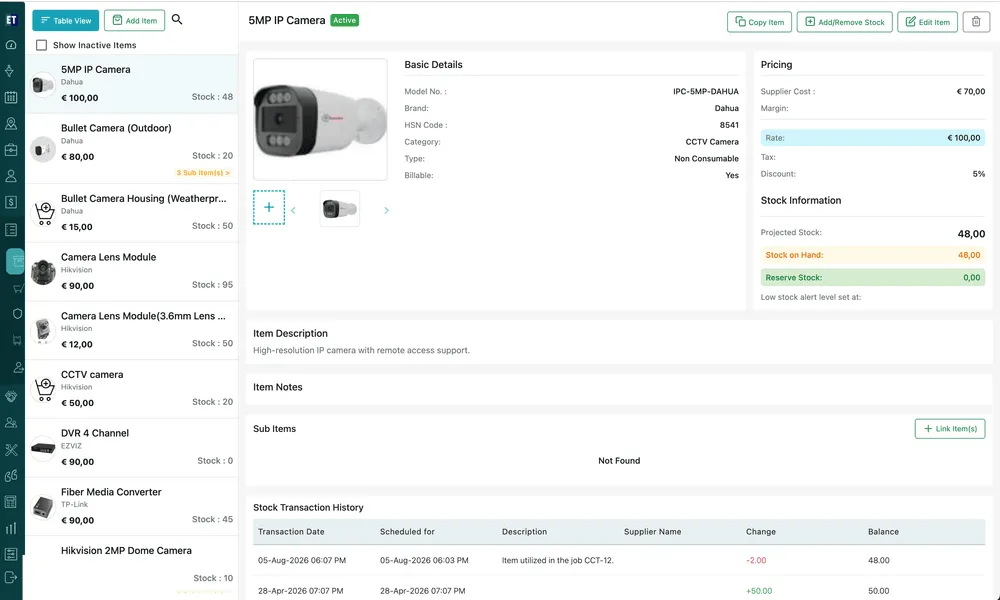
Inventory → Product(s), with an item open
The header
Section titled “The header”The item’s name titles the page, with a badge beside it showing whether the item is Active or Inactive. The buttons on the right are what you can do to it.

Item page → action bar
- Copy Item starts a new item from this one, with its details already filled in.
- Add/Remove Stock moves the quantity up or down — see managing stock.
- Edit Item reopens the item’s form.
- The bin deletes the item.
Copying, editing and deleting are covered in editing, copying and deleting an item.
Pictures
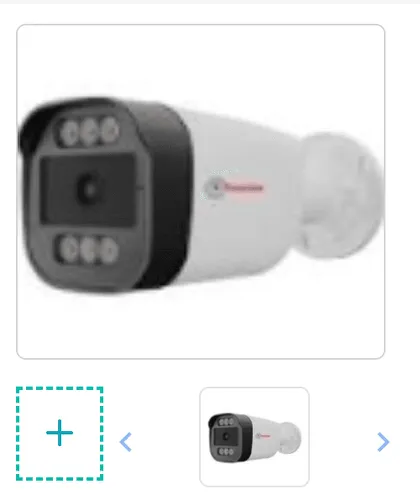
Section titled “Pictures”An item can carry several photographs, with the large one showing whichever thumbnail is selected. The arrows either side of the thumbnail strip move along it when there are more pictures than fit, and the dotted + tile adds another.
Item page → pictures
Basic Details
Section titled “Basic Details”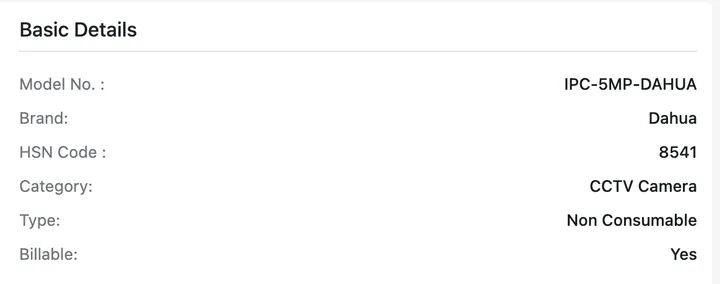
Item page → Basic Details
| Field | What it is |
|---|---|
| Model No. | The manufacturer’s model or part number. |
| Brand | Who makes it. |
| HSN Code | The tax classification code for the item. |
| Category | The product category it is filed under. |
| Type | Consumable or Non Consumable. Consumables are used up on the job; non-consumables are durable and can be turned into tracked equipment later. |
| Billable | Whether the item is charged to the client when it goes on a job. Yes means it reaches the invoice; an item marked non-billable still appears on the job but is not invoiced. |
Pricing and Stock Information
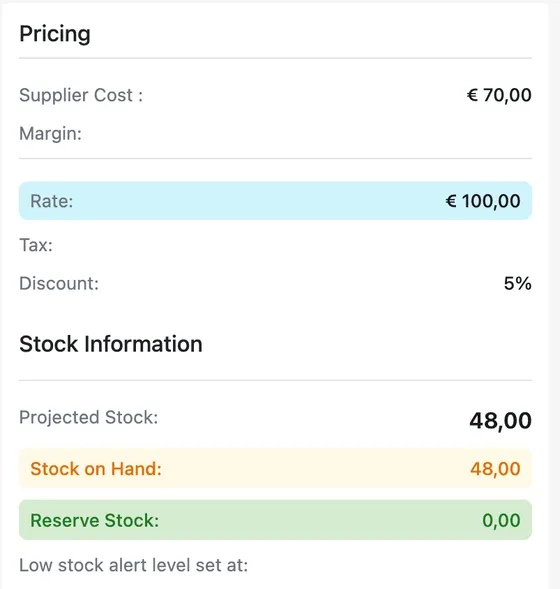
Section titled “Pricing and Stock Information”The card down the right holds the money and the quantities.
Item page → Pricing and Stock Information
Pricing is what the item costs you and what you charge for it:
- Supplier Cost — what you pay for one.
- Margin — the mark-up between that cost and your rate.
- Rate — the price you charge for one. It is the figure that lands on quotes, jobs and invoices.
- Tax — the tax rate that applies to it, such as VAT 23%.
- Discount — the standing discount on the item.
Stock Information is how many you have, and Low stock alert level set at underneath it is the threshold you asked to be warned at. The three figures are explained in managing stock.
Item Description and Item Notes
Section titled “Item Description and Item Notes”Item Description is the item’s own description — what it is, what it does — and it travels with the item onto documents. Item Notes is your own internal remark about it. Both are set on the item’s form.
Sub Items
Section titled “Sub Items”Underneath sits the item’s parts list: the components linked to this item, each with its description and model number. Link Item(s) adds to it, and an item with nothing linked reads Not Found.
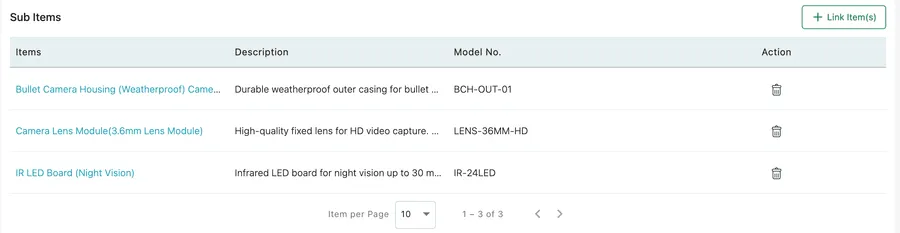
Item page → Sub Items
See sub items and parts.
Stock Transaction History
Section titled “Stock Transaction History”The bottom of the page is the movement record — every change to this item’s stock, in order, with the balance it left behind.
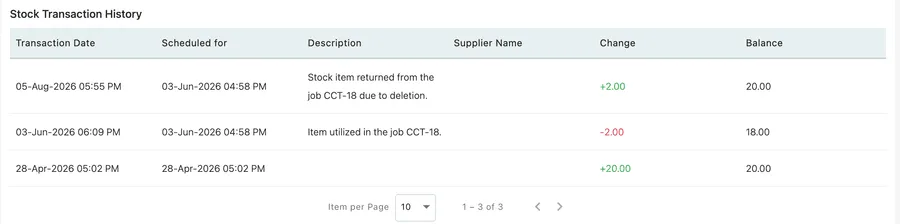
Item page → Stock Transaction History