Bulk updating items
Editing items one at a time is fine for one item. After a stocktake, or a supplier’s new price list, it is not — Bulk Update changes many items at once through a spreadsheet.
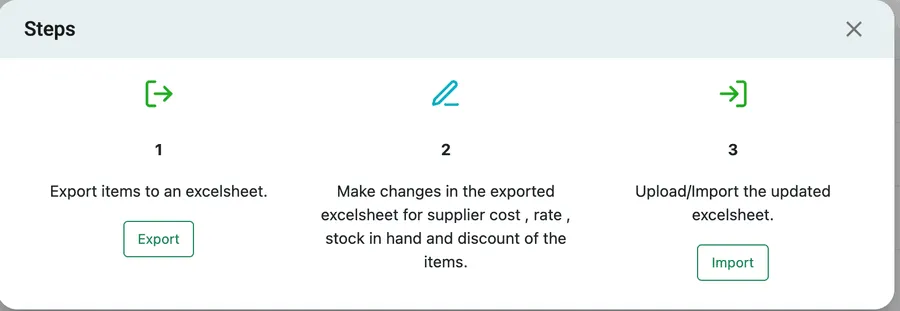
It is in the item list’s Table View, and it works in three steps: take your items out as a spreadsheet, edit them there, put the file back.
Inventory → Product(s) → Table View → Bulk Update
1. Export
Section titled “1. Export”Export downloads your items as an Excel sheet, one row per item.
2. Edit the sheet
Section titled “2. Edit the sheet”Change the values in the sheet rather than in the app. Four things can be updated this way:
- Supplier cost — what the item costs you.
- Rate — what you charge for it.
- Stock in hand — the quantity you hold.
- Discount — the standing discount on the item.
Leave the rest of the sheet alone; it is what tells EyeOnTask which row belongs to which item.
3. Import
Section titled “3. Import”Import uploads the edited sheet, and the changes land on the items.
When to use it
Section titled “When to use it”A stocktake is the clearest case. Counting the stores gives you a list of real quantities, and typing them back one item at a time is where the afternoon goes — export, put your counted figures in the stock in hand column, import.
A supplier’s price rise is the other: their new list arrives, you update supplier cost and rate for everything they supply, and one import re-prices the lot.
For a single item, Add/Remove Stock is still the better route — it asks for a reason and records it against the movement. See managing stock.