Comments and messages on a request
A request carries the conversation about it as well as the facts. One window handles all of it — a note only your admins see, a message to the client, or a message to the fieldworker doing the work.
Opening it
Section titled “Opening it”Open the request and click the + at the end of the timeline, then Add Comment (Private note).
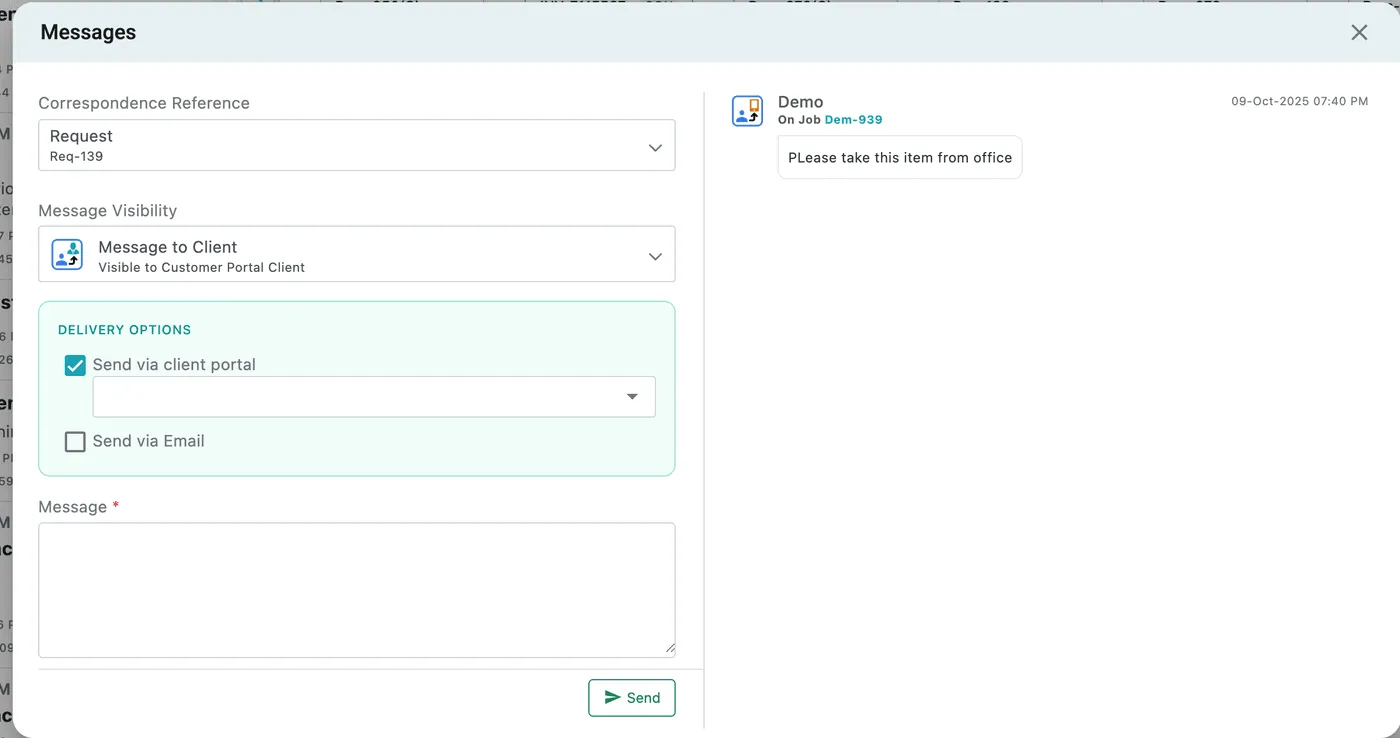
That one menu item opens the Messages window, and this window is where all of it happens — a private comment, a message to the client and a message to the fieldworker are the same window, sent to different people by the Message Visibility field.
Request page → + → Add Comment (Private note)
The left is the message you are about to send. The right is the conversation so far.
What the message is about
Section titled “What the message is about”Correspondence Reference is the record the message is attached to — the request itself, or something raised from it. It opens on the request you came from, Request Req-139 above, and the dropdown moves the message onto another record in the chain, so a question about the job goes onto the job rather than the request that started it.
Who can see it
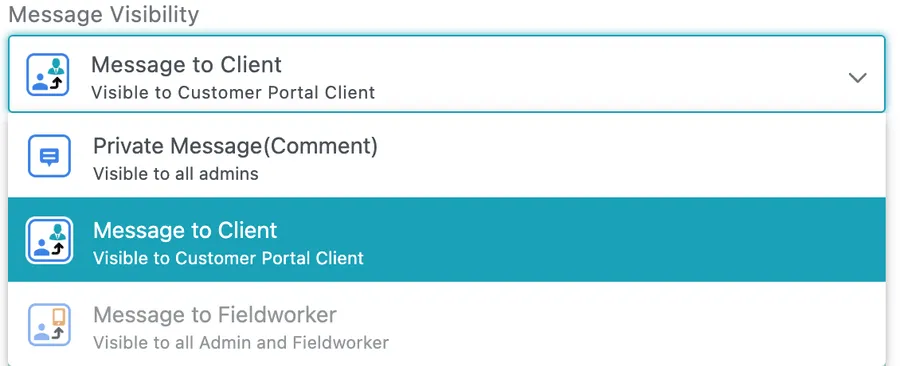
Section titled “Who can see it”Message Visibility decides the audience, and it is the one field worth checking twice before sending.
Messages → Message Visibility
| Visibility | Who reads it |
|---|---|
| Private Message (Comment) | All admins. Your own record — what the client actually said on the phone, why the price came out where it did, what to check on arrival. |
| Message to Client | The client, in the customer portal. |
| Message to Fieldworker | All admins and the fieldworker. Instructions for the person doing the work — “please take this item from office”. |
Message to Fieldworker is greyed out until a fieldworker is assigned. On a request nobody has been put on yet there is no one to write to, so assign the work — or send the message from the job or appointment the fieldworker is on, using Correspondence Reference to point at it.
Delivery options
Section titled “Delivery options”With Message to Client selected, a Delivery Options box appears:
- Send via client portal — the message waits for the client in the portal. The dropdown beneath it chooses which contact person it goes to: a client can have several — the site manager, the person who pays the bills, the tenant — and this is where you decide who is being spoken to.
- Send via Email — it goes to their inbox as well.
Both can be used at once, for something the client needs to see whether or not they log in.
Sending it
Section titled “Sending it”Type the message in the Message box — it is required — and press Send.
The conversation so far
Section titled “The conversation so far”The right-hand pane is the thread. Each entry shows who sent it, which record it was on — On Job Dem-939 — the date and time, and the message itself. The icon beside the sender’s name is the kind of message it was, so a note to a fieldworker reads differently at a glance from one to the client.
Because the reference travels with each message, this pane is the whole correspondence for the request and everything raised from it in one place, in order.
Messages also appear on the request’s timeline as speech-bubble icons, in sequence with everything else:

Request page → timeline