Templates
Templates are what your customer actually sees. Everything else in Settings shapes how EyeOnTask works for you; this shapes how your company looks to the people paying the bills.
Settings → Templates.
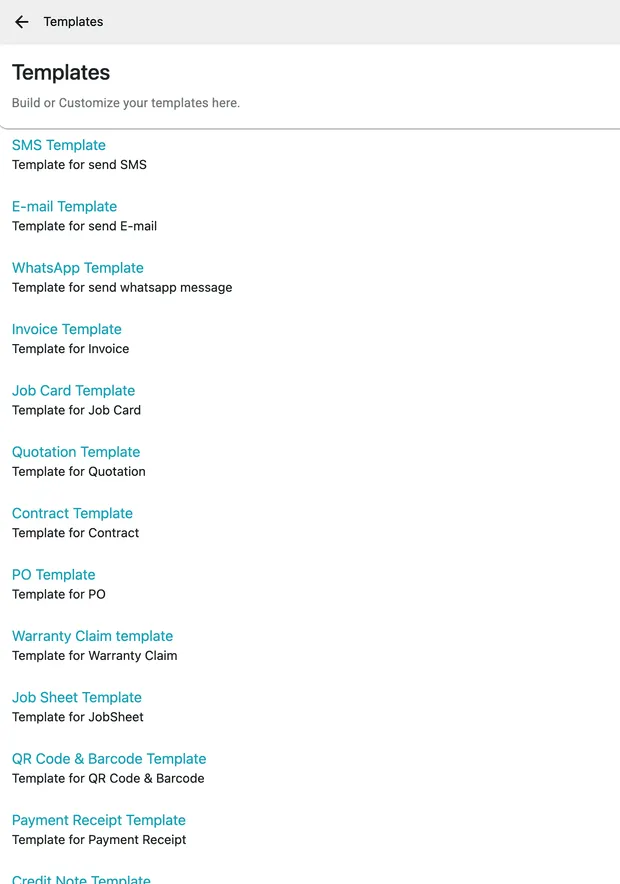
Settings → Templates
There are thirteen, and they fall into three groups:
- Documents — invoice, job card, quotation, contract, PO, warranty claim, job sheet, payment receipt and credit note. See document templates.
- Messages — SMS, e-mail and WhatsApp. See message templates.
- Labels — the QR code and barcode template you stick on equipment.
How a document template works
Section titled “How a document template works”Every document template opens in the same editor: a live preview of the document on the left, and panels down the right for each part of it.
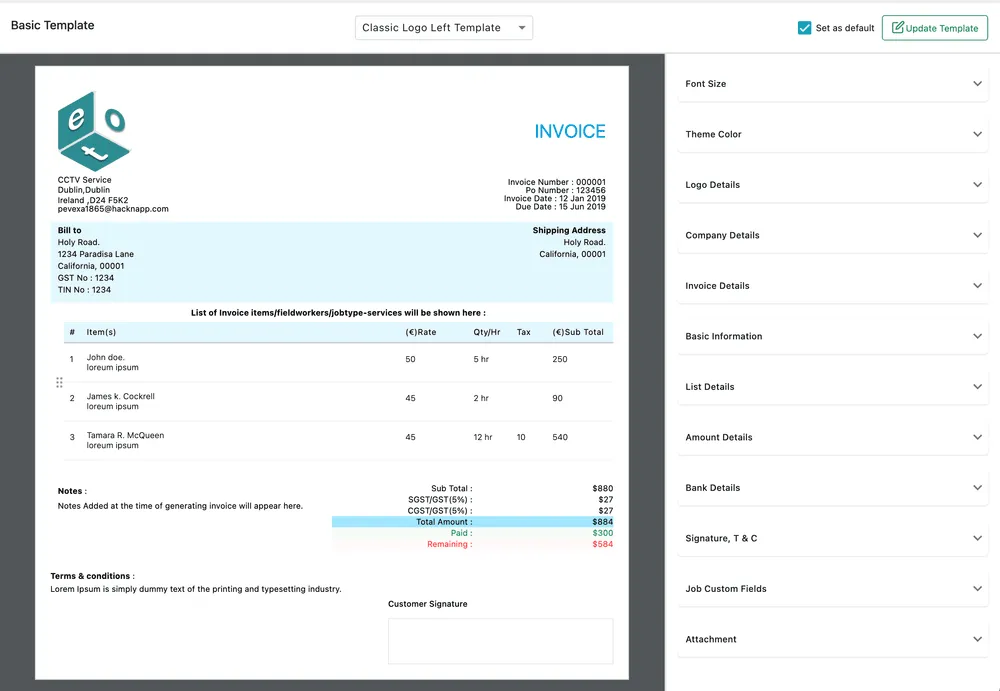
Settings → Templates → Invoice Template
The layout dropdown at the top picks the arrangement — Classic Logo Left, Classic Logo Right and the rest. Changing it redraws the preview immediately.
The panels on the right open one at a time and control what goes into each part of the document — the font size, the theme colour, the logo, your company details, the line-item columns, the amount breakdown, bank details, the signature and terms, custom fields and attachments. What is available depends on the document: an invoice has Bank Details, a job card does not.
Update Template saves.
Set as default
Section titled “Set as default”Set as default decides which layout is used when a document is produced without anyone choosing one — which is most of the time. A template type can hold several layouts, and exactly one of them is the default.
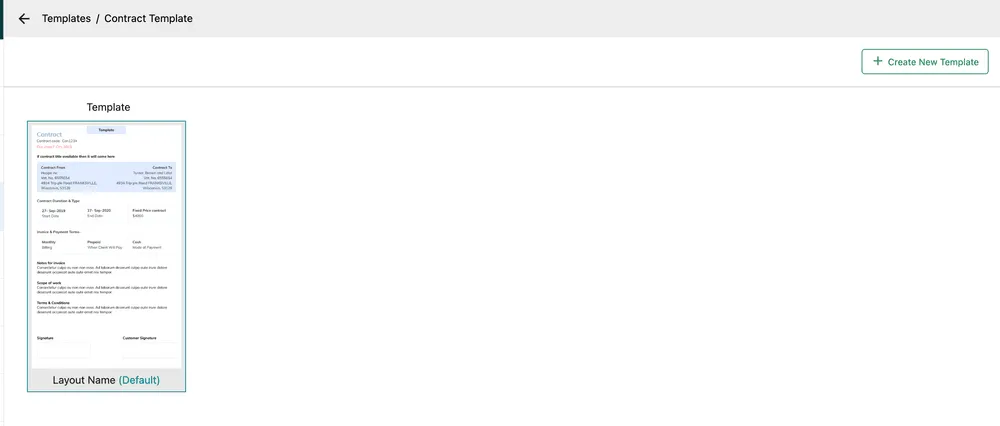
Settings → Templates → Contract Template
Create New Template adds another layout of the same type. Having more than one is worth it when different work needs a different document — a domestic job card that is short and friendly, a commercial one that carries the full breakdown.
Templates and the settings behind them
Section titled “Templates and the settings behind them”A template controls presentation. What data exists to present is decided elsewhere: an invoice column that is switched off in invoice settings has nothing to print, and a custom field has to exist before a template can lay it out.
The two are separate because seeing something on screen and printing it for a customer are different decisions. Cost is the usual example — your office wants it, your client should not see it.
Templates also follow your language and label settings: rename a field there and the document says the new name.