Job completion detail
Completion Detail is what the job produced. Everything the fieldworker recorded on site lands here — what they found, what they did, how long it took, and the client’s signature — and this is the material the client’s report is built from.
It is filled in on a phone, before they leave.
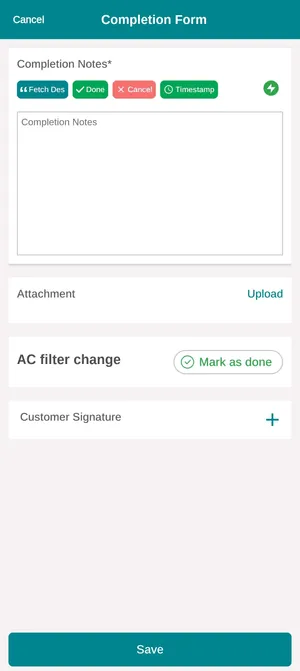
The app → a job → Completion Form
What that form asks for is what this tab shows back. See finishing a job in the app.
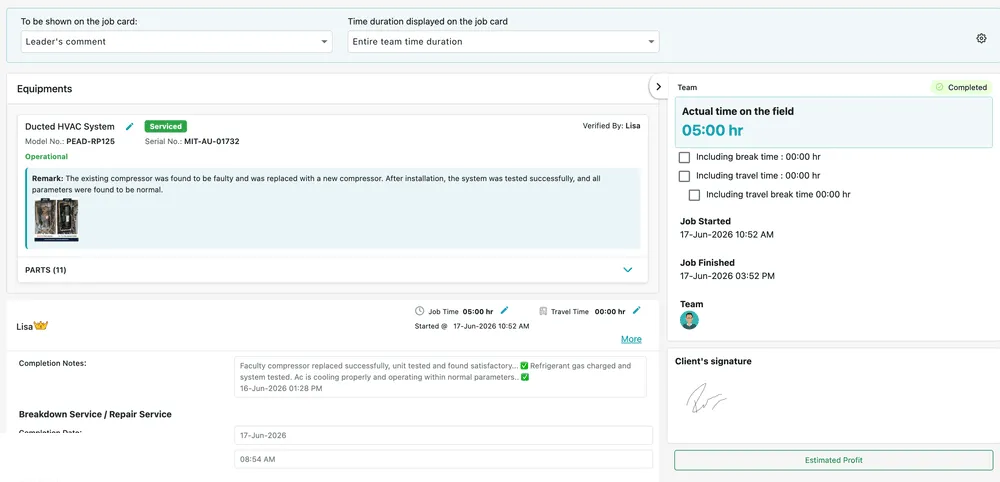
Job page → Completion Detail
Equipment, unit by unit
Section titled “Equipment, unit by unit”If the job named equipment, each unit comes back with its own report rather than sharing one note.
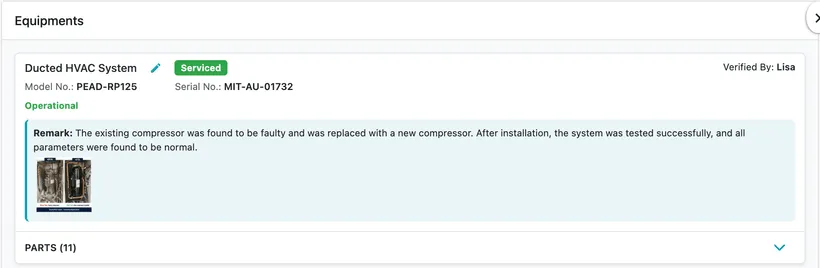
Completion Detail → Equipments
Each card carries:
- The unit — name, model number and serial number, so there is no doubt which one this is.
- A work state — Serviced, and a condition such as Operational, saying what was done and what state it was left in.
- Verified By — who signed off on this particular unit.
- A remark — the fieldworker’s own account of that unit. “The existing compressor was found to be faulty and was replaced with a new compressor. After installation the system was tested successfully and all parameters were found to be normal.”
- Photos, including before-and-after pairs where the job type asked for them.
- PARTS — what went into this unit, with a count.
This is the part that makes a real report possible. Four units on one visit produce four separate accounts, each with its own condition, remark, photos and parts — so the client is told what happened to their equipment, not what happened on average.
Notes, times and photos from the fieldworker
Section titled “Notes, times and photos from the fieldworker”Below the equipment sits a block per person who worked the job, with a crown on the team leader.
Completion Notes is their written account of the visit as a whole, timestamped. Job Time and Travel Time show what they spent working and what they spent travelling. Started @ records when they began, and More opens the rest of the detail.
Under that, per job type: Completion Date, Completion Time and any Attachment they added.
Correcting times
Section titled “Correcting times”Field records are not always right — a phone that lost signal, a job someone forgot to close until the evening. The pencil beside Job Time or Travel Time lets you correct them from the office.
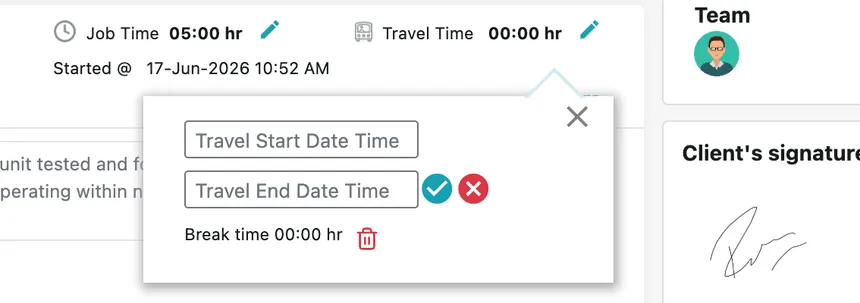
Completion Detail → Travel Time
Travel start and end can be entered directly, and break time taken during the job can be recorded or removed. The completion date and time can be corrected the same way.
The team panel
Section titled “The team panel”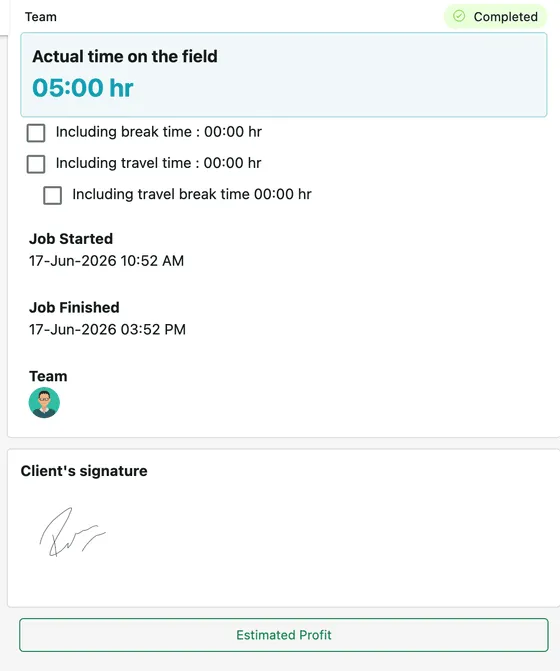
Completion Detail → Team
Actual time on the field is the headline figure — the real time spent, as against the window that was scheduled. The three tick boxes decide what that figure includes: break time, travel time, and travel break time. Ticking them changes what the number means, which matters when the client is billed by the hour and when you are comparing quoted time against actual.
Job Started and Job Finished are the raw stamps. Team lists everyone who worked it.
Client’s signature is what was captured on the phone at the end of the visit. It appears on the job card, and it is the thing that settles an argument about whether the work was accepted.
Estimated Profit opens the costing for the job — see estimated profit on a job.
What the client is told
Section titled “What the client is told”The two dropdowns at the top of the tab decide what reaches the client on the job card, and they are the reason to visit this tab even on a job you are happy with.

Completion Detail → job card options
To be shown on the job card picks whose account the client reads. The fieldworker’s notes are written for you, not for the customer — honest, technical, sometimes blunt. This is where you choose between the leader’s comment, every assigned worker’s comments, or a comment you write yourself, so the client gets the version you intend them to have.
Time duration displayed on the job card picks which time figure is printed — the entire team’s time, or the individual’s — which matters when four people were on site for two hours each.
Set both before sending, then open Job Card to see the document the client will receive.
Where to go next
Section titled “Where to go next”| Page | What it covers |
|---|---|
| The job card | Turning this report into the document the client receives |
| Estimated profit on a job | What the job earned once material, labour and expenses are taken off |
| Invoicing from a job | Billing the completed work |
| Additional forms on a job | The extra questions answered alongside this report |
| Finishing a job in the app | The form the fieldworker fills in on site to produce all of this |