Recurring jobs
Work that comes round on a cycle — a monthly filter change, a quarterly service, weekday cleaning — does not need creating by hand each time. Put a pattern on the job and the system raises each occurrence for you.
The occurrences are numbered off the original. Dem-983 is the job you set up; Dem-983.1, Dem-983.2, Dem-983.3 are the ones the pattern produced after it. Each is an ordinary job in its own right — it can be rescheduled, reassigned, priced and reported on without touching the rest.
Setting a job to repeat
Section titled “Setting a job to repeat”Repeat this job, under the schedule in the Create New form, turns a one-off into a series. On a job that already exists, Edit Recurring in the header opens the same thing.
Not seeing Repeat this job on the form? It is switched off in settings. Settings → Modules → Work → Add Job Form Settings carries Show recurring option on Add/Edit Job Form — turn it on and the option is back on the form for new and edited jobs. See the add job form settings. Until then, Edit Recurring on the job itself still works: the setting hides the field on the form, not the feature.
Job page → Edit Recurring
How often
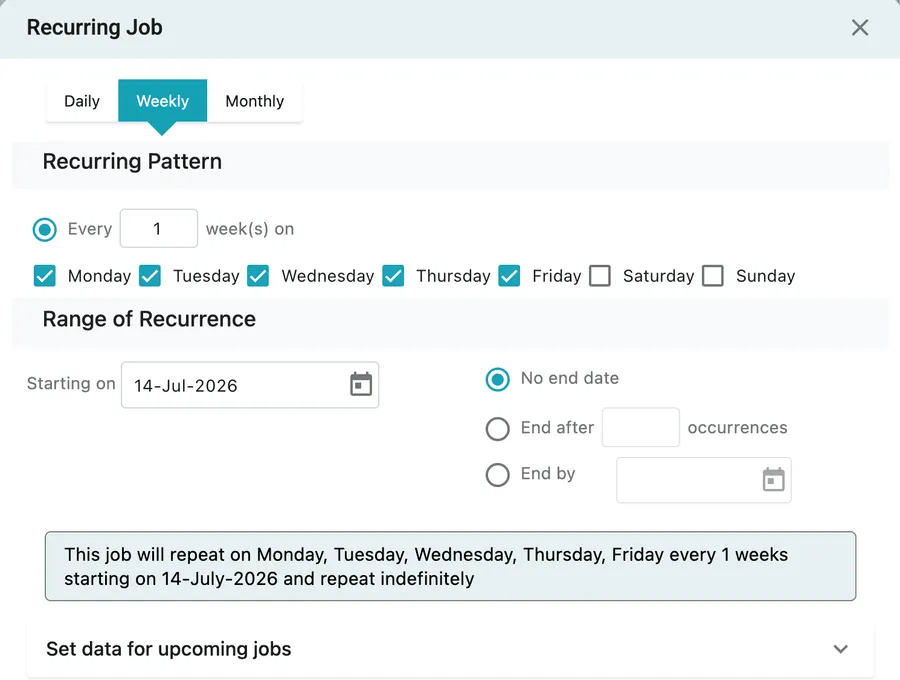
Section titled “How often”The three tabs pick the unit — Daily, Weekly or Monthly — and the Recurring Pattern underneath says how often within it.
Every n week(s) on takes an interval and a set of days. Ticking Monday to Friday with an interval of 1 gives a job every weekday; ticking Monday with an interval of 2 gives one every other Monday. Daily and Monthly work the same way with their own options.
Where it stops
Section titled “Where it stops”Range of Recurrence decides the span:
| Setting | What it does |
|---|---|
| Starting on | The date the pattern begins |
| No end date | Runs indefinitely — for open-ended maintenance |
| End after n occurrences | Stops after a set number of jobs — twelve monthly services, four quarterly visits |
| End by | Stops on a date, usually the end of the agreement it belongs to |
The box below restates what you have set in plain words — “This job will repeat on Monday, Tuesday, Wednesday, Thursday, Friday every 1 weeks starting on 14-July-2026 and repeat indefinitely”. It is worth reading before saving: it is the quickest way to catch a pattern that says something other than what you meant.
What the future jobs look like
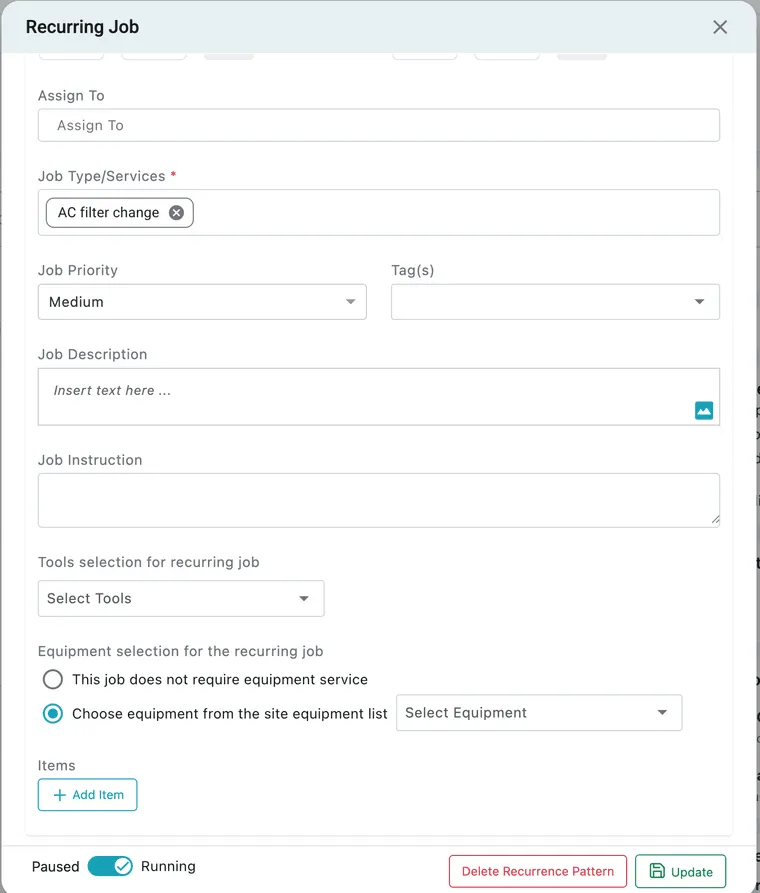
Section titled “What the future jobs look like”Set data for upcoming jobs is where you decide what every occurrence inherits, and it is worth opening rather than assuming — this is the content of every job the pattern will create.
Job page → ≡ → Edit Recurring Job → Set data for upcoming jobs
Inside it you can review or change the Project/Site Name and address, the contact details, the schedule start and end times, who the job is assigned to, and the job type, priority, tags, description and instructions. Anything set here applies to the occurrences rather than to the job in front of you, so a repeating job can be handed to a different fieldworker from the one who did the first visit.
Equipment selection for the recurring job is where the units come from. Pick the equipment every occurrence should cover and the pattern attaches it to each job it raises — the same four AC units checked and reported on every month, without being chosen again each visit.
The equipment comes from the pattern, not from the job you started with. The first job is simply the pattern’s first occurrence, so there is nothing being copied forward from it; every visit, that one included, takes its units from what is selected here.
Two radios decide it: This job does not require equipment service, or Choose equipment from the site equipment list with the picker beside it.
Tools selection for recurring job works the same way for the kit that has to be taken along, and Items below it holds the parts and services every occurrence carries, with + Add Item to add one.
Items reach the occurrences through the pattern, and there is no separate copy step. Whatever was on the first job when you set it to repeat is carried into the pattern, and every occurrence is built from the pattern’s own data — so the items sitting here are the items each visit will arrive with. Change them here and the change applies to the visits still to come, not to the ones already raised.
On a contract the same choice is made from the contract’s own linked equipment — the client’s units, linked on the contract first — and selecting all of them puts the whole list on every job the pattern raises.
Update saves the pattern. Beside it sit the Paused / Running switch and Delete Recurrence Pattern — see pausing, changing and stopping.
Copying a repeating job
Section titled “Copying a repeating job”Copy Job on a job that repeats brings the pattern across. The copy is its own series from that moment — same interval, same days, same range, raising its own occurrences under its own code — with no link back to the job it came from.
That makes a copy the quickest way to set up the same arrangement for another client: copy last month’s, change the client and the site, adjust the pattern if the day differs. If the copy should not repeat at all, delete its recurrence before it raises anything.
Where the occurrences appear
Section titled “Where the occurrences appear”They go on the scheduler like any other work. Each future occurrence is its own strip on the board, on its own date, carrying the fieldworker it is assigned to, its time slot and its description — so a repeating job is visible weeks ahead rather than something you have to remember is coming.
That is the practical way to check what a pattern has lined up: move the board forward and look. The Recurring Schedule window below is the list view of the same thing, on the job itself.
The Recurring Schedule
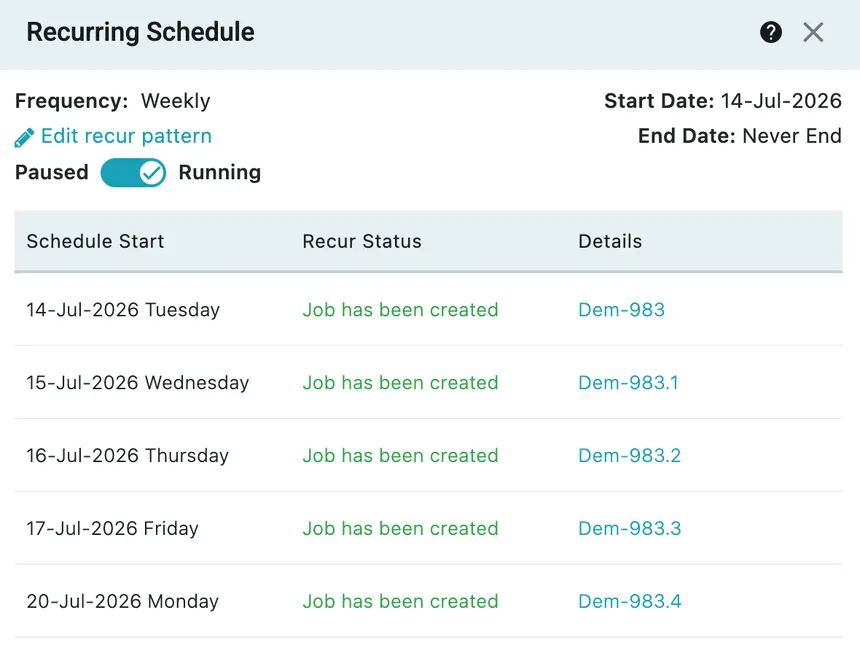
Section titled “The Recurring Schedule”A job with a pattern on it shows a banner at the top of its Overview — (Running) Recurring pattern is added to this job — and the link on it opens the schedule the pattern produces.
Job page → Overview → the recurring banner
The header summarises the pattern — Frequency, Start Date, End Date — with Edit recur pattern to change it.
The table below is the series itself, one row per occurrence:
- Schedule Start — the date and weekday it is due.
- Recur Status — whether the job for that date has been raised yet. Job has been created means it exists.
- Details — the job code, as a link straight to that job.
This is the list to check when someone asks whether next Tuesday’s visit is already booked, or when a job that should have appeared has not.
Pausing, changing and stopping
Section titled “Pausing, changing and stopping”The Paused / Running switch — on the Recurring Schedule window and in the footer of the pattern itself — stops the pattern raising new jobs without deleting anything. The pattern, its settings and every job already created stay exactly as they are, and switching back to Running picks it up again.
Pause is the right answer to a site closed for refurbishment, a client on hold over a dispute, or a seasonal service that stops over winter.
Change
Section titled “Change”Edit recur pattern reopens the settings. Changes affect the occurrences still to come; jobs already raised keep their own details.
You can open it from any job in the series, not only the one you started with. On an occurrence, the Recur Schedule section carries Edit Recur — the same pattern, reached from whichever visit you happen to have open. Editing it there changes the schedule for the whole series from that point on, exactly as editing it from the first job would.
Editing the pattern and editing a job are different things, and the difference is the one that catches people out:
- Change the job — its date, its fieldworker, its cart — and only that visit changes. The rest of the series carries on as it was.
- Change the pattern — from any of them — and every occurrence still to come moves with it.
So moving one week’s visit to the Tuesday is a job edit; moving every visit to Tuesdays is a pattern edit. Doing the second one job by job fixes only the jobs that already exist, and the next one the pattern raises comes back on Monday.

Recurring Job → footer
Delete Recurrence Pattern ends the series for good, and what happens to the jobs it already raised depends on whether anybody has touched them:
- A job nobody has acted on goes with the pattern. Setting a pattern up creates its jobs straight away, so a pattern you got wrong leaves a run of jobs you never wanted. Deleting it clears them rather than leaving you to tidy up by hand.
- A job that has been acted on stays. Once its status has moved — accepted, travelling, started, completed — or work has been recorded against it, that job is a record of something that happened, and it keeps its history.
So deleting the pattern is safe on a series that has not started, and non-destructive on one that has.
To wind a series down gently instead, set End by to a date and let the remaining occurrences run out. Pause does the same job without ending anything.