Client actions
Everything you do to a client — rather than to their work — happens from the three controls on the right of the record header.

Clients → the selected client → header
Editing a client
Section titled “Editing a client”Edit Client reopens the client’s details as a form with everything already filled in — the same fields you saw when adding them. Change what you need and press Update.
Nothing is off limits, and two changes are worth thinking about before you make them:
- Changing the address re-resolves the map pin your fieldworkers navigate to.
- Changing the payment terms affects the due date on invoices raised from now on.
Active and inactive
Section titled “Active and inactive”The Status radio pair sits at the bottom of the same Edit Client form, and it moves the client between Active and Inactive in both directions.
An inactive client is not deleted. They drop out of the list, out of the pickers you choose a client from, and out of the way — but their record, their history and their money are all still there. Tick Show Inactive Clients above the list to bring them back into view.
That is what you want for a customer you have stopped trading with. It keeps three years of jobs and invoices intact and stops anyone booking new work against them by accident.
Deleting a client
Section titled “Deleting a client”The bin in the record header removes the client, asking first with Yes, delete it and No, keep it.
Merging two clients
Section titled “Merging two clients”The same client entered twice is a common enough mess — once by the office, once from a website request, once with the company name and once with the person’s. Merge Client puts them back together rather than leaving you to delete one and lose what is on it.
It is done from Table View, because it needs two rows ticked:
- Tick the client you want to merge from — the record that will be folded away.
- Tick the client you want to merge into — the one you are keeping.
- Merge Client appears above the table with the other bulk actions. Click it.

Clients → Table View, with two clients ticked
The dialog that opens shows the merge before it happens, in three columns: From, To and Merged. Each names the client and lists its sites, so the Merged column is the record you will end up with — its sites are both lists joined together. Read that column before committing; it is the whole point of the confirmation.
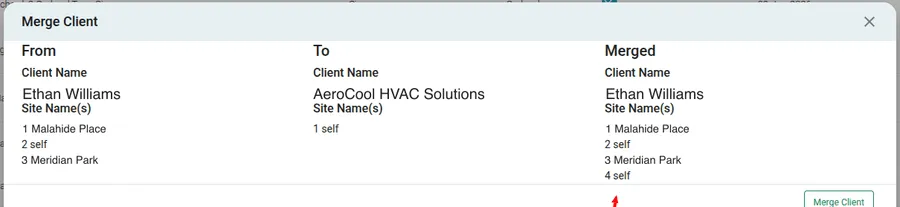
Clients → Table View → Merge Client
Merge Client in the dialog carries it out.
The order of the two ticks is what decides the result, so tick them deliberately rather than in whatever order they appear in the list.
Everything moves, and nothing is left behind. The two records become one: the jobs, quotes, invoices, equipment, sites and the payment ledger all end up on the surviving client, so the history reads as one relationship rather than two halves.
A merge cannot be undone. There is no unmerge, and no way to pull the two records apart afterwards — separating them again would mean deciding which record each job, invoice and payment came from, and that is gone once they are one. So read the Merged column before you press the button, and be sure the two are genuinely the same customer rather than two customers with similar names. Where you are not sure, it costs nothing to leave them separate.
The two views
Section titled “The two views”The button in the top-left of the client list switches how the list is drawn. It is labelled with the view you are going to, so Table View takes you to the table and Simple View brings you back.
Simple View is the default and the one you read clients in: the list down the left, the selected client’s whole record open beside it.
Table View drops the record panel and gives you the list on its own, one client per row. It carries its own search — by name, mobile number or company name — and a filter dropdown beside it.
In the table, the client’s name is a link straight into their record, and each row has its own edit and delete icons, so you can work through a list of clients without opening each one.
Use the table when you are comparing or tidying clients, and Simple View when you are answering a question about one of them.