Adding a client
Add Client sits at the top of the client list, next to the view switch, and it is the same button in both Simple View and Table View.
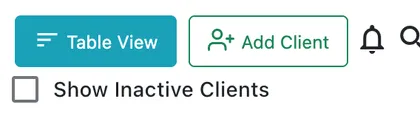
Clients → list toolbar
Clicking it opens the Add Client form.
Filling it in
Section titled “Filling it in”Most of the form is free text — the client’s name, their contact details and their address. A handful of fields are dropdowns instead, because they draw on lists you keep centrally: the client type, the industry, how they came to you, the payment terms. Those lists are yours to edit, in client settings.
Fields marked with an asterisk are mandatory and the form will not save until they are filled.
Two things are worth getting right at this point rather than later:
- The address. It is what the app turns into the latitude and longitude a fieldworker navigates to. A vague address gives you a vague pin, and the person who finds out is the engineer sitting outside the wrong building.
- The payment terms. They set the due date on every invoice you raise for this client from here on, so a client set up with the wrong terms quietly produces a run of invoices that chase at the wrong time.
Neither is permanent — both are editable later from Edit Client.
Save adds the client and confirms it. They appear in the list straight away.
An email address already on another client is caught here. If the email you have entered belongs to an existing client, a popup says so when you try to create this one — usually the sign that the customer is already on the list, perhaps under a slightly different name. Search for them before carrying on; if two records do end up existing, merge them rather than deleting one.
What to do next
Section titled “What to do next”A newly added client is just a name and an address. Two things usually follow:
- Sites, if the client has more than one location. Work is booked against a site, so a client with three buildings needs three sites before you can tell their jobs apart.
- Contacts, if more than one person there can call you in — and if any of them should be able to log in and see their own jobs.
Both are added from the client’s own record. See sites and contacts.
Once the client exists, Add Under This Client in their record header creates work already attached to them, so you never have to pick the client again.
Importing instead
Section titled “Importing instead”If you are moving from another system, you do not have to type clients in one at a time — see importing data.