Receiving a purchase order
Receiving is the step that turns a purchase order into stock. Until you do it, the order’s Delivery status reads Not Received and nothing has moved.
Item by item, or all at once
Section titled “Item by item, or all at once”
Purchase order → Item(s)
Every line on the order carries its own Status, so a part-delivery is recorded as it actually happened — three lines received, one still to come. Set each line’s status as the goods turn up.
All Received above the table does the whole order in one go, and is the normal case when a delivery arrives complete.
What the receive dialog asks
Section titled “What the receive dialog asks”Either way, EyeOnTask asks where the goods should go before it moves anything.
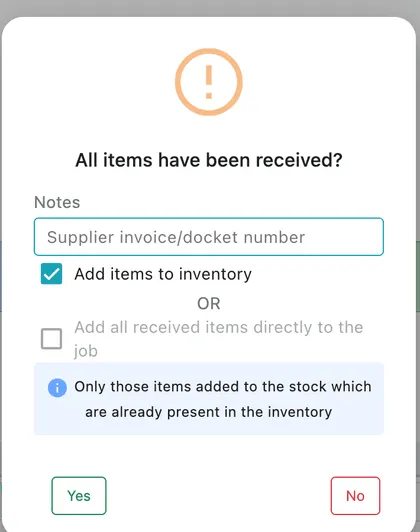
Purchase order → All Received
- Notes takes the supplier invoice or docket number, so the delivery is tied to the paperwork that came with it.
- Add items to inventory puts the quantities onto your items, exactly as if you had added the stock by hand. Each one lands in that item’s stock transaction history with the supplier’s name against it.
- Add all received items directly to the job sends them to the job the order is linked to instead. The goods go on the job and are billed from it; they never enter your stock, so there is no addition and no later removal.
The two are alternatives — one or the other, not both. The choice is only offered when the order has a job linked to it, so if you want the direct-to-job route, link the job when you raise the order — or raise it from the job in the first place, with + Add PO on its Item / Invoice tab.
Only items already in your inventory are added to stock. Something typed onto the order that is not one of your items has nothing to add to.
Yes confirms the delivery. The order’s Delivery status moves to received and its Delivery Amount reflects what arrived.
Which route to take
Section titled “Which route to take”Put it into inventory when the stock is yours to hold — anything you keep on the shelf or in the van, anything ordered in bulk, anything that might end up on a different job than the one you had in mind.
Take it straight to the job when the part was bought for one job and one job only. It arrives, it is fitted, it is billed, and your stock figures are never disturbed by a quantity that was only ever passing through.