PayPal integration
Connecting PayPal lets a client settle an invoice themselves from the customer portal, rather than waiting for you to chase them.
Most of the work is done on PayPal’s side, not in EyeOnTask: PayPal has to be told where to send the customer back to, and where to report the payment. Get those two URLs wrong and the payment goes through at PayPal but never reaches the invoice.
Where to find it
Section titled “Where to find it”Settings → Integrations, third card.
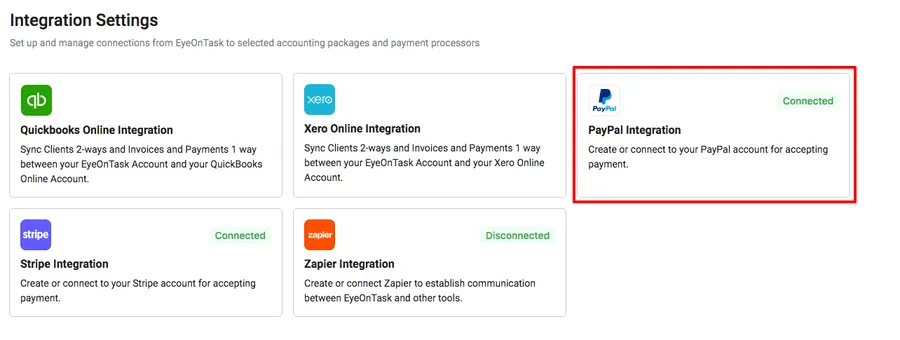
Settings → Integrations
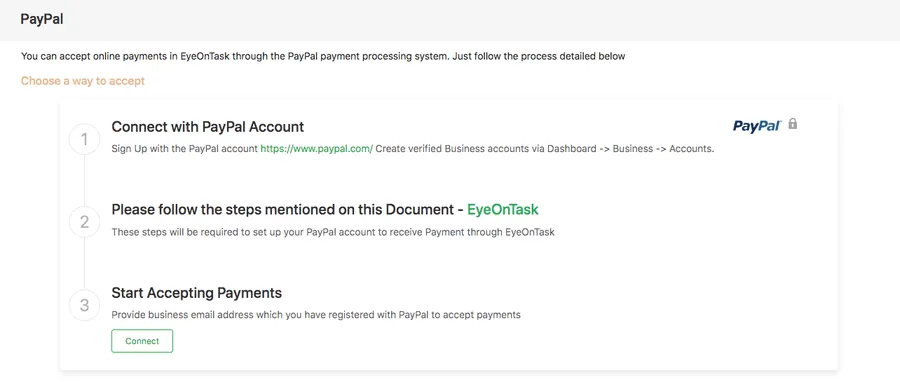
Settings → Integrations → PayPal
The page lays the job out as three steps. The first two happen at PayPal; only the third is back here.
Step 1 — a verified business account
Section titled “Step 1 — a verified business account”You need a verified PayPal Business account — a personal one will not take payments this way. Create one at paypal.com, via Dashboard → Business → Signup.
If you already have one, skip to the next step.
Step 2 — set PayPal up to talk back
Section titled “Step 2 — set PayPal up to talk back”Sign in to PayPal, click your profile name at the top right and choose Account Settings.
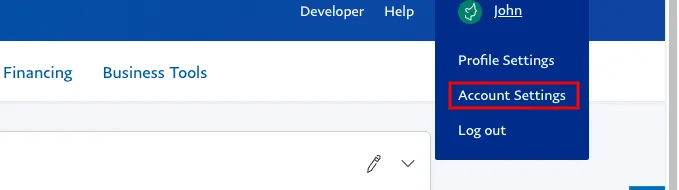
PayPal → profile → Account Settings
Auto return
Section titled “Auto return”Go to Website payments → Website preferences and update it.
Turn Auto return On and put this in the Return URL:
https://as.eyeontask.com/en/eotServices/PaypalController/paymentSuccessful
PayPal → Website preferences → Auto return
Save.
Payment data transfer
Section titled “Payment data transfer”On the same screen, set Payment data transfer to On and Block non-encrypted website payment to Off.
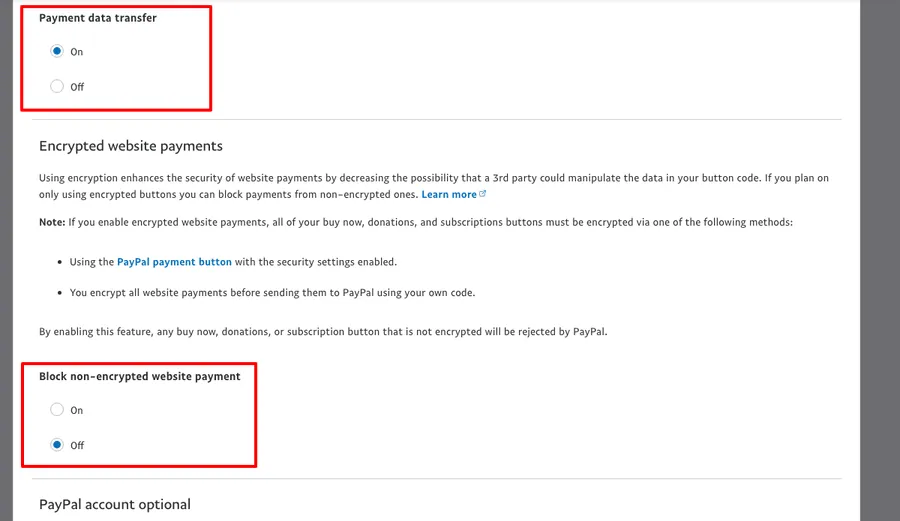
PayPal → Website preferences
Auto return brings the customer back. Payment data transfer is what carries the result with them — turning Auto return off disables it, which PayPal warns about on the screen.
Instant payment notification
Section titled “Instant payment notification”Still in Account Settings, go to Notifications → Instant payment notifications and update it, then Edit Settings.
Put this in the Notification URL, set Receive IPN messages to enabled, and Save:
https://as.eyeontask.com/en/eotServices/InvoiceController/getInvoiceEmailTemplate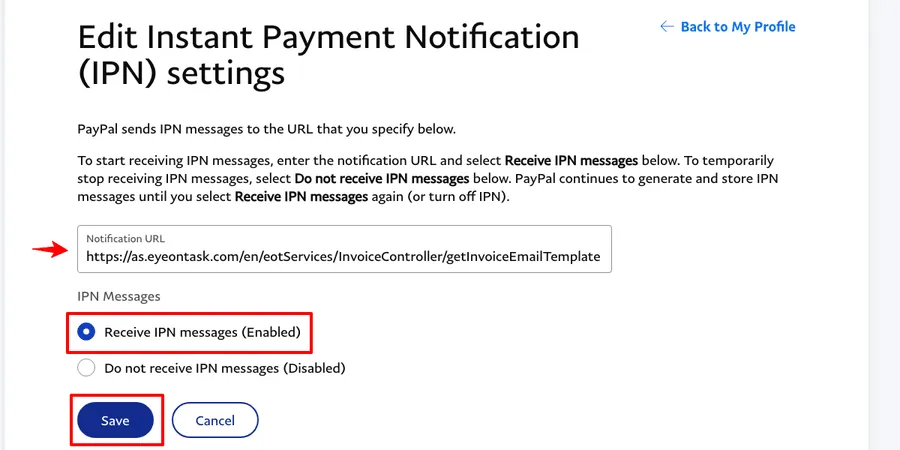
PayPal → Notifications → Instant payment notifications
IPN is the belt to auto-return’s braces: PayPal posts the payment to EyeOnTask directly, so the invoice is settled even if the customer closes the tab before being redirected back.
Step 3 — link the account
Section titled “Step 3 — link the account”Back in EyeOnTask, on the PayPal page, press Connect under Start Accepting Payments.
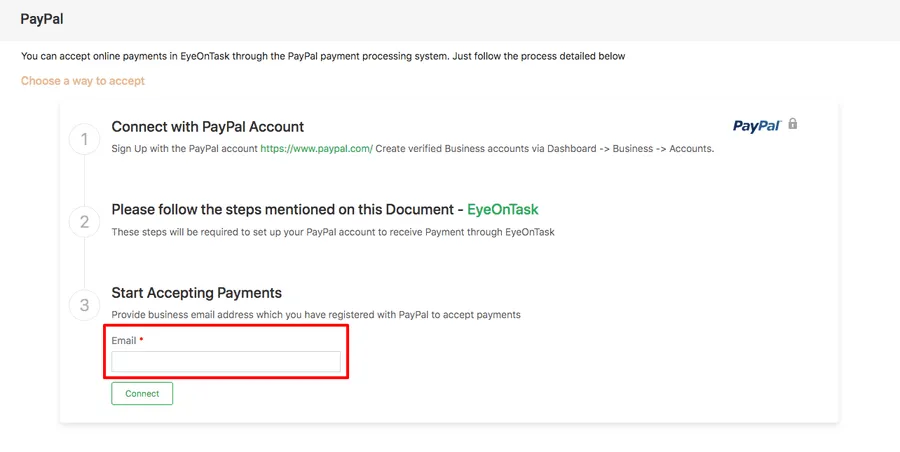
Settings → Integrations → PayPal → Start Accepting Payments
Enter the business email address registered with PayPal — this is what ties the payments back to your account. Connect finishes the job, and the card on the Integrations page then reads Connected.
What the client does
Section titled “What the client does”Once it is connected, a client with portal access signs in with their own credentials and sees a Pay Now tab against anything outstanding. Clicking it takes them to PayPal to pay.
Who gets a portal login is set per contact — see a client’s sites and contacts — and what they can see once inside is in customer portal settings.
Where to go next
Section titled “Where to go next”- Stripe integration — card payments from the invoice email instead
- Customer portal settings — what the client sees when they log in
- Invoice payments — where a PayPal payment lands once it clears
- A client’s payments — the client’s running ledger