Work settings
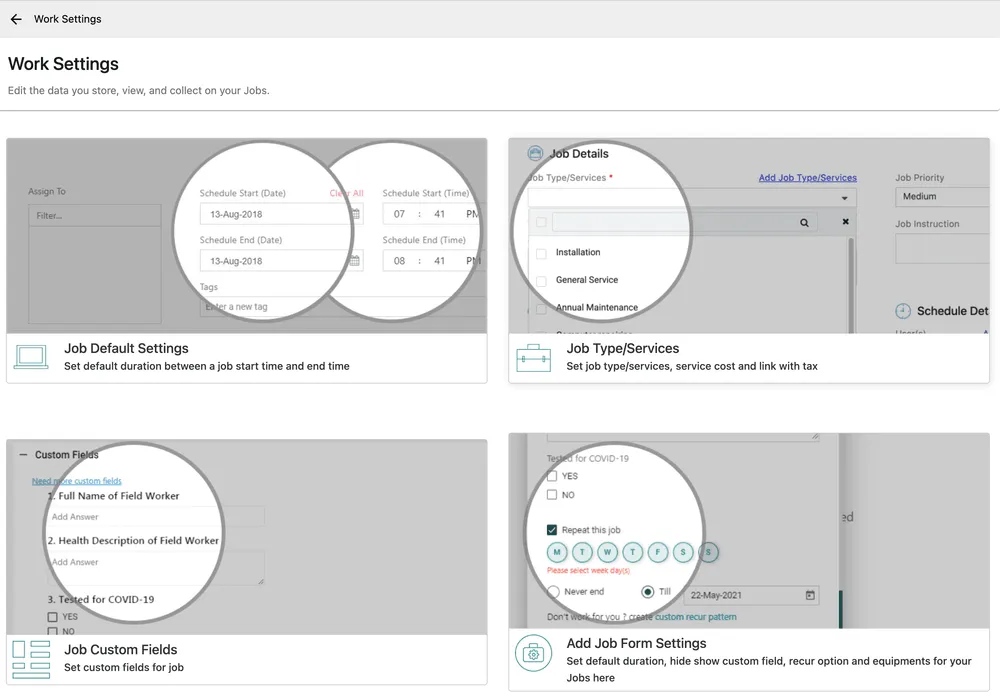
Settings → Modules → Work covers all three kinds of work EyeOnTask schedules — jobs, appointments and audits — which is why the sidebar entry reads Job, Appointment, Audit underneath it.
Settings → Modules → Work
It is the largest section in Settings, and it splits into a few separate topics:
- Job default settings — on this page, below
- Job type/services and categories — what you do, and what it costs
- Job, appointment and audit statuses — the stages work moves through
- Labour billing rates — charging for time rather than for a service
- Add job form settings — which fields the job form shows
- Job suggestions — pre-written descriptions and completion notes
- Job custom fields, covered with the rest of the custom fields
- Job completion form, covered in the job completion form
Job default settings
Section titled “Job default settings”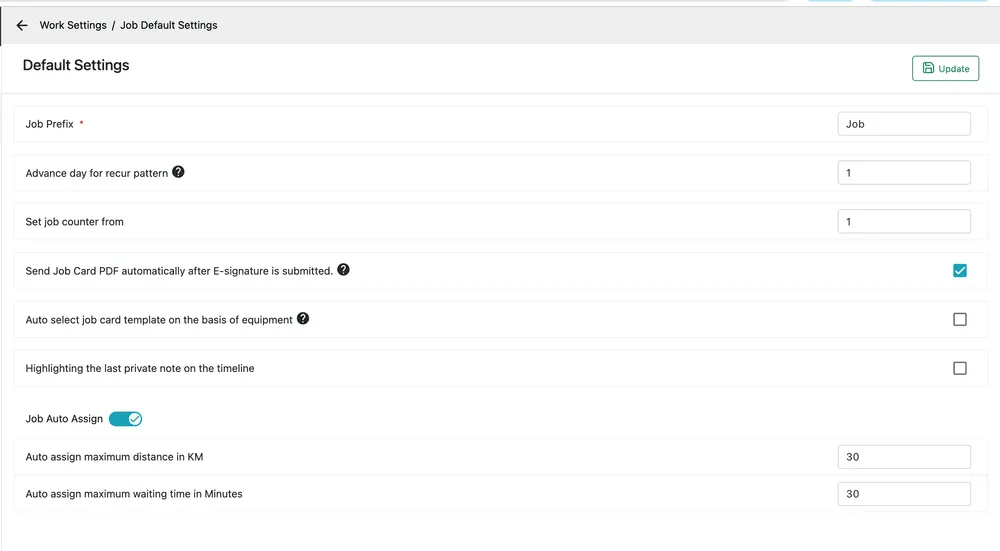
Settings → Modules → Work → Job Default Settings
| Setting | What it does |
|---|---|
| Job Prefix | The letters in front of every job number. Job gives you Job1, Job2. Required. |
| Advance day for recur pattern | How many days ahead a recurring job is generated. At 1, tomorrow’s occurrence appears today. |
| Set job counter from | The number the next job takes. Set it to carry on from the numbering you used before EyeOnTask. |
| Send Job Card PDF automatically after E-signature is submitted | On completion, once the customer has signed, the job card is emailed out without anyone pressing send. |
| Auto select job card template on the basis of equipment | Picks the job card template that matches the equipment on the job, rather than always using the default. |
| Highlighting the last private note on the timeline | Pulls the most recent internal note to the top of the job’s timeline, so it is not lost among the history. |
| Job Auto Assign | Turns automatic assignment on. Rather than choosing an engineer, EyeOnTask picks a suitable one. |
| Auto assign maximum distance in KM | How far an engineer can be from the site and still be picked. |
| Auto assign maximum waiting time in Minutes | How much idle time between their existing jobs is acceptable. |
The two auto-assign limits only matter when Job Auto Assign is on. Together they define “suitable”: near enough, and free at the right time. Set them too tight and jobs go unassigned; too loose and an engineer is sent across the county.
Update saves.

Settings → Modules → Work → Tag(s)
Free-form labels you can put on a job — High, Warranty, Needs two engineers. Unlike a job type or a category, a tag carries no rate and no behaviour; it exists to be searched and filtered on in the job list and on the scheduler.
Add Tag, type the name, Save.