How clients work
A client in EyeOnTask is the company or person you do the work for, and their record is where every job, quote, invoice, payment, contract and piece of equipment attached to them ends up.
That is the point of the module. You raise a job here, an invoice there, a contract somewhere else — and the client record gathers all of it in one place, so “what is going on with this customer?” is a question you can answer from a single screen.
Finding your clients
Section titled “Finding your clients”Clients on the main menu is the way in.
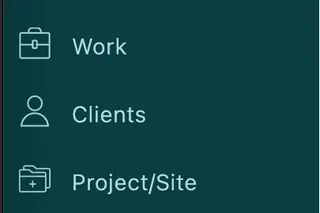
Main menu
The list runs down the left, and clicking an entry opens that client’s record alongside it, on the right. So you move between clients without ever leaving the list.
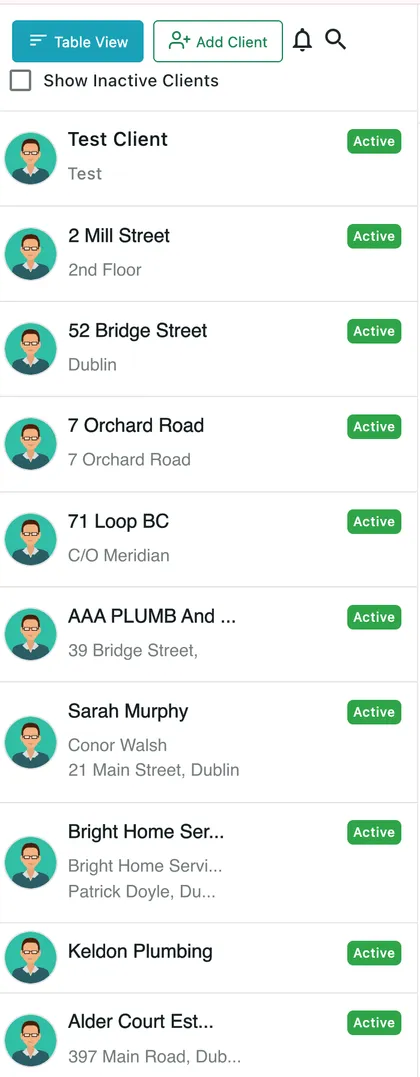
Clients → the client list
Each card carries the client’s name, up to two lines underneath it — the site, the contact, or the address, depending on what the client has — and an Active badge on the right.
Clients → list toolbar
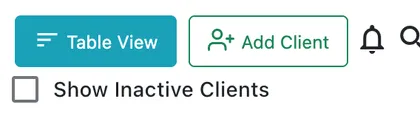
Above the list:
- Table View switches the whole page to a flat, sortable table. It is labelled with the view you are going to, so Simple View brings you back. See changing the client’s view.
- Add Client creates a new one.
- The bell shows notifications and the magnifier opens a search box over the list, narrowing it as you type.
- Show Inactive Clients is off by default, so the list is the customers you are currently trading with. Tick it to bring the dormant ones back into view — an inactive client is not deleted, just out of the way. See changing a client’s status.
The client record
Section titled “The client record”Selecting a client fills the right-hand side with their record. The header names them and carries the actions; the tab strip underneath is the client’s whole history, split by what kind of thing it is.

Clients → the selected client → header
The title is the client and their site, written Client:Site. A client with several sites shows the one you are looking at.
The buttons, from the left:
- Advance Pay takes a payment from this client before there is an invoice to put it against — a deposit. It shows up as Advance on the Overview and on the payment ledger.
- Job Sheet opens the client’s work as a printable sheet.
- Add Under This Client creates a new record already attached to them, so you never have to pick the client again.
- Edit Client reopens the client’s details — see editing a client.
- The bin removes the client. See deleting a client.
The tabs
Section titled “The tabs”Across the top of the record sits a strip of tabs. Each one answers a different question about the same client, and each is covered on its own page:
| Tab | What it holds |
|---|---|
| Overview | Who they are — contact details, address, what they owe you, and your own notes. See the client page. |
| Work History | Every job and appointment you have done for them. See a client’s work history. |
| Request History | Everything they have asked you for. See a client’s request history. |
| Quotation | Every quote raised for them, priced and with its status. See a client’s quotes and invoices. |
| Invoice | Every invoice, with what is paid and what is outstanding. See a client’s quotes and invoices. |
| Payment | The running money-in, money-out ledger. See a client’s payments. |
| Contract History | The agreements you hold with them. See a client’s contracts. |
| Equipment(s) | The units of theirs you look after. See a client’s equipment tab. |
The strip scrolls when the window is too narrow to show every tab — the ‹ and › arrows at each end move along it.
Every one of those tabs is filtered to this client already. Nothing on them needs a search to be useful; the search boxes are there for when the client has hundreds of rows, not to make the list relevant in the first place.
Sites and contacts
Section titled “Sites and contacts”A client is not always one address and one person. A property manager might have thirty buildings; a factory might have four people who can raise a job.
- Project/Site is a location under the client. Work is booked against a site, not just against the company, which is what keeps thirty buildings apart on one account.
- Contacts are the people at the client. One of them can be given a login to your customer portal.
Both live in collapsed sections at the foot of the client’s Overview tab. See sites and contacts.
Where to go next
Section titled “Where to go next”| Page | What it covers |
|---|---|
| Adding a client | The Add Client form — the fields, the mandatory ones, and what to set up next |
| The client page | The Overview tab — contact and address, billing summary, additional details and the customer portal |
| A client’s work history | The Work History tab — the job and appointment counters, the table, and its columns |
| A client’s request history | The Request History tab — what the client has asked for and where it got to |
| A client’s quotes and invoices | The Quotation and Invoice tabs — what was offered, what was billed, and what is still owed |
| A client’s payments | The Payment tab — the ledger, the running balance, and emailing a statement |
| A client’s contracts | The Contract History tab — agreements, their dates, amounts and status |
| A client’s equipment tab | The Equipment(s) tab — the units on their sites, filtered by site |
| A client’s sites and contacts | Project/Site and Contact — adding, editing and deleting each, and the default of each |
| Client actions | Editing a client, active and inactive, deleting one, and the two list views |
| Questions and troubleshooting | Clients you cannot delete, negative balances, empty tabs and portal logins |
Settings behind this module
Section titled “Settings behind this module”- Client settings — Client types, industries, custom fields and the business identification label
- Customer portal settings — What the client sees when they log in themselves