Mobile app settings
These settings apply to everyone who uses the mobile app. They are the company-wide answer to what a fieldworker sees on their phone.
They are not the same as a fieldworker’s own permissions, which are set person by person on their user record. This screen sets the ceiling; the user record narrows it further for one individual.
Settings → Mobile App.
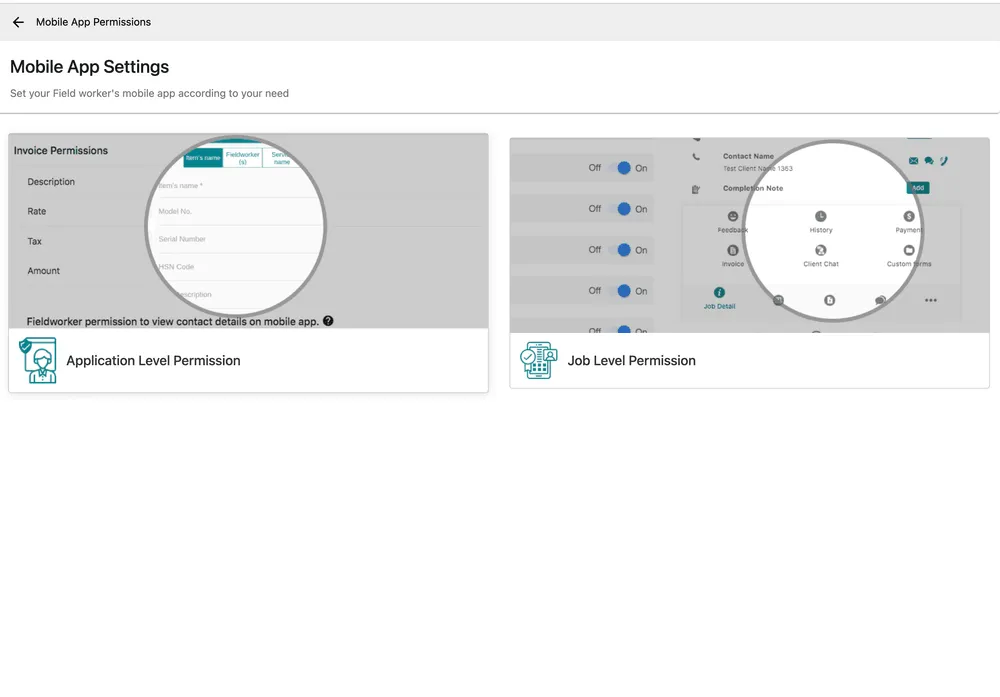
Settings → Mobile App
Application level permission
Section titled “Application level permission”Settings → Mobile App → Application Level Permission covers the app as a whole.
The job list layout
Section titled “The job list layout”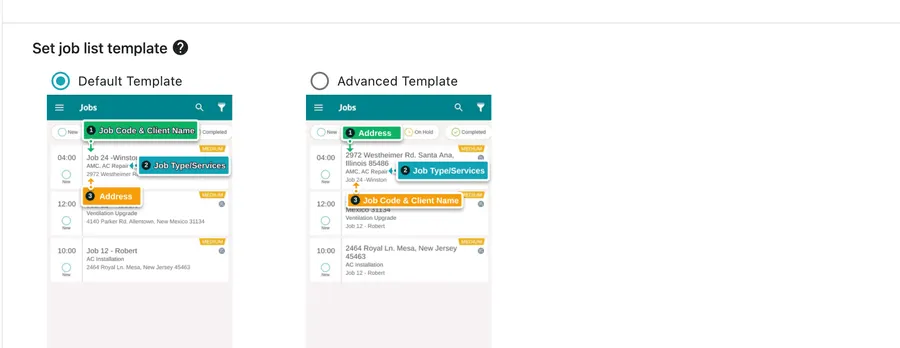
Settings → Mobile App → Application Level Permission
Set job list template decides what an engineer sees first when they open their day. Both templates carry the same three things in a different order:
| Template | Reads |
|---|---|
| Default Template | Job code and client name, then job type/services, then the address. |
| Advanced Template | The address, then job type/services, then the job code and client name. |
Pick the one that matches how your engineers work. Somebody driving between eight jobs wants the address first; somebody working through named accounts wants the client.
Item permissions
Section titled “Item permissions”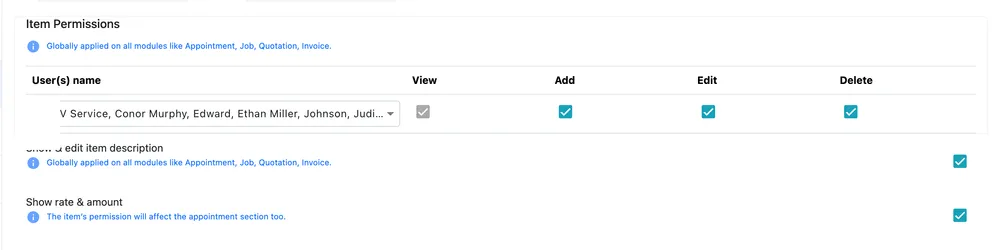
Settings → Mobile App → Application Level Permission
Item Permissions decides who can View, Add, Edit and Delete items from the app, chosen by user. As the screen says, it applies globally across appointments, jobs, quotations and invoices — it is one answer for all of them, not per module.
Two switches sit under it:
- Show & edit item description — whether an engineer can see and change the description on a line, again across every module.
- Show rate & amount — whether they see the money. This affects the appointment section too.
Show rate & amount is the one to think about. An engineer who can see rates can answer a customer’s question on the spot; an engineer who cannot will not accidentally quote a price you did not intend.
Below these sit four switches of their own:
| Switch | What it decides |
|---|---|
| Fieldworker permission to email or view job card from mobile app | Whether they can open the job card and send it themselves. |
| Fieldworker permission to view quote number on appointment details from mobile app | Whether the quote number shows on an appointment. |
| Fieldworker permission to view & apply leave from mobile app | Whether they can see their leave and request more from the phone, rather than asking the office. |
| Team Leader has permission to change all field worker’s status to complete | On a job with a crew, whether the team leader completing the job completes it for everybody, instead of each person marking their own. |
The last one is worth deciding rather than leaving. On a crew that arrives and leaves together, letting the leader close the job for all of them saves three people the same tap; where people finish at different times, their own statuses are the record of that and should stay their own.
Location tracking: accuracy and hours
Section titled “Location tracking: accuracy and hours”
Settings → Mobile App → Application Level Permission
Choose Location accuracy level for fieldworker tracking is a slider between Low Accuracy, which is easier on the battery, and High Accuracy, which is not. Higher accuracy means a position you can trust to the street rather than the neighbourhood, paid for in battery — and a phone that runs flat stops reporting altogether, so the highest setting is not automatically the best one.
Start Time and Finish Time are the hours tracking runs. Positions are recorded between them and not outside them: at the finish time tracking shuts off by itself, which is what stops the app following people home. Set them to the working day — the default is 08:00 to 20:00.
This is the first thing to check when somebody’s location is missing. Outside those hours nothing is being recorded, and opening that worker on the map says so: location capturing is not allowed at this time. Nothing is wrong with the phone; the window has simply closed.
Update saves.
Job level permission
Section titled “Job level permission”Settings → Mobile App → Job Level Permission covers what happens on one job. Its options are numbered, and the Guide Image on the right maps each number onto the app’s job screen.
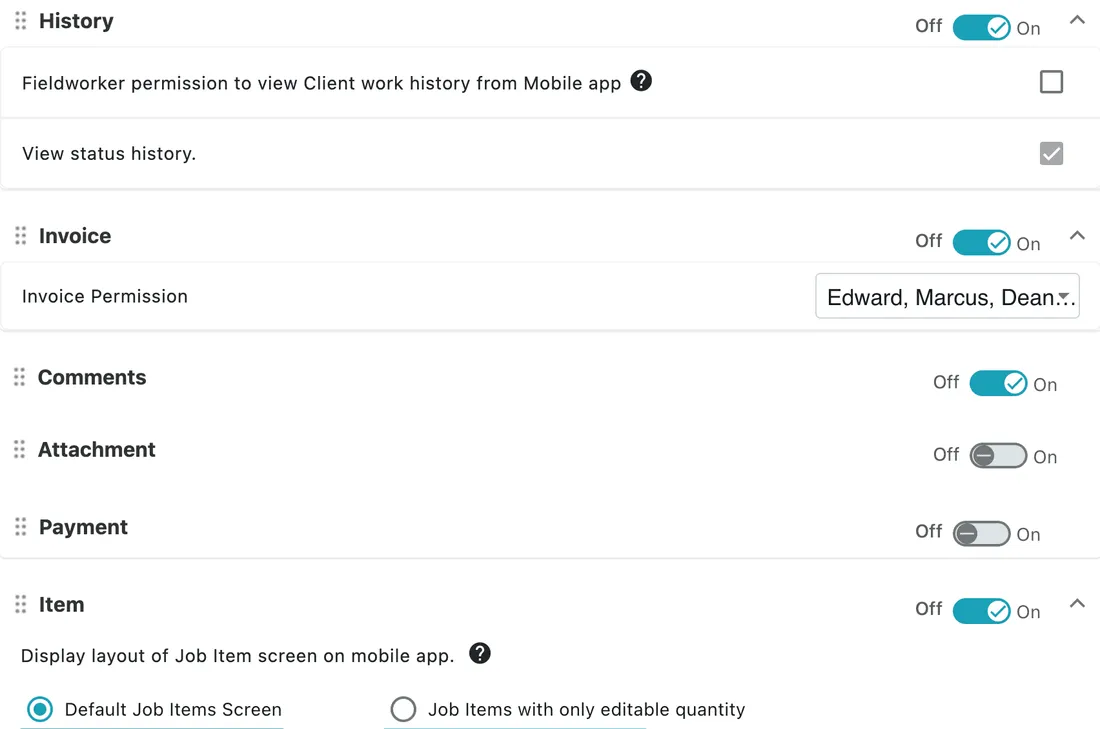
The screen is grouped by the panels of the app’s job page, and each group has its own On / Off:
Settings → Mobile App → Job Level Permission
| Group | What it governs | What is inside it |
|---|---|---|
| Job Details | The job itself | The numbered settings below |
| History | What the engineer can look back at | View Client work history — everything you have done for this client, not just this job — and View status history, the trail of statuses with their times |
| Invoice | Invoices on the job | Invoice Permission, which names the users who get them |
| Comments | Comments on the job | — |
| Attachment | The job’s attachments | — |
| Payment | Taking payment on site | — |
| Item | The job’s items and services | The layout of the item screen, below |
Turning a group off takes that panel off the phone altogether, whatever is set inside it — so a company that never bills from site turns Invoice and Payment off and stops thinking about them. Job Details is the group everything below belongs to.
Client work history is the one to think about, because it is wider than the job in front of them: an engineer with it can see every visit you have made to that client. Useful for somebody who needs to know what was tried last time; more than you may want a subcontractor to have.
The item screen layout
Section titled “The item screen layout”Display layout of Job Item screen on mobile app, inside the Item group, offers two:
- Default Job Items Screen — the full list, with each line’s price and quantity, and the tick boxes for removing them.
- Job Items with only editable quantity — the same lines with a single Qty box against each. Nothing else can be touched.
The second is for work where the parts are decided in the office and the engineer’s only job is to say how many were used. It removes the argument about who changed a price on site, at the cost of the flexibility the first one gives.
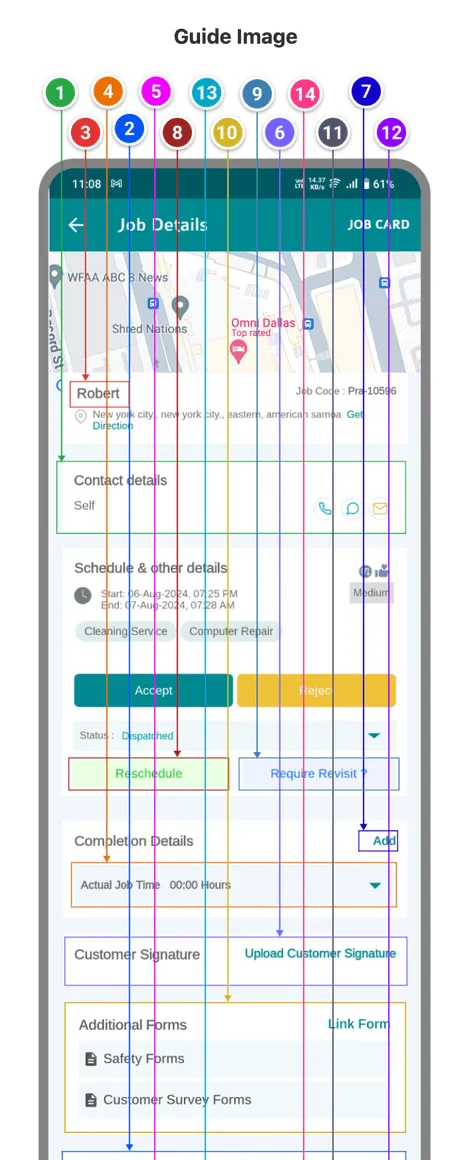
Settings → Mobile App → Job Level Permission
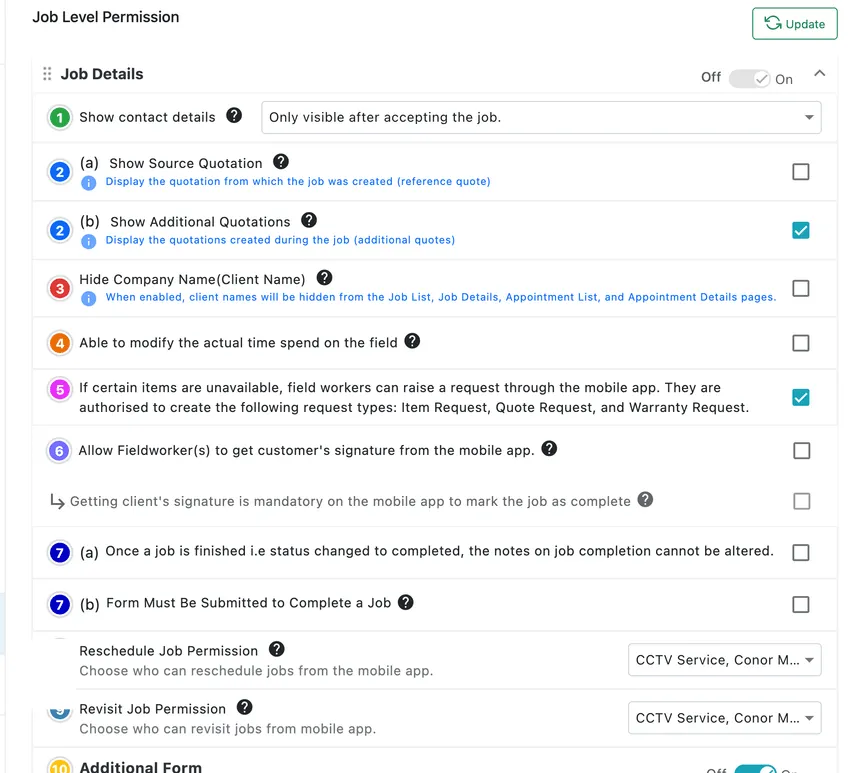
Settings → Mobile App → Job Level Permission
| # | Setting | What it does |
|---|---|---|
| 1 | Show contact details | When the client’s phone and email become visible — the shipped choice is only after accepting the job. |
| 2a | Show Source Quotation | Shows the quote the job came from. |
| 2b | Show Additional Quotations | Shows quotes raised during the job. |
| 3 | Hide Company Name (Client Name) | Hides client names from the job list, job details, appointment list and appointment details. |
| 4 | Able to modify the actual time spend on the field | Whether an engineer can correct their own recorded hours. |
| 5 | Raise a request when items are unavailable | Lets them create an Item Request, Quote Request or Warranty Request from site. |
| 6 | Allow Fieldworker(s) to get customer’s signature | And, beneath it, whether that signature is mandatory before the job can be marked complete. |
| 7a | Notes on job completion cannot be altered | Locks the completion note once the job is completed. |
| 7b | Form Must Be Submitted to Complete a Job | The additional form has to be filled in first. |
| 8 | Reschedule Job Permission | Which users can reschedule from the app. |
| 9 | Revisit Job Permission | Which users can raise a revisit. |
| 10 | Additional Form | Whether forms appear on the job at all. |
| 11 | Equipment | Whether equipment appears, whether they can see its service history, and (12) whether they can add new equipment. |
Update saves.
The ones worth deciding deliberately
Section titled “The ones worth deciding deliberately”Show contact details and Hide Company Name exist for businesses working through an intermediary, where the engineer is not supposed to have a direct line to the end customer.
Able to modify the actual time spend on the field is the difference between recorded hours being evidence and being a claim — it feeds worklog and timesheets, and from there labour billing.
Notes on job completion cannot be altered turns a completion note into a record. Worth having wherever the note is the account of what happened that a customer or an auditor later reads.