Assigning stock to fieldworkers
Stock does not only sit in the stores. Once it is loaded into a van it is still yours, but it is in someone’s hands — Inventory → Assign To is where you record that.

Inventory → Assign To
The list is grouped by person: the fieldworker’s name, then the items they are holding and how many of each. Search By UserName, Item Name finds either a person or a thing — who has the lens modules, or what a particular fieldworker is carrying.
Each fieldworker’s name has a History link beside it, which is the record of what they have been given and given back over time.
Assigning an item
Section titled “Assigning an item”Assign To, above the list, hands stock out.
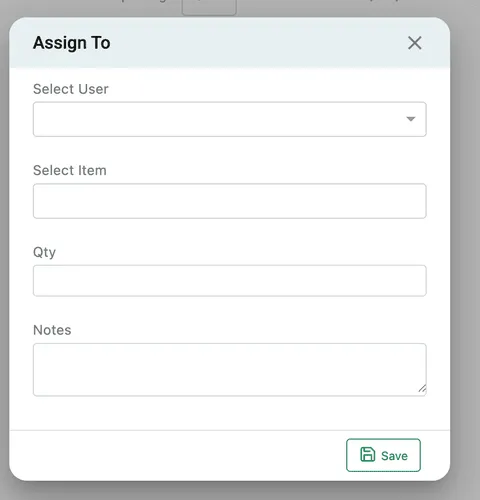
Inventory → Assign To → Assign To
- Select User — who is taking it.
- Select Item — which of your inventory items.
- Qty — how many.
- Notes — why, or which job it is for.
Save records the assignment, and the item appears under that person on the list.
Assigning an item takes it out of Stock on Hand. The van is not the stores: once the fieldworker has it, it is genuinely no longer on your shelf, and the count reflects that. It comes back when the item is returned. See managing stock.
That is also why the app has a tick box for it. When a fieldworker fits a part from their own van, Adjust it with my stock on the Add Item screen takes it off what they are holding rather than off the warehouse — which is what keeps this list honest between one assignment and the next. See adding items in the app.
Moving and returning
Section titled “Moving and returning”Two actions sit on every assigned line:
- Move To passes the items to a different fieldworker, for when one van covers another’s job.
- Return takes them back off that person.
Both are recorded, so the History against a fieldworker is a full account of what they were given, what they passed on and what came back.