Dispatching a job
Creating a job and sending it out are two different things. Dispatch is what puts the job on the assigned fieldworker’s phone. Until then the job sits at Not Dispatched, and a non-dispatched job is hidden from both the mobile app and the client portal — it exists in the office and nowhere else.
That gap is deliberate. It lets you build next week’s work, move it around, reassign it and price it while nobody outside the office is acting on it yet.
Dispatching
Section titled “Dispatching”There are three places it happens:
- When you create the job. The Dispatch tick box in the footer of the Create New form is on by default, so a job saved as it stands goes out immediately. Untick it to hold the job back. See creating a job.
- From the job page. The Dispatched control in the Schedule & Assign card sends a held job out.
- From the Scheduler, where undispatched jobs can be found and sent in a batch — the usual way to release a whole day’s work at once.
To find what is still sitting with you, filter the jobs list by status. See finding and filtering jobs.
What the fieldworker gets
Section titled “What the fieldworker gets”Dispatching pushes a notification to the EyeOnTask app on the assigned fieldworker’s phone.
Until then, the job is only planning. Assigning a name and a time does not reach anybody — no notification goes out, and moving the job or handing it to someone else changes nothing on any phone. From dispatch onward, every change to the time or the fieldworker is sent to them. Opening it gives them the whole job — client, site and address, the contact to ask for, the job type, description and instructions, the equipment to work on, the tools to bring, and the items already in the cart.
Everyone on the job is notified, not just the team leader. Where two or three people are assigned, the job is on all their phones and the notification goes to all of them — and it works the same way afterwards: reschedule a dispatched job and every assigned fieldworker is told, so nobody turns up at the old time because the message went to somebody else.
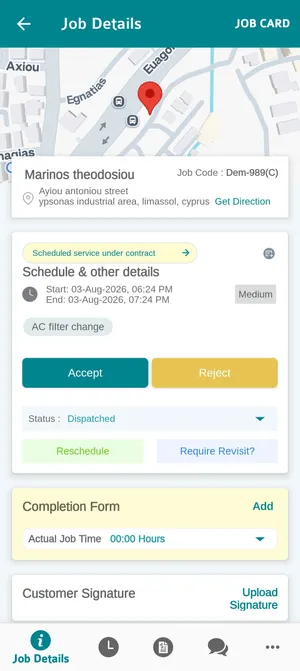
The app → a dispatched job
The first thing they do with it is Accept or Reject, which lands back here as the job’s status — an accepted job is one somebody has taken responsibility for, and a rejected one is your cue to reassign it.
That step is optional. If your engineers should simply start the work they were given, hide the Accepted and Reject statuses from the app and the two buttons go with them — the same is true of Travelling and Travel Break if you do not time travel. See choosing which statuses the app shows.
From there they work through it on the phone: start it on arrival, and finish it when the work is done. They record what they found, add photos, fill in any additional form attached to the job type, and take the client’s signature. See a job in the app for the screen they are working from.
Watching it from the office
Section titled “Watching it from the office”Everything the fieldworker does reflects back onto the job here, while it is happening.
Status moves as they go — Dispatched, Accepted, Travelling, In Progress, Completed — on the job page and in the list, so the list doubles as a live picture of the day. Where several people are on one job and they are not all at the same stage, the job shows Multi Status. See job statuses.
Actual Time (On the Field) on the Overview replaces its “job not started yet” message with the real times once work begins — when they started, when they finished, and how long they were there, as against the window you scheduled.
Travel time is recorded separately from working time, so the hour spent driving is not counted as an hour spent fixing. Both are visible on completion detail and both can be corrected there.
View On Map on the site card puts the job’s location on the map along with the fieldworkers near it, which answers the “who can get there fastest?” question when something urgent comes in. See the map.
Talking to the fieldworker while the job runs
Section titled “Talking to the fieldworker while the job runs”Message to Fieldworker in the Job Action menu opens a conversation attached to this job — not a general chat, but a thread about this piece of work, so the answer to “did you take the spare capacitor?” stays with the job it belongs to.
The same window sends to the client instead — for “we’re running twenty minutes late” — by changing its Message Visibility. See job actions.
When the job comes back
Section titled “When the job comes back”Once the fieldworker completes the job, the report they filled in appears on the Completion Detail tab: notes, per-equipment condition and remarks, photos, times, and the client’s signature. That is the point at which the job is ready to be invoiced and the job card sent out.