How contracts work
A contract in EyeOnTask is a service agreement with one client, running for a fixed term — the same thing you would sign in real life for an AMC on a piece of equipment, or a daily office cleaning arrangement.
What makes it more than a folder of jobs is that it bundles four things that would otherwise be managed separately: the schedule of work, the jobs that schedule produces, the prices those jobs bill at, and the invoices the client receives.
This page is the starting point: what a contract is, what it holds, and how to find and manage one. The pages listed under where to go next cover each part in detail.
Contracts are an Advance plan feature. See plans and pricing.
The contract types
Section titled “The contract types”Which type you pick decides where the recurring money comes from, and the wizard changes to match.

Add Contract → Contract Details
- Fixed Price / Service Based — you are servicing the client. This is the AMC, the cleaning agreement, the camera maintenance contract. It is one type, not two: a recurring fee with an empty rate card gives you a fixed price with the work included, rate card entries with no recurring fee give you charge-per-service, and the two together give you a fee that covers a set amount of work with the rest billed on top.
- Equipment Leasing — you are renting your own assets to the client. The recurring money is the rent on those assets.
- Time Based — billing for actual effort or attendance, with overtime tracking. This one is coming soon: it is listed so you can see it, but cannot be chosen yet.
Both of the usable types share the same foundations — the term, the invoicing rhythm, rate cards, work patterns. What differs is where the recurring money comes from, so each has its own page: fixed price and service based and equipment leasing.
Alongside the type, the same first step carries the name and category, a description, the term, and any tags:
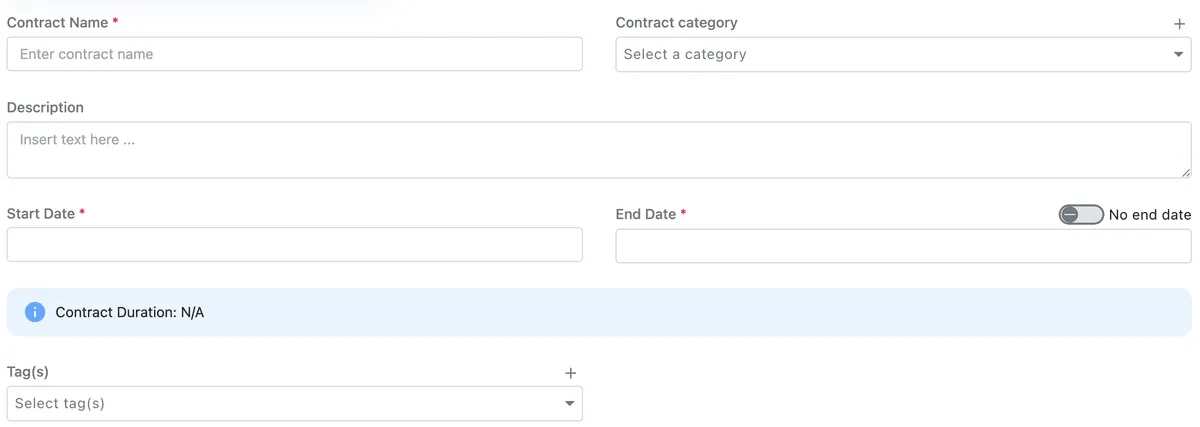
Add Contract → Contract Details
The name is yours to choose and yours to change later — Edit Contract comes back to this step, and renaming an agreement affects nothing else, since other records refer to it by its Contract Code. That code is assigned by EyeOnTask and cannot be edited.
Start Date is the field that brings a contract to life — until it is set, there is no end date to work out and no schedule to lay down. Turn on No end date for an open-ended agreement; otherwise the duration is calculated for you and shown beneath the dates.
What a contract holds together
Section titled “What a contract holds together”A contract sits in the middle of a chain. An approved quotation can become the contract; the contract’s work pattern generates jobs; those jobs feed the invoices.

Contract page → Overview tab
That strip is the timeline, and it is not specific to contracts — the same trail appears on a request, a quote and a job as well. Wherever you open it, it answers the same question: what happened, in order, and what was created from what.
Inside a contract you define:
- The term — the start and end dates it runs between.
- The client and site the work is for.
- Billing terms — how often you invoice, and how much.
- Rate cards — which services and inventory items this contract can charge for, at what rate, and how much of each is included free.
- Equipment — the assets the contract covers: the client’s, if you are servicing them, or your own, if you are leasing them out.
- Work patterns — the repeating schedule that creates the jobs.
The term
Section titled “The term”
Contract page → Overview tab
Contracts typically run for six months or a year. When one reaches its end date you renew it into a fresh term rather than rebuilding it from scratch.
Scope of work and terms
Section titled “Scope of work and terms”Alongside the commercial terms, a contract carries the written detail — what you have agreed to do, and on what conditions.
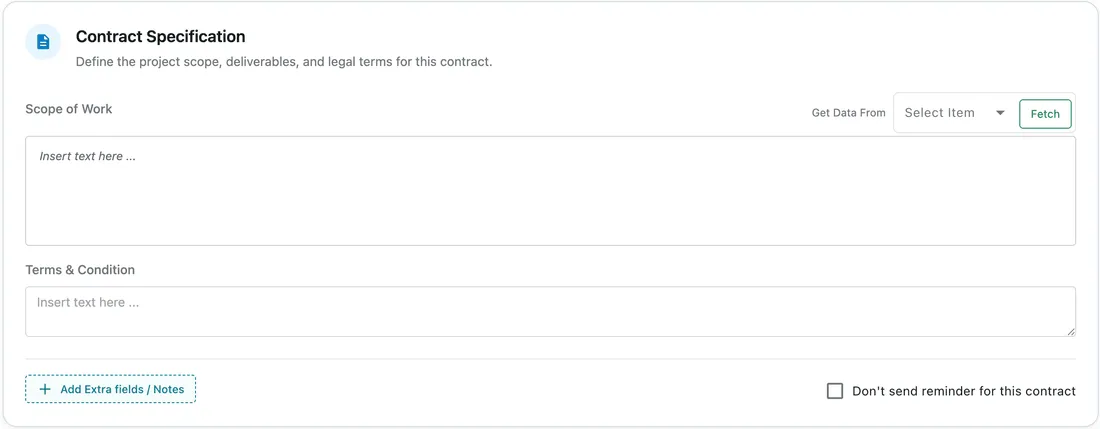
Add Contract → Contract Specification
- Scope of Work — what the agreement actually covers. Rather than retyping it for every contract, Get Data From lets you pick an existing source and Fetch its text straight into the box.
- Terms & Condition — the conditions attached to the agreement.
- Add Extra fields / Notes — anything else this particular client needs recorded.
- Don’t send reminder for this contract — stops the reminders this contract would otherwise generate, for agreements you would rather keep an eye on yourself.
This is the text that flows into the client-facing document below.
The signed agreement
Section titled “The signed agreement”Everything you define here can be rendered into a service-agreement document that you preview, print, or email to the client — including for e-signature, with the signed copy coming back onto the contract.
That is covered in full in the contract document and e-signature.
Finding your contracts
Section titled “Finding your contracts”Contracts on the main menu is the way in:
Main menu
The list opens with two tabs: Contract for live agreements, and Pre Drafted Contract for the reusable blueprints described in predrafted contracts and packages.
Simple View and Table View switch how the list is drawn. The table adds columns for amount, remaining amount, dates, status, invoice type, contract type and work pattern, and lets you search and filter across them:
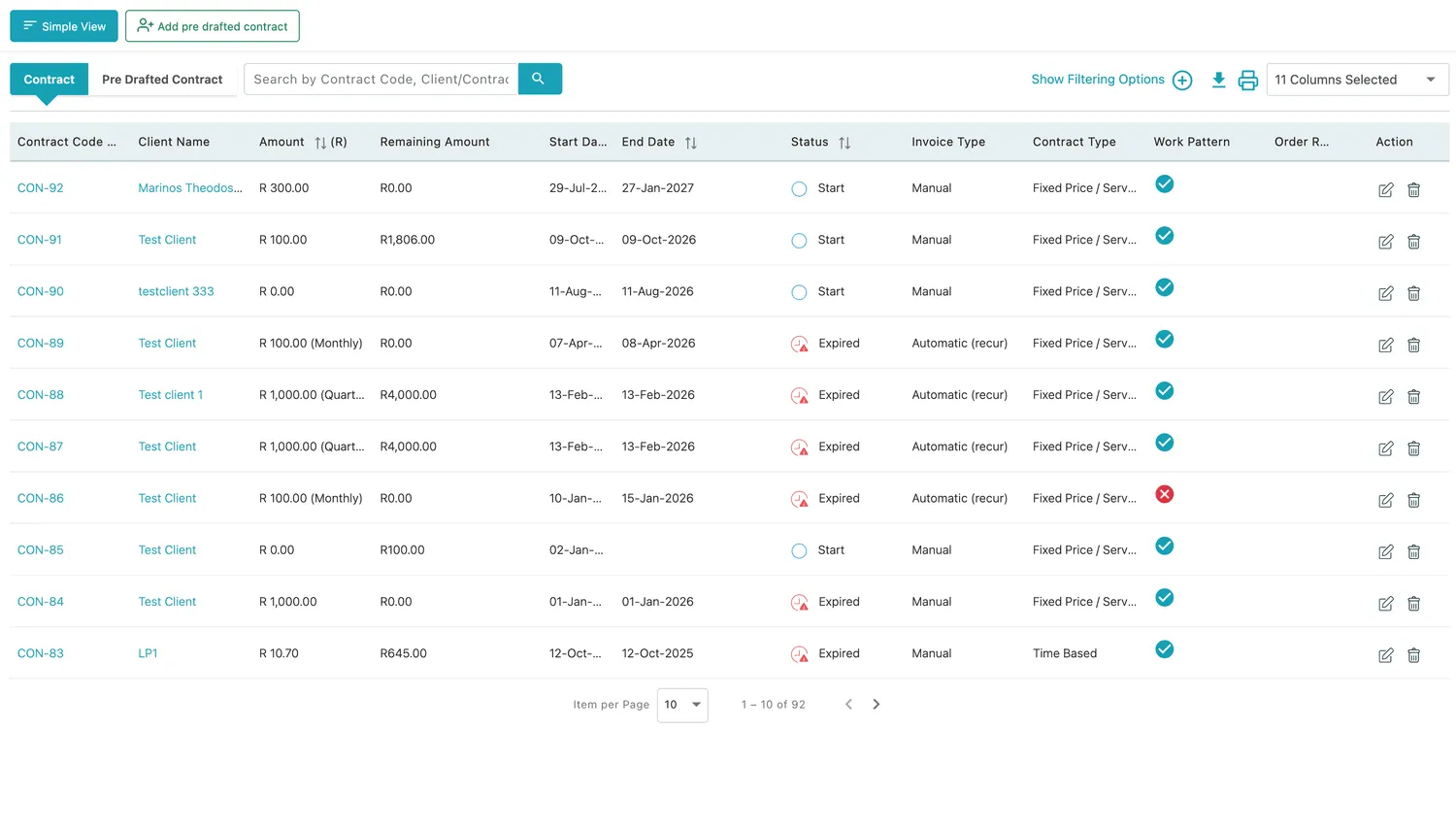
Contracts → Table View
The button that creates a new contract sits in the same place in both views.
Reading a contract
Section titled “Reading a contract”Opening a contract always gives you the same page: the timeline across the top, the agreement’s details down the left, and billing on the right.
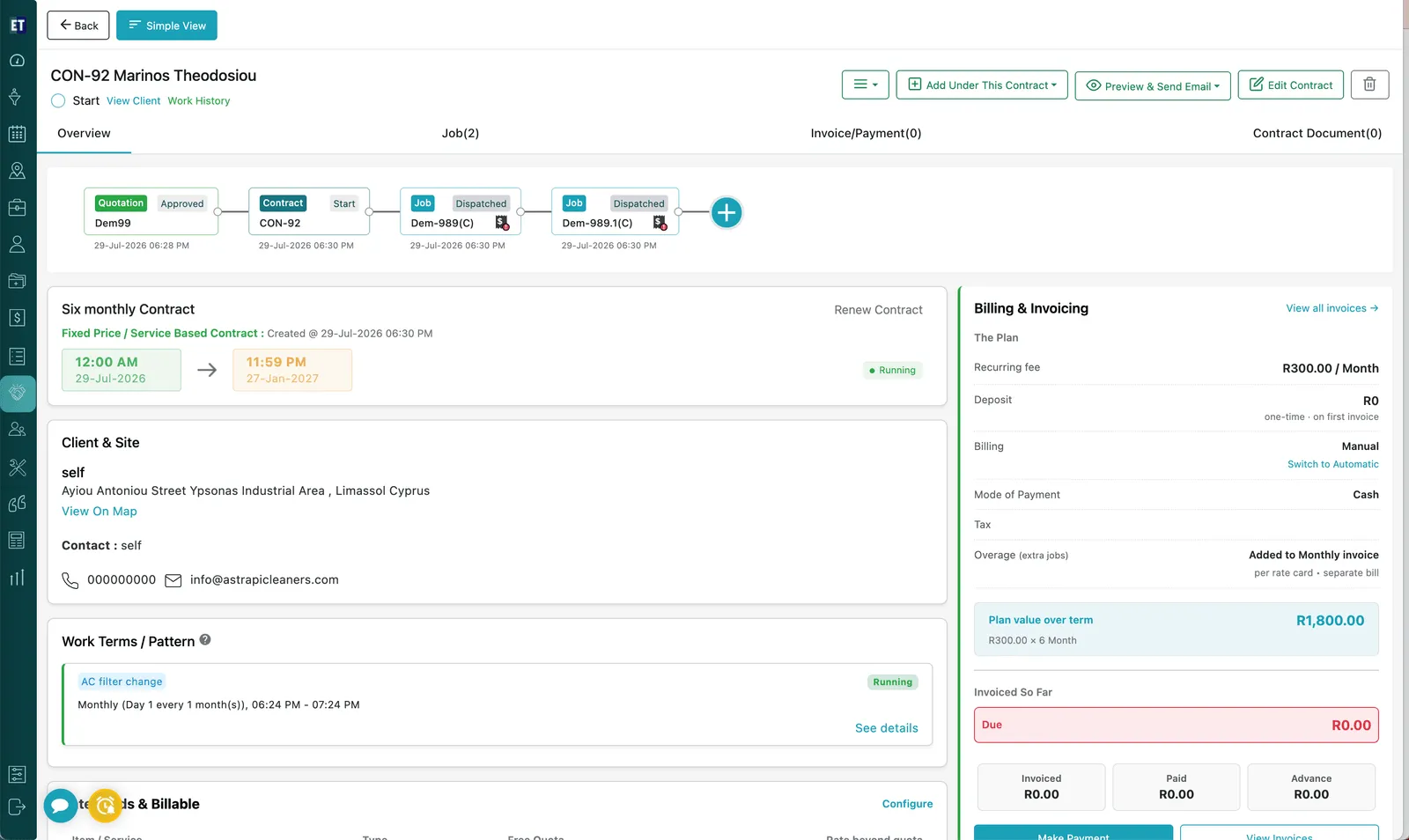
Contract page, full view
The tabs separate the contract itself from the work and money under it:

Contract page → tabs
The action buttons across the top are how you add to, reuse, or send the contract:

Contract page → action bar
Add Under This Contract creates work that belongs to this agreement:
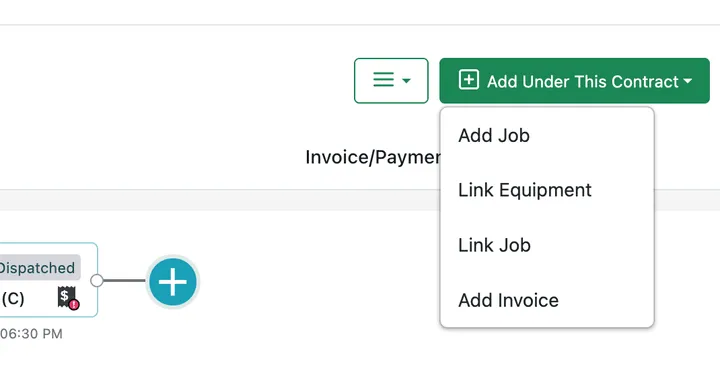
Contract page → Add Under This Contract
And the ≡ menu handles reuse at the end of a term:
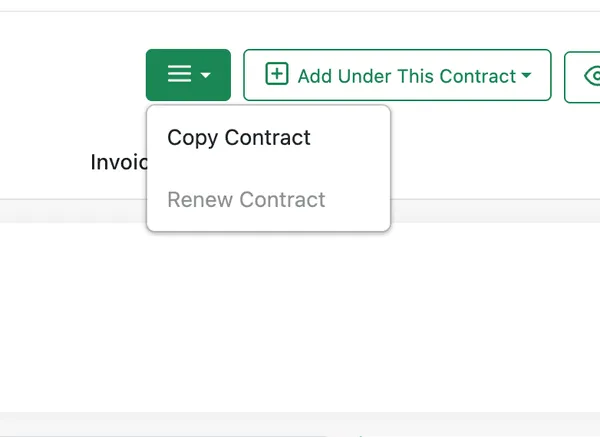
Contract page → ≡ menu
Further down, the supporting detail is collapsed into sections you can open as needed — scope of work, custom fields, terms, and the photos your fieldworkers captured on the job.
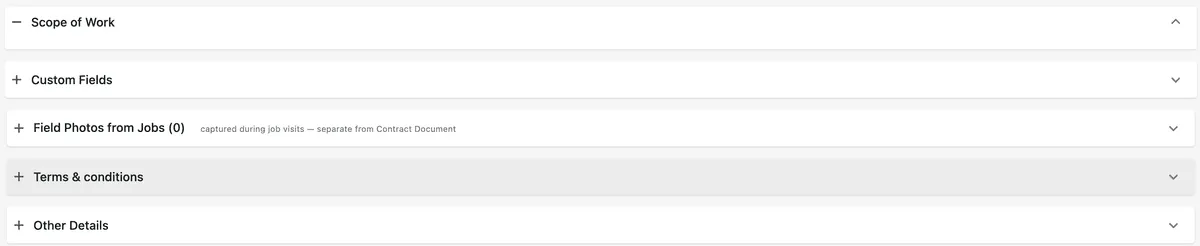
Contract page → Overview tab, lower sections
Note that Field Photos from Jobs are the pictures taken out in the field, which is a different thing from the Contract Document tab — that holds the agreement file itself.
Lifecycle
Section titled “Lifecycle”A contract moves from Draft to Running and finally to Expired, and it makes that last move by itself: when the End Date passes, the status becomes Expired with nobody having to mark it. At that point you can Renew it into a new term, or Copy it to start a similar agreement for someone else.
An expired contract still takes work, but only from its own page: Add Under This Contract goes on raising jobs against it. From the other direction it has gone — start a job on the scheduler or under Work and the Contract dropdown offers running contracts only, so an expired one cannot be picked there.
What ends with the term is the recurring work: work patterns raise no further jobs, because pattern dates follow the contract’s own dates. Everything else carries on — jobs the pattern already scheduled stay on the calendar and run as planned, and one added by hand afterwards is an ordinary job on that contract, priced off the rate card at the contract rate.
Cancelling a contract
Section titled “Cancelling a contract”Cancelled is a status and nothing more. Setting it marks the agreement as finished in your own records; it performs no action on anything underneath.
The contract’s jobs stay exactly as they are — what is scheduled stays scheduled, what was done stays done, and nothing is withdrawn, closed or deleted on the back of the status change. Nothing is raised either.
So cancelling is a label for your own reading of the list, not a switch that stops the work. If the work should actually stop, deal with it yourself: close off or delete the jobs that are not going to happen, and stop the work pattern that would otherwise go on scheduling more.
Renewing an expired contract
Section titled “Renewing an expired contract”- Open the contract — from Contracts in the main menu, or from the client’s Contract History, where reading down the End Date column is the quickest way to find the ones that have run out.
- Press the ≡ menu in the action bar at the top right of the contract page.
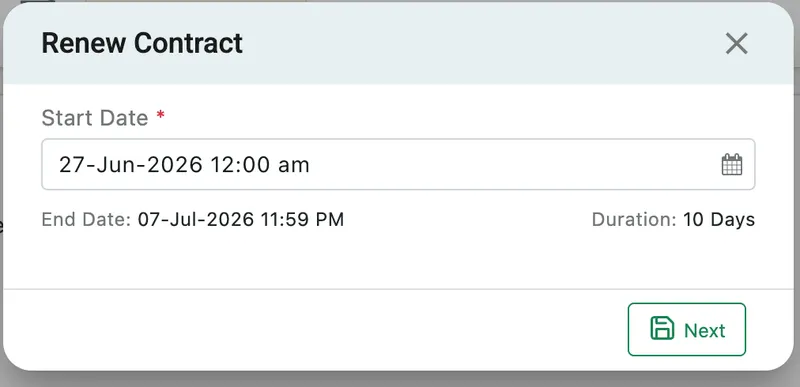
- Choose Renew Contract. A small dialog opens asking for one thing: the Start Date of the new term.
- Pick the date, and press Next.
Contract page → ≡ menu → Renew Contract
The dialog works the rest out for you. Underneath the date it shows the End Date and the Duration it has derived — End Date: 07-Jul-2026 11:59 PM · Duration: 10 Days — because the new term is the same length as the one that just ended. Change the start date and both update.
You are not taken back through the wizard. The renewal carries the same rate card and the same work patterns as the term before it.
Renew Contract only works once the contract has expired. On a contract that is still running it is greyed out in the menu, as in the picture above — there is nothing to renew until the term is over. To start a second agreement while the first is live, use Copy Contract instead.
A renewal is a fresh contract, not a continuation. It carries the same terms across — the fee, the rate card, the work patterns — but nothing else comes with it. Free quotas start again from zero, and used quota, balances and history stay with the term that ended. So a contract that included four service visits a year gives another four on renewal, not whatever was left over.
Because it is a fresh contract, the renewal is the moment to change anything the last term taught you — a rate that was too low, a quota nobody used, a work pattern on the wrong cadence. The renewal is created with everything already carried over, so open it with Edit Contract afterwards and adjust what needs adjusting; you are editing rather than rebuilding.
Copy against renew
Section titled “Copy against renew”| Renew Contract | Copy Contract | |
|---|---|---|
| When | The term has ended | Any time |
| For | The same client, carrying on | Usually a different client, or a second agreement |
| Available | Only on an Expired contract | Always |
Both produce a new contract with the terms already filled in. The difference is what you are saying: a renewal continues a relationship, a copy starts one.
While it is running, Edit Contract reopens the same wizard with everything filled in, so you can change the terms, rates, equipment or work patterns without starting over. The delete icon beside it removes the contract, and asks you to confirm before it does.
Where to go next
Section titled “Where to go next”| Page | What it covers |
|---|---|
| Fixed price and service based contracts | The recurring fee, the rate card that decides what can be charged, free quotas and overage, with worked examples |
| Equipment leasing contracts | Renting out your own assets — per-asset or custom rent, flat versus usage-based rates |
| Work patterns | The repeating schedule that creates a contract’s jobs |
| Equipment on a contract | Servicing a client’s equipment versus leasing out your own |
| Jobs under a contract | How work reaches a contract, and what makes a job billable |
| Invoicing a contract | Automatic and manual invoicing, and Fetch & Link |
| Predrafted contracts and packages | Reusable blueprints, and selling them as packages on a quote |
| The contract document and e-signature | Generating the service agreement, sending it, and getting it signed |
| Questions and troubleshooting | Why a job didn’t bill, what resets on renewal, and other common sticking points |
Settings behind this module
Section titled “Settings behind this module”- Contract settings — Numbering, automatic PDF delivery and contract categories