Current and projected stock
Current and projected stock is the ordering question: what do I hold, what is already promised, and will there be enough.
It is the Stock Information card from an item page — Stock on Hand, Reserve Stock, Projected Stock — laid out for every item at once, with a low stock status against each.
Open it from Add Report — see generating a report.
What it asks for
Section titled “What it asks for”
Reports → Current and projected stock
- As of date — required. The day to read the stock at.
- Include jobs upto — how far forward to look for work that will consume stock: Next 7 Days, and the other ranges. This is what makes the projection a projection.
- Show — all items, or a narrower set.
- Show Column — which of the columns below to carry.
Unlike the Stock Movement report, this one is dated on job schedule dates. It has to be: the question is about work that has not happened yet, and the only date such work has is the day it is booked for.
What comes back
Section titled “What comes back”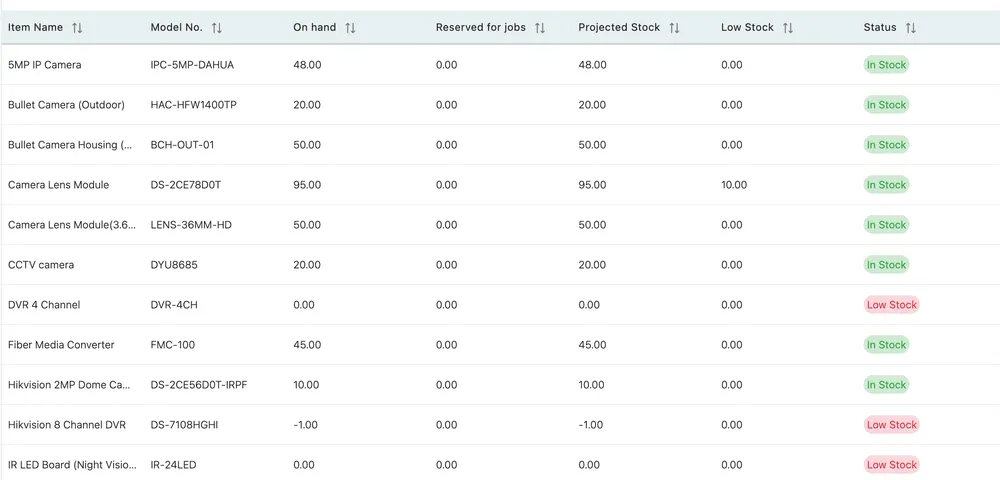
Reports → Current and projected stock
| Column | What it holds |
|---|---|
| Item Name and Model No. | The item. |
| On hand | What you are physically holding. The count on the shelf. |
| Reserved for jobs | How many of those are already committed to booked work inside the window you set. |
| Projected Stock | What is left once that work has taken what it needs — on hand − reserved. |
| Low Stock | The threshold set on the item, in its Low Stock field. |
| Status | In Stock or Low Stock, from the projected figure against that threshold. |
Reading it
Section titled “Reading it”Projected Stock is the column to order from, not On hand. An item with twelve on the shelf and ten promised to next week’s jobs has two, and ordering against the twelve is how a job gets to site without its part.
Widening Include jobs upto shows you further out and pulls more work into Reserved, so the same item reads differently over a week and over a month. Set it to how long your supplier actually takes to deliver: if a part takes three weeks to arrive, a seven-day window tells you about a problem you can no longer prevent.
Thresholds and what Status is worth
Section titled “Thresholds and what Status is worth”Status compares the projected figure against the item’s Low Stock threshold, and it is only as useful as the thresholds behind it.
An item with no threshold set has one of zero, so it reads Low Stock as soon as it is empty — which is true, but it means every item you do not stock and never intended to stock sits in the list in red alongside the ones that matter. A screen of red is a screen nobody reads.
So the threshold is the work. Set it on the items you genuinely keep, at the level you want to reorder at, and let the rest sit at zero — see adding an inventory item. The report earns its place once Low Stock means “order this”, rather than “this is empty”.
Stock that is out with your fieldworkers
Section titled “Stock that is out with your fieldworkers”On hand is what is in the stores. Stock assigned to a fieldworker has already left it — assigning an item takes it out of Stock on Hand, because it is genuinely no longer on your shelf.
That is worth knowing before ordering against this report. A part showing zero here may be sitting in somebody’s van. Check Inventory → Assign To for what your people are holding before raising a purchase order for something you already own.
Related
Section titled “Related”- Managing stock — what Stock on Hand, Reserve Stock and Projected Stock each mean.
- Assigning stock to fieldworkers — stock held away from the stores.
- Purchase orders — ordering what the report says you are short of.