A user's expenses and leave
Two things follow a person around rather than a job: what they spent, and when they were not there. Both sit on their record.
Expenses
Section titled “Expenses”The Expenses tab is every claim this person has made.
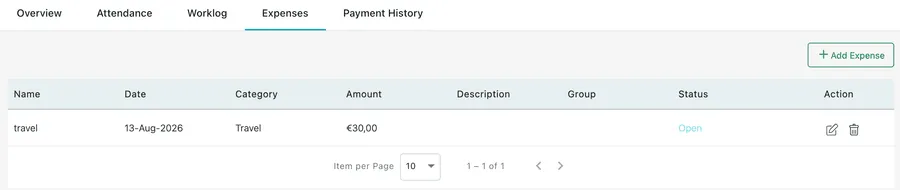
Users → a user → Expenses
Each row is one claim — its name, the date it was spent, its category, the amount, any description, the group it belongs to and its status. The pencil opens it and the bin deletes it.
Add Expense, in the corner, logs a claim for this person without going near the Expenses module — for the receipt they left on your desk, or the day they had no signal. See adding an expense.
A claim starts as Open and is worked through to Paid, which means the company has reimbursed the person. The whole path, and who approves what, is in approving and paying an expense.
Claims for a period can be paid with that period’s salary rather than separately — the Expenses tick box on the attendance salary panel folds them into the calculated figure.
Most claims never get typed here at all. Fieldworkers log them as they spend, on the phone, with a photograph of the receipt attached — see expenses and leave in the app.
Leave, on the Overview tab, is this person’s time off. The chevron opens it and Add Leave books some.

Users → a user → Overview
Booking leave takes the leave type, the dates and times it runs between, and a reason. Leave can be an afternoon or a fortnight, which is why both ends carry a time.
Leave the person asked for themselves shows here too, and this is one of the two places you approve or reject it — the other being the leave itself on the scheduler. Until it is rejected the absence is on the board either way, so a request that is never going to be granted is worth rejecting rather than leaving to sit: while it stands, the day looks taken.
Leave is not only a record. It reaches the scheduler as an absence, so the person is not scheduled into a day they were never going to work, and it reaches the salary calculation as No. of paid leave(s), so days off that are still paid count as worked.
Fieldworkers ask for their own leave from the app, under User leaves, and what they ask for arrives here — see expenses and leave in the app.