Tax Report
Tax Report is the tax that has passed through the business over a period: what you charged your clients, and what your suppliers charged you.
Every other money report shows totals with the tax quietly folded in. This one pulls it back out, line by line.
Open it from Add Report — see generating a report.
What it asks for
Section titled “What it asks for”
Reports → Tax Report
Two filters are required, and both carry the red asterisk:
- Date Range — the period.
- Tax Applied On — Invoice or Purchase Order. This is the report’s most important control, and there is more on it below.
The rest narrow:
- Payment Status — whether to count everything raised, or only what has actually been settled.
- Tax — a single tax rate, where the account has more than one. Rates are set up in company tax settings.
- Show Column — which of the six columns to carry.
Invoice or Purchase Order — run it twice
Section titled “Invoice or Purchase Order — run it twice”Tax Applied On decides which direction of tax you are looking at, and the two are not alternatives. They are two halves of the same question.
- Invoice is the tax you charged. It came in with your clients’ payments and it is not yours; you are holding it.
- Purchase Order is the tax you paid to suppliers on what you bought.
So the report is normally run twice for a period, once each way. The gap between them is the shape of what the business owes — your accountant will tell you which of the two figures the return actually wants, and on what basis.
Payment Status matters for the same reason. A business accounting on what it has invoiced wants the unfiltered figure; one accounting on what it has actually received wants it narrowed to paid. The two give different answers for the same month, and both are correct under their own rules.
What comes back
Section titled “What comes back”
Reports → Tax Report
Three totals head the report, and they close: excluding tax plus total tax equals including tax. If you are transcribing figures onto a return, that is the arithmetic to check them against.
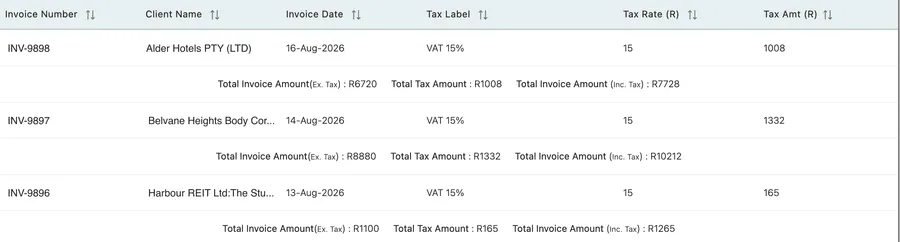
Reports → Tax Report
| Column | What it holds |
|---|---|
| Invoice Number | The document the tax sits on. |
| Client Name | Who it was billed to. |
| Invoice Date | When it was raised. |
| Tax Label | The rate as it is named in your settings, such as VAT 15%. |
| Tax Rate | The percentage applied. |
| Tax Amt | What that came to on this document. |
Under each row sits its own line giving Total Invoice Amount (Ex. Tax), Total Tax Amount and Total Invoice Amount (Inc. Tax) — the same three figures as the report’s totals, for that one document. It is what makes a single line checkable without opening the invoice.
Reading it
Section titled “Reading it”The label is the thing to watch, not the rate. A period that returns more than one Tax Label is worth stopping on. Sometimes that is correct — zero-rated and standard-rated work in the same month. Sometimes it means a rate was picked by hand on one invoice and the wrong one stuck. Filter by Tax to isolate each and see how much sits under it.
A missing line is the harder problem. An invoice raised with no tax on it at all will not appear here, and nothing on this screen will tell you it is absent. If the total looks light for the month, the answer is on the Invoice Report, where every invoice appears whether it carries tax or not.
Related
Section titled “Related”- Company tax settings — where rates and labels are defined.
- Invoice line items — how tax is applied to a line.
- Purchase orders — the other side of the report.
- Invoice Report — every invoice, taxed or not.