Sending a quote and e-signature
Preview & Send Email on the quote page opens one window that does both halves of the job: the message going out on the left, and exactly what the client will see on the right.
Nothing is sent until you press Send Quote, so it is safe to open this window just to check how a quote reads.
Choosing how it goes out
Section titled “Choosing how it goes out”Deliver Via offers Email, Whatsapp, or Both. Both sends the same quotation down both channels at once, for clients who will not open an email but always read a message.
The message
Section titled “The message”The email is written for you and can be edited before it goes:
- To is filled from the client’s contact details. Cc has a Select contact details picker beside it, so other people on the client’s side can be copied in without typing addresses.
- Subject arrives as the quote’s code.
- Message already contains the greeting, the amount, and the date the quote is valid until. The gear icon beside it opens the template these messages are generated from — change it there and every quote you send from then on picks it up.
Attachment’s shows the generated Quote.pdf, ticked to be included. Add Attachment puts anything else alongside it — a spec sheet, a photo of the site.
The preview and its layout
Section titled “The preview and its layout”The right-hand side is the actual PDF: your letterhead and company details, the quotation code and dates, the client’s details, and the priced lines with their totals. Optional lines appear here marked Optional (Not included in Total), so the client can see the price without it counting towards what they are approving.
Layout Name, above the preview, switches between quote templates — a detailed layout for one client, a summary layout for another. The gear beside it opens the template settings.
Download, bottom right, saves this PDF without sending anything.
Getting it signed
Section titled “Getting it signed”Send E-sign pad with email puts the decision in the client’s hands, and lets them sign the quote electronically — no printing, scanning or posting anything back. With it ticked, the emailed quote carries three buttons by default:
- Accept — the client agrees.
- Reject — the client declines.
- Modify — the client wants something changed before they commit.
Three is only the default. How many options the client gets is part of the email template settings — the gear beside the Message — so you can cut it back if you would rather not offer all three.
The form the client replies on
Section titled “The form the client replies on”Whichever button they press, the client does not simply fire off a reply. They land on a form showing the quoted lines — the mandatory ones and the optional ones together — and they go through three steps on it:
- Review. The whole quote is in front of them, line by line, with the total.
- Adjust. Each optional line carries an Include in the quote tickbox on the client’s form. Ticking one brings that line into the total, and the figure changes in front of them. This is the point of quoting something as optional: the client assembles their own final total from what you offered, instead of asking you to reissue the quote with the extra bit added.
- Sign. They sign the quote electronically on the form and approve it. That signature is the e-sign pad the tickbox sent with the email.
Signing approves the quote, and two things arrive on your side at once:
- The quote’s status moves to Approved, with the signature recorded on Quote Activity — named, timestamped, and marked as signed successfully.
- Any optional line the client took now has Include in quote total ticked on the quote, and the total reflects it — see optional lines.
So a client who signs and adds the outdoor stand has, in one pass, reviewed the quote, told you the stand is in, approved the new total, and given you a signature against it — no phone call, no second quotation, and nothing for you to key in afterwards.
What the signed quote looks like
Section titled “What the signed quote looks like”Once the client submits, their copy becomes the signed record of the deal. It carries the whole quotation — your company details with GST/VAT and TIN numbers, the Quotation To block, the priced lines with any optional ones still marked as such, and the money broken out as Sub Total, Additional Discount and Total Amount.
Below that sit the written sections: Quotation Notes, Quotation Description, Quotation Instruction and Terms & Conditions — the wording you entered when creating the quote. And at the foot, under Customer Signature, the signature the client drew.
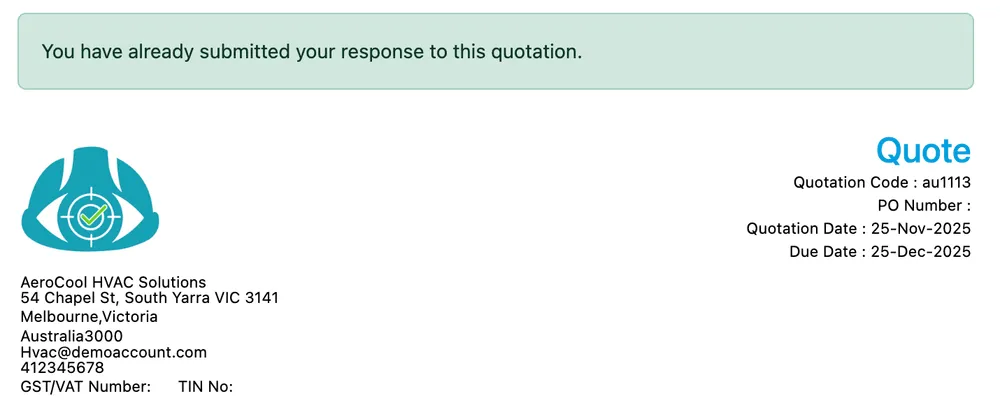
The client’s copy after they respond
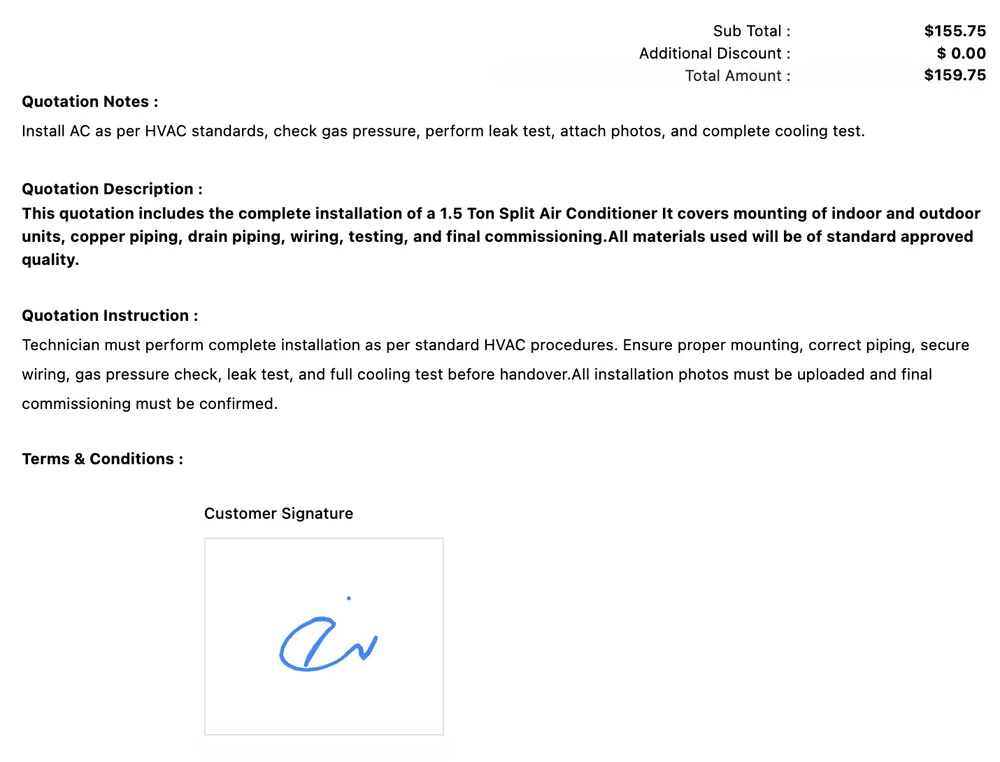
The client’s copy → Customer Signature
A client responds once. If they open the link again after submitting, they are told they have already submitted their response to this quotation — they cannot go back and change the answer. If something needs to change after that, it is a new or revised quote from your side.
This response document is a template you can design, in the same way as the quote layout itself — so the copy the client signs can be styled to match the rest of your paperwork.
Where the reply shows up
Section titled “Where the reply shows up”Whatever they choose lands on the quote’s Quote Activity trail, named and timestamped, with a successful signature recorded there. The answer to “have they signed yet?” is on the quote itself — you are not hunting through a mailbox for it.
Leaving the tickbox off sends the quote as a document to read instead. The client replies however they normally would, and you record the outcome yourself with the Status dropdown — see quote statuses.
After it is sent
Section titled “After it is sent”Sending moves the quote to Sent, on the quote page and in the list. Approval — whether the client accepted it on the form or told you over the phone — is what makes it the starting point for the job, contract or invoice that follows.