Suppliers
A supplier is a company you buy from. Each one holds its own contact and tax details, what you owe it, and every order you have placed with it.
Inventory → Supplier(s) on the main menu opens the list.
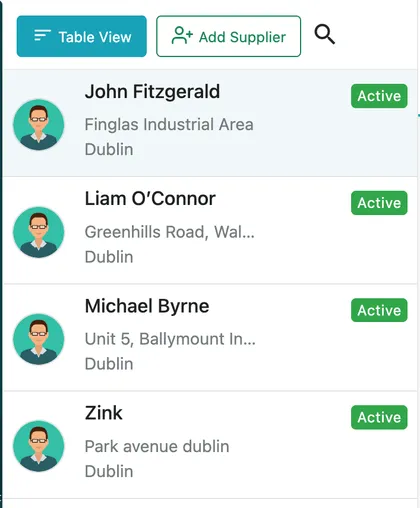
Inventory → Supplier(s)
Each entry shows the supplier’s name, address and city, with an Active badge. Table View redraws the list as a table, Add Supplier creates one, and the search icon finds an existing one. Clicking a supplier opens it alongside.
Suppliers are an Advance plan feature. See plans and pricing.
The supplier page
Section titled “The supplier page”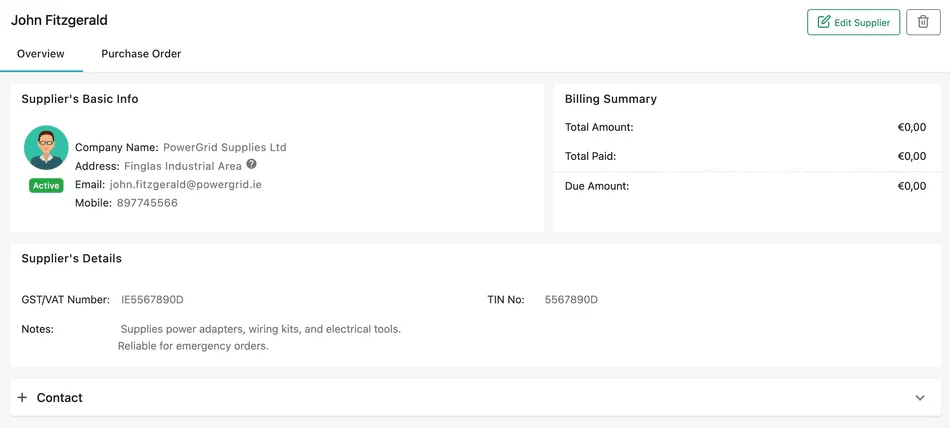
Supplier page → Overview
Supplier’s Basic Info carries the company name, address, email and mobile number, with the supplier’s status beside them. Supplier’s Details underneath holds the GST/VAT Number, the TIN No and your Notes — what they supply, how reliable they are, anything worth knowing before you order again. Contact expands to the people you deal with there.
Billing Summary, on the right, is the money view of the relationship:
- Total Amount — what you have ordered from them.
- Total Paid — what you have paid.
- Due Amount — what is still outstanding.
Edit Supplier reopens the supplier’s form; the bin deletes them.
The Purchase Order tab
Section titled “The Purchase Order tab”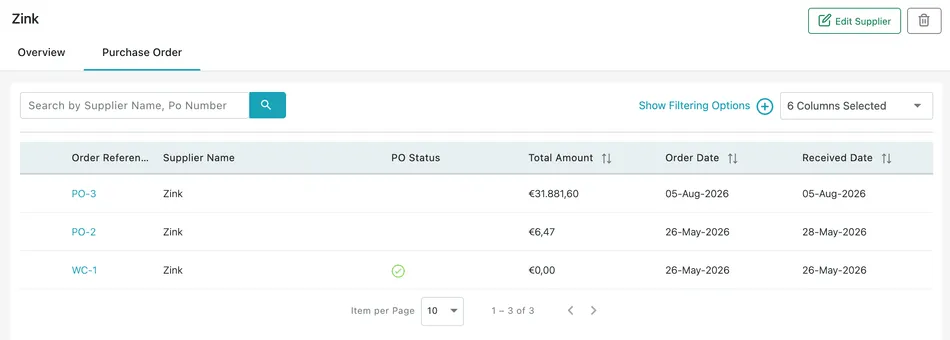
Supplier page → Purchase Order
The second tab is everything you have raised with this supplier — Order Reference, Supplier Name, PO Status, Total Amount, Order Date and Received Date, with the reference itself a link through to the order. Warranty claims raised against the supplier appear in the same list, under their WC reference.
Search by Supplier Name, Po Number narrows it, Show Filtering Options opens the filters, and the column dropdown chooses which columns are drawn.
Adding a supplier
Section titled “Adding a supplier”Add Supplier opens the form. You can also reach it from the purchase order form, through Add new supplier, when you find yourself ordering from someone who is not on the list yet.
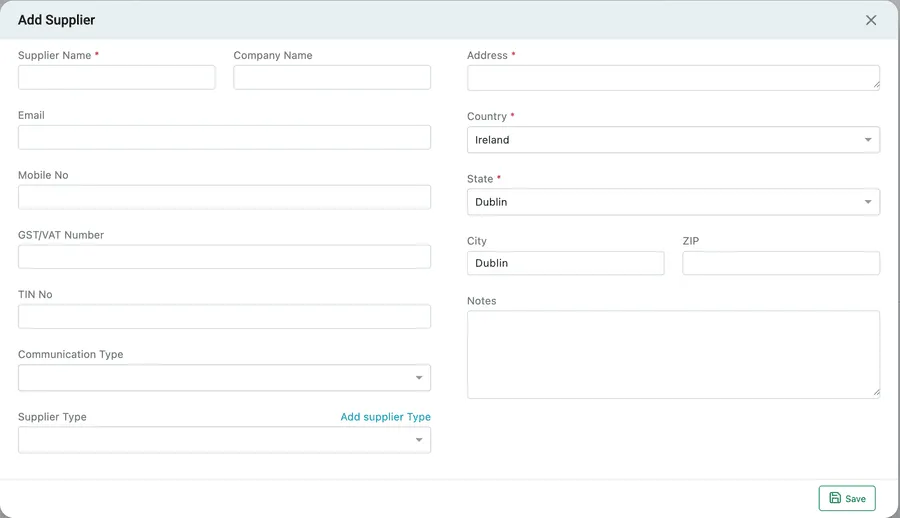
Inventory → Supplier(s) → Add Supplier
| Field | What it is |
|---|---|
| Supplier Name | Who you deal with. Required, and what you will search by. |
| Company Name | The trading name, when it differs from the above. |
| Address, Country, State, City, ZIP | Where they are. Address, country and state are required. |
| Email and Mobile No | How the purchase orders reach them. |
| GST/VAT Number and TIN No | Their tax registration numbers, for the paperwork. |
| Communication Type | How you normally contact them. |
| Supplier Type | The category they fall into, with Add supplier Type for a new one. |
| Notes | Anything worth remembering — what they are good for, lead times, emergency cover. |
Save adds them, and they are available on the next purchase order straight away.