Fieldworkers on the scheduler: location, nearby jobs and leave
Two things on the board are about the person rather than the work: where they are, and whether they are available at all.
Where a fieldworker is
Section titled “Where a fieldworker is”Scheduling well is partly geography: the right person for a job at four o’clock is often whoever is already nearby. The pin on a resource row answers that without leaving the board.
In a Resources scheduler each row carries the person’s address and a pin. Clicking it opens their location.
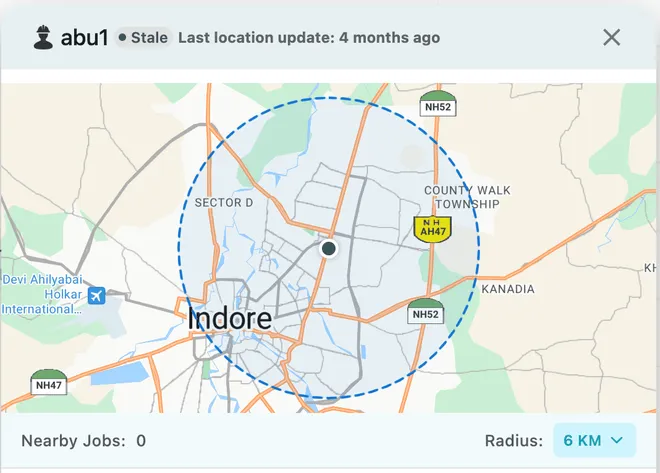
Scheduler → resource row → location pin
- The name, and a freshness badge — Stale above — with Last location update spelling it out: 4 months ago.
- A map centred on their last known position, with a dashed circle showing the radius being searched.
- Nearby Jobs — how many jobs fall inside that circle.
- Radius — the size of the circle, 6 KM above, changed from the dropdown.
Widening the radius takes in more work; narrowing it keeps the answer to genuinely close by.
Read the freshness before you trust the position
Section titled “Read the freshness before you trust the position”The badge is the important part. A position is only as good as the last time the fieldworker’s app reported in, and Stale with 4 months ago means the dot on the map is history, not where they are now.
Treat a fresh position as a fact and a stale one as a starting address.
What it is for
Section titled “What it is for”- Filling a gap with something close. A fieldworker with an empty afternoon and three jobs within six kilometres is a better answer than a job across town.
- Answering “who can get there?” — an urgent call comes in, and the question is not who is free but who is near.
Where the job then goes is decided the usual way, by dragging it onto that person’s row. See scheduling work on the board.
For live tracking of everyone at once rather than one person at a time, see viewing all fieldworkers on the map.
Booking leave
Section titled “Booking leave”Leave is how the board knows somebody is not available. Booking it puts the absence where the work would have gone, so nobody is scheduled into a day they were never going to work.
Fieldworkers book their own from the app, under User leaves, and what they ask for arrives here — see expenses and leave in the app. To book it for them:
Add in the scheduler toolbar, then Add Leave.
- Select User — who is off.
- Select Leave Type — annual, sick, earned, whatever you use.
- Start date and time and end date and time — leave can be an afternoon or a fortnight.
- Add Note for anything worth recording, and Reason for why.
Save books it, and Leave added successfully confirms.
Making your own leave types
Section titled “Making your own leave types”The + beside Select Leave Type adds a type without leaving the form: type the title — Earned Leave — and press the check icon to save it. It is then available for this booking and every one after.
Setting up the handful your company actually uses is worth doing once, so leave is reportable later rather than being a pile of free-text reasons.
Leave does not drag
Section titled “Leave does not drag”A strip of work moves by dragging; an absence does not. Leave is booked against one person for one stretch of time, and neither of those is changed by shifting it around the board.
Click the leave to edit it. That is where dates that turn out to be wrong get corrected — the same window it was booked in, with the type, the dates and times, and the reason.
Approving what somebody has asked for
Section titled “Approving what somebody has asked for”Leave a fieldworker books on the app arrives as a request, and it is on the board straight away — the scheduler does not wait for anybody to approve it. A new request and an approved one look the same there, which is deliberate: a dispatcher planning the week should see that somebody has asked to be off before filling their day.
Click the leave on the board to approve or reject it.
Rejecting takes it off the scheduler. The day goes back to being schedulable, and the person is available again as far as the board is concerned.
You can do the same from the office side: open the person from the user list and the request is in the Leave section of their Overview tab. Approving there and approving on the board are the same action.
What leave means for planning
Section titled “What leave means for planning”An absence sits on the board like anything else, and the background of that stretch changes colour, so a dispatcher looking for who is free can see at a glance that the gap is not a gap.
That colour is fixed, and cannot be changed. There is no setting for it — an absence is drawn the way EyeOnTask draws it. The colour choices on the board, Color By and each person’s own colour, are about the work strips rather than the absence. See colour by status or staff.
It shows you; it does not stop you. Work can still be created and assigned on somebody’s day off — the scheduler makes the absence obvious and then leaves the decision to you, which is what you want on the day a job has to be covered by whoever is nearest, leave or no leave.
Work already scheduled on a person who then goes off is not moved for you either — drag those strips onto whoever is picking them up. See moving work by dragging.