Scheduler views: Calendar, Resources Vertical and Resources Horizontal
There are three schedulers, not three ways of drawing one. Each displays the same work differently, and which one suits you depends on how your business runs — a company that hands work out person by person reads a board differently from one that just needs the week’s diary. Knowing what each one shows is what lets you pick well, and different people in the same office often settle on different ones.

Scheduler → view switcher
What they share is the thing that makes the screen worth using: a strip’s position and size are the schedule. Where it sits is when the work happens, how long it is drawn is how long the work takes, and — in the Resources schedulers — which row or column it is in is who is doing it.
They also behave identically: you draw work by dragging out a span, open it by clicking its strip, and move or reassign it by dragging. That is all on one page — getting work onto the board — so this one is only about what each display shows.
Simple Calendar
Section titled “Simple Calendar”The plain diary, and it works much like Google Calendar: time down the side, dates across the top. A strip’s height is its duration, so a two-hour job is drawn twice as tall as a one-hour one.
Calendar is organised by time alone rather than by person, so it shows what is happening and when — not who is doing it. It is the only one of the three with a Month period: Day, 3 Days, Week and Month.
Work still drags here, and dragging still changes the time — what it cannot change is who. With no person axis there is no row to drop somebody’s name onto, so reassigning is done from the strip itself: right-click it and use Assign To, or open it and change Assign Fieldworker(s). See the right-click menu.
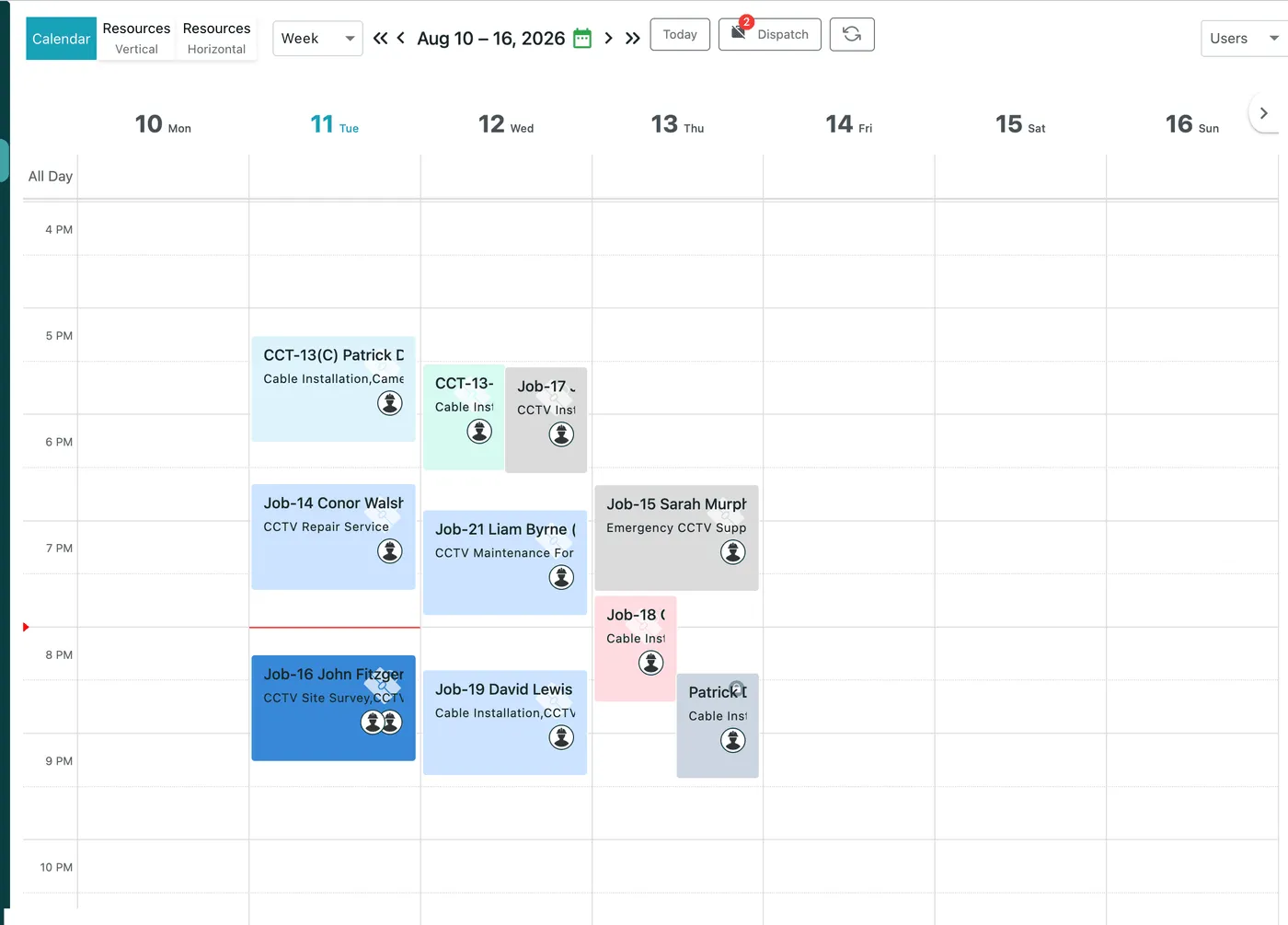
Scheduler → Calendar, Week
An All Day row sits above the hours for work with no particular time, and a red line marks the current moment.
Month draws the calendar as a grid of dates. Where a day holds more than a strip or two it shows a count — 4 Event(s) — that opens the day rather than trying to draw everything in the square:
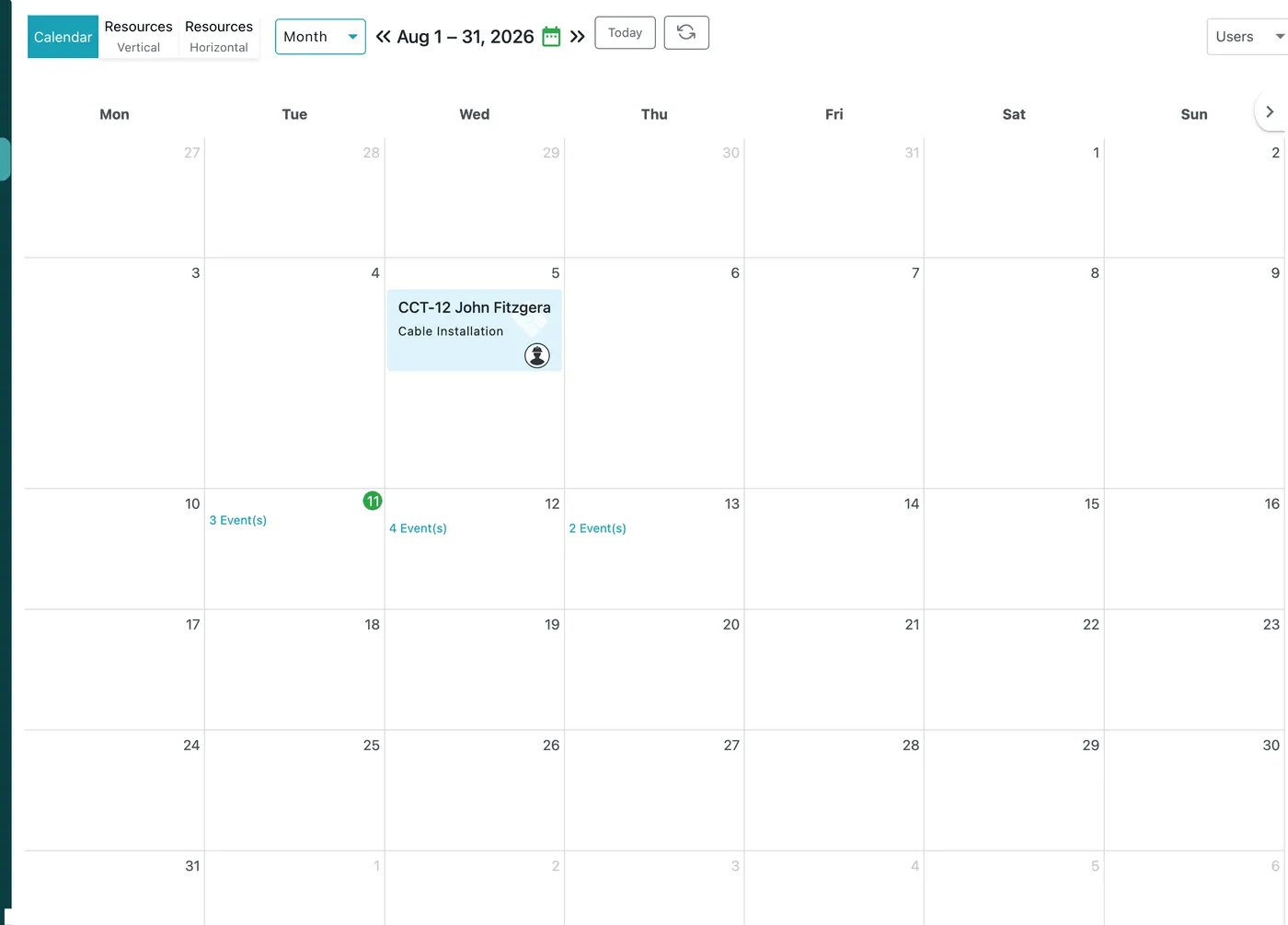
Scheduler → Calendar, Month
Resources Vertical
Section titled “Resources Vertical”Your people down one side, time across. Each row is one person’s day, and work sits in front of the person doing it — so who is free and who is overloaded is read by comparing rows. Periods: Day, 3 Days and Week.
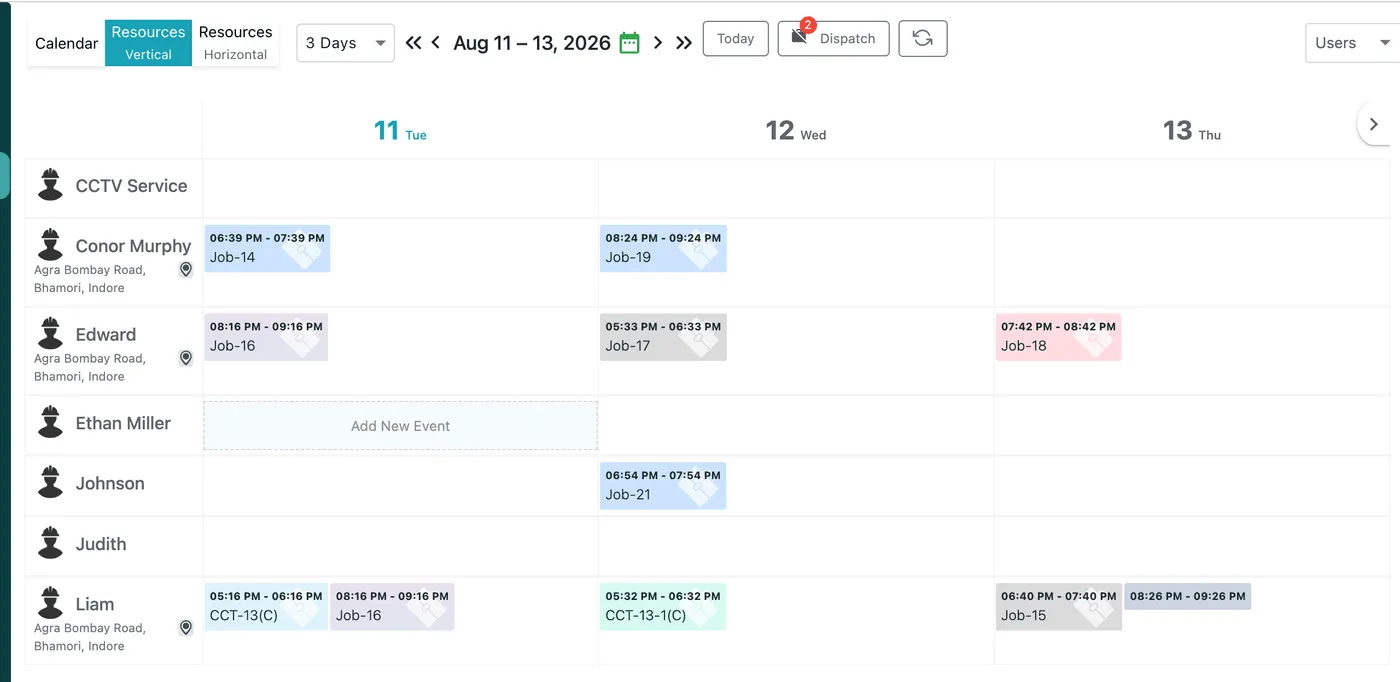
Scheduler → Resources Vertical, 3 Days
Resources Horizontal
Section titled “Resources Horizontal”The same idea turned ninety degrees: your people across the top, with time and dates running down. A strip sits in the column of whoever it is assigned to, and its length is still its duration — the longer the strip, the more time the work takes.
The two Resources schedulers hold the same information and behave identically. Which reads better is a matter of preference, and of whether you have more people or more hours to fit on screen.
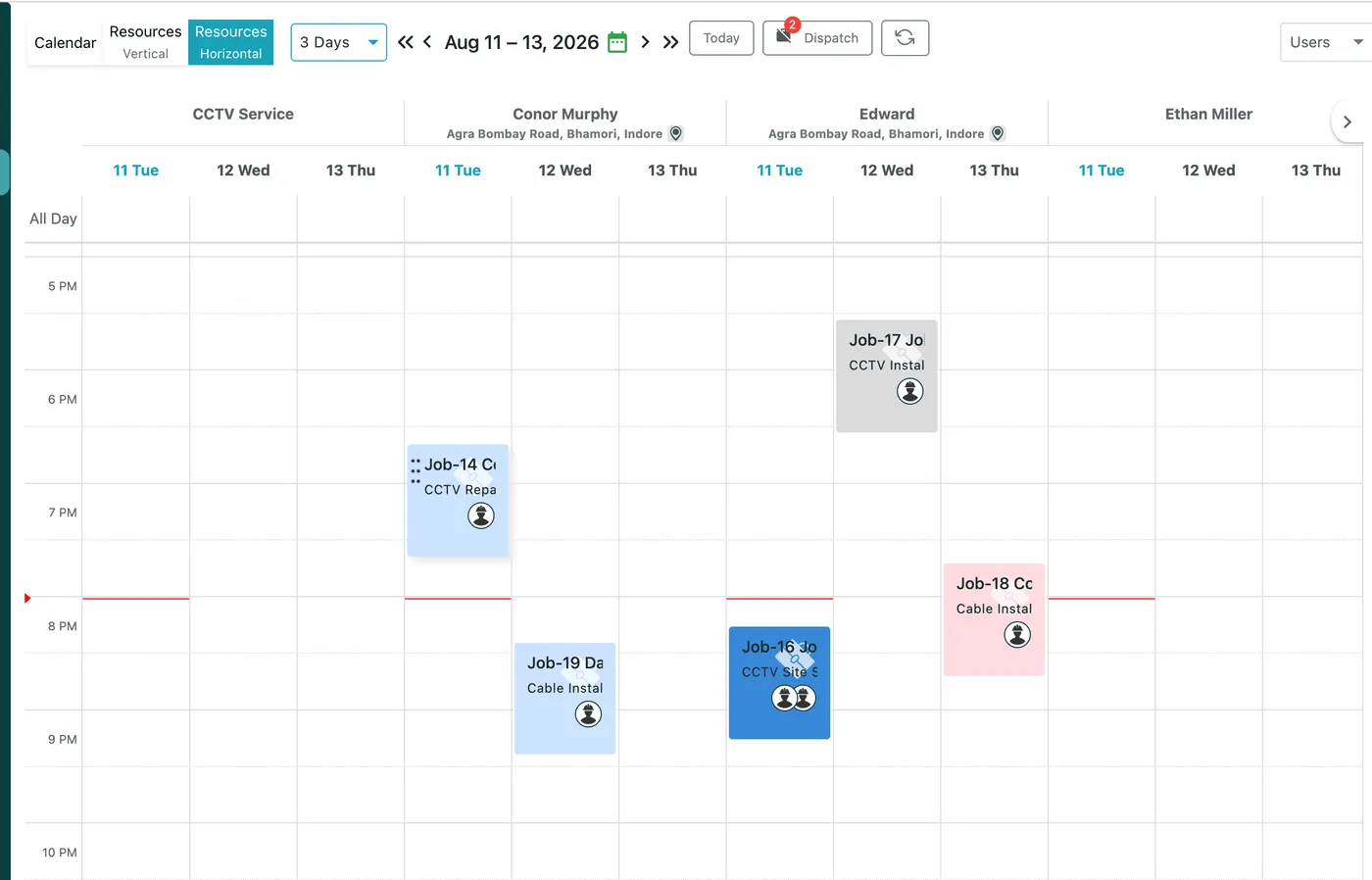
Scheduler → Resources Horizontal, 3 Days
Each person’s column is subdivided by date, so three days for four people is twelve columns — which is why this one suits a short period and a handful of people.
Periods
Section titled “Periods”The dropdown beside the buttons sets how much time is on screen. Calendar offers Day, 3 Days, Week and Month; the two Resources schedulers offer Day, 3 Days and Week:
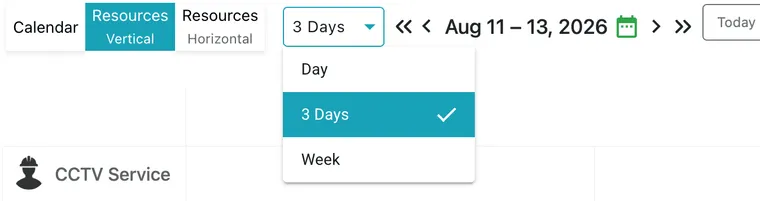
Resources Vertical → period
Moving through dates
Section titled “Moving through dates”- The single arrows step a day at a time.
- The double arrows jump by the whole period on screen — a week in Week view, three days in 3 Days.
- The calendar icon opens a date picker.
- Today comes back to now, whatever period you are in.
In Day and Month views only the double arrows appear, since a step and a jump would be the same move.
What each one shows
Section titled “What each one shows”| Simple Calendar | Resources Vertical | Resources Horizontal | |
|---|---|---|---|
| People | not shown as an axis | down the side, one row each | across the top, one column each |
| Time | down the side, dates across the top | across the row | running down |
| Periods | Day, 3 Days, Week, Month | Day, 3 Days, Week | Day, 3 Days, Week |
| Dragging a strip | retimes it | retimes it | retimes it |
| Dragging a crew’s job | works | not possible | works |
| Reassigning by dragging | not possible — no person axis | between rows | between columns |
A strip’s size is always its duration, and creating and editing work behave the same way in all three. Moving it has the two exceptions in the table: Calendar cannot reassign, and Resources Vertical cannot drag a job that has a crew on it — that job is on every one of their rows, and dragging it would have to mean moving one row’s copy.
All three are switched between at any time from the buttons in the toolbar, on the same work — so trying each on a real week costs nothing and is the quickest way to find the one your office reads best.