Language and labels
Two things happen on this screen. You pick the language EyeOnTask speaks, and then — if you want — you change the words it uses.
Settings → Company → Custom Language Setting.
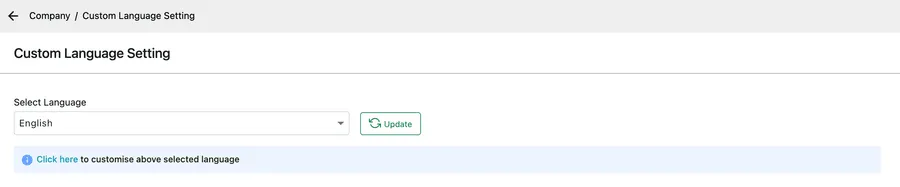
Settings → Company → Custom Language Setting
Choosing the language
Section titled “Choosing the language”Pick from Select Language and press Update. The interface switches to that language.
Customising the labels
Section titled “Customising the labels”Click here to customise above selected language opens the label editor.
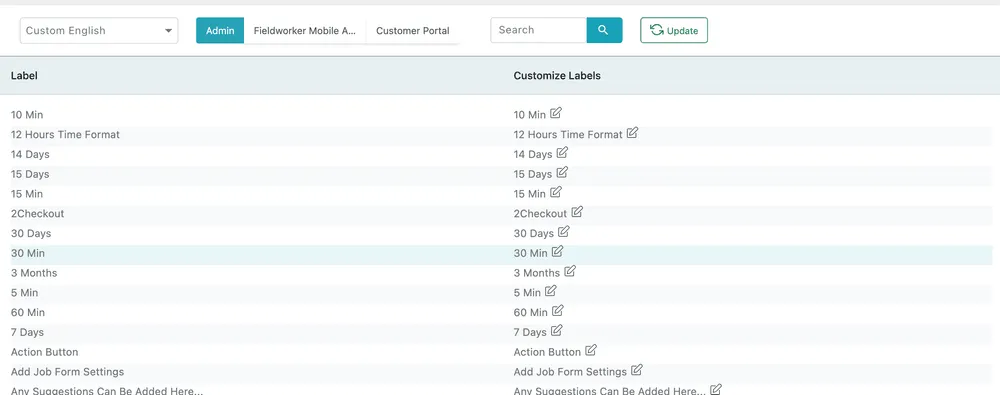
Settings → Company → Custom Language Setting → Click here
Every piece of text in the product is listed. Label on the left is what EyeOnTask ships with; Customize Labels on the right is what yours says. Click the pencil beside a label, type the replacement, and press Update to apply.
The list is long, so use the Search box to find the word you want rather than scrolling.
The three audiences
Section titled “The three audiences”The tabs across the top decide where a renamed label takes effect:
| Tab | Who sees it |
|---|---|
| Admin | The office — everyone working in the desktop application. |
| Fieldworker Mobile Application | Your engineers, in the mobile app. |
| Customer Portal | Your clients, in the customer portal. |
The same underlying label can read differently in each. A field your office calls Job Type can be Service on the engineer’s phone and What you need to the customer.
What this is for
Section titled “What this is for”Renaming labels is how EyeOnTask fits an industry it was not written for. A cleaning company calls a job a visit; a plant-hire business calls equipment machines; a facilities contractor has sites where a domestic installer has addresses. Change the label and the whole product follows, including the documents you send out.
Keep the meaning intact when you rename. The field still behaves the way it did — a renamed Job Type is still what job type/services fills, and still what a service’s rate is attached to.
Language and labels together
Section titled “Language and labels together”Changing the language reloads EyeOnTask’s own translations, and a label you have customised keeps your wording rather than reverting to the translation. That is also true of the default email, SMS and WhatsApp templates: they are translated when you switch language, except any you have already edited and saved.