How invoices work
An invoice is the bill you send a client: what they owe, for what, and by when. In EyeOnTask it is also where the money is tracked — every payment recorded against it moves the paid and remaining figures, so an invoice tells you not just what was charged but what is still outstanding.
What an invoice can be attached to
Section titled “What an invoice can be attached to”What an invoice is attached to decides where it shows up and how much of it fills itself in. An invoice can stand alone, or it can be attached to one job, to several jobs, or to a contract.
No job — a standalone invoice
Section titled “No job — a standalone invoice”Any client can be invoiced without any job behind it. You raise it from Invoices → Add Invoice and type or fetch the lines yourself. This is the bill for goods sold, a call-out charge, a deposit — anything where no scheduled work is involved. See creating an invoice.
One job
Section titled “One job”Bill a single job and the invoice belongs to it. You can see that invoice from inside the job, on its Item / Invoice → Invoice tab, which is also where it is most easily raised. See invoicing from a job.
Several jobs on one invoice
Section titled “Several jobs on one invoice”One invoice can cover many jobs — the month’s work for a client billed together, rather than a bill per visit.
A multi-job invoice does not display inside the job the way a single-job one does. The job instead points out to the invoice that covers it. So if you are on a job and expecting to find its bill sitting there, and it isn’t, the work has almost certainly been swept onto a combined invoice — follow the link through rather than raising a second one.
Jobs are gathered onto an invoice with Fetch & Link. Once they are on, the invoice shows the linked job codes as chips and colour-codes each job’s line items, so you can see which visit produced which charge — see reading an invoice that has jobs on it.
A contract
Section titled “A contract”A contract can be invoiced with or without jobs, and the two behave differently:
- Without jobs — the contract amount arrives as a line item in its own right. That is the recurring fee: what the client owes for the period regardless of what happened during it.
- With jobs — the items used on those jobs come onto the invoice automatically. You are billing the actual work, not a flat figure.
Both can appear on the same invoice: the fee as one line, the period’s job items alongside it. See invoicing a contract.
How an invoice gets raised
Section titled “How an invoice gets raised”| Route | Use it when |
|---|---|
| Invoices → Add Invoice | Billing something with no job behind it — see creating an invoice |
| From a job | The work is done and you are billing that job — see invoicing from a job |
| From a contract | The recurring fee, the period’s jobs, or both — see invoicing a contract |
| From a quote | The client approved the offer and there is nothing to schedule — see converting a quote |
Some invoices are not raised by a person at all. A contract with a recurring pattern generates its own, and those show Created By: System.
Finding your invoices
Section titled “Finding your invoices”Invoices on the main menu opens the list.
Main menu
Simple View puts the list down the left and the selected invoice alongside it. The search icon narrows it.
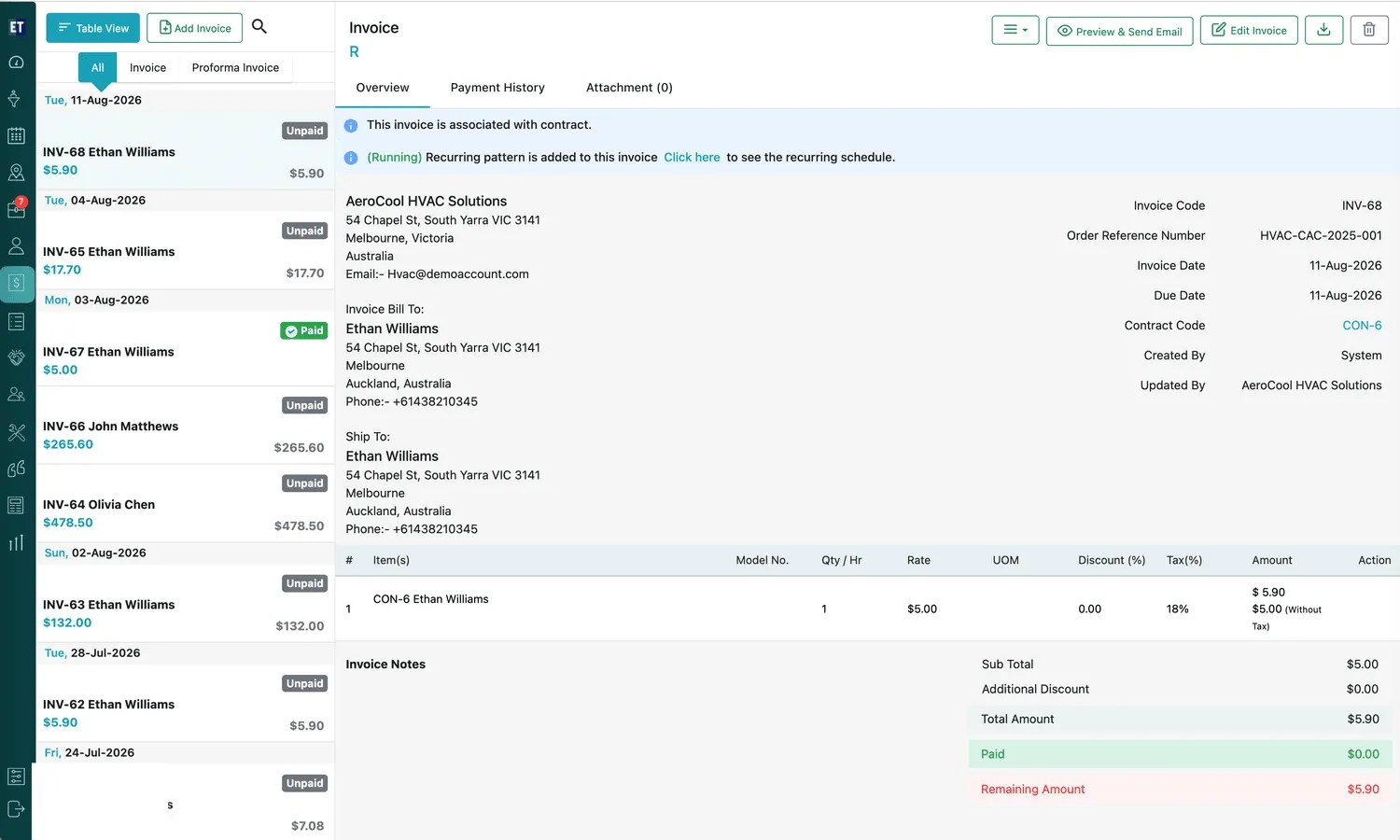
Invoices → Simple View
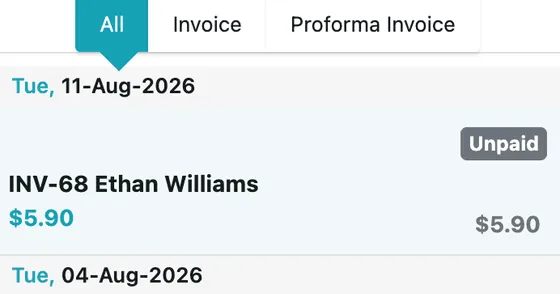
Invoices → list tabs
Each entry in the list shows its code, client, amount and a Paid or Unpaid badge, grouped under the invoice date. Three tabs sit above the list:
- All — everything.
- Invoice — real invoices only.
- Proforma Invoice — proformas only. See proforma invoices below.
Proforma invoices
Section titled “Proforma invoices”A proforma invoice is the same document as an invoice in every visible way — same form, same fields, same line items, same totals. One thing separates them: a proforma is not included in your calculations.
That is the whole point. A proforma says this is what it will cost. It is not a bill, so it should not appear in what you are owed, and it does not. Send one where the client needs the figures on paper before there is anything to bill — to raise a purchase order, to pay in advance, to declare a value.
Creating one works exactly like creating an invoice. When it becomes real, convert it into an invoice: it starts counting, it can be paid against, and it behaves like any other invoice from then on.
Table View
Section titled “Table View”Table View drops the panel and gives you every invoice on one row.
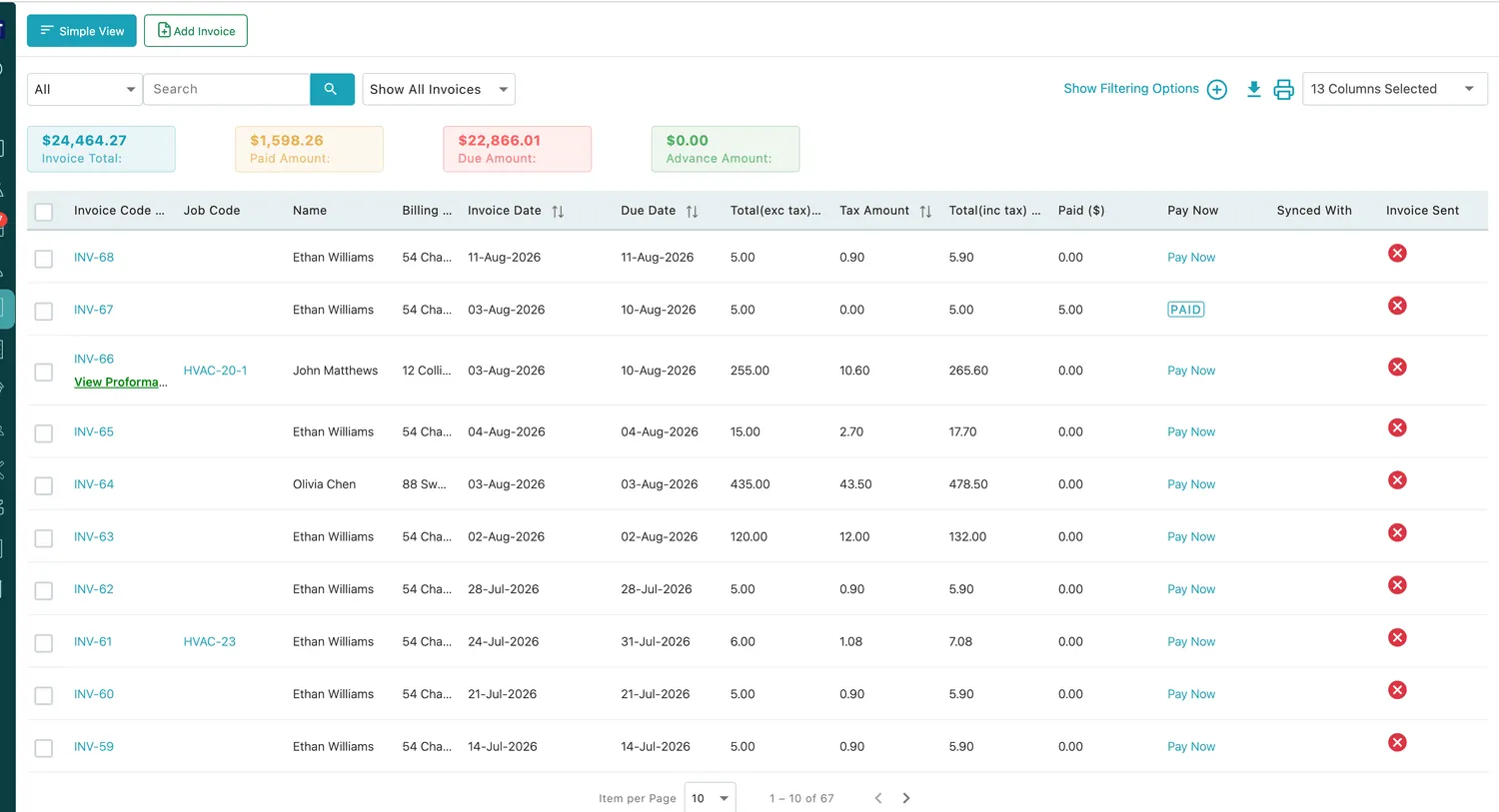
Invoices → Table View
Four totals sit above the table, covering everything the current filter has matched:

Invoices → Table View, totals
- Invoice Total — what has been billed.
- Paid Amount — what has come in.
- Due Amount — what is still outstanding.
- Advance Amount — money clients hold on account, not yet applied to an invoice. See applying an advance.
The columns carry Invoice Code, Job Code where the invoice bills one, Name, billing address, Invoice Date, Due Date, Total (exc tax), Tax Amount, Total (inc tax) and Paid. The arrows beside a heading sort by it, and an invoice raised from a proforma shows a View Proforma link under its code.
Tick several unpaid invoices for the same client and Send Outstanding Email, at the top of the table, sends them to that client in one go — see sending several outstanding invoices at once.
Three columns are about what has happened to the invoice rather than what is on it:
- Pay Now — a link to take payment against that invoice, replaced by a PAID badge once nothing is owed.
- Synced With — whether it has reached your accounts package. See what syncs, and which way.
- Invoice Sent — whether it has gone to the client.
Around the table: Search, a Show All Invoices filter, Show Filtering Options, download and print icons for the list itself, and a column picker for choosing which of the columns are drawn.
Paid, Partially Paid, Unpaid and overdue
Section titled “Paid, Partially Paid, Unpaid and overdue”An invoice carries one of three payment statuses, and it follows the money rather than being set by hand:
- Unpaid — nothing has been received against it.
- Partially Paid — something has, but not all of it. The balance still outstanding stays on the invoice.
- Paid — nothing remains.
They move on their own as payments are recorded, whether the payment is entered here, taken through the payment button in the invoice email, or synced in from your accounts package. The statuses are EyeOnTask’s own — a sync brings the money in, and the invoice works out what that leaves.
Overdue is not one of those badges — an invoice past its due date still reads Unpaid — but it is something you can filter by. In Table View, open Show Filtering Options and set Payment Status to Overdue: the table narrows to the invoices whose due date has passed and which are still owed, with the totals above it following the filter.
That is the list to work from when you are chasing money, and it is quicker than reading due dates down a column. For the same thing as a report you can send on or keep, see the invoice report.
Reading an invoice
Section titled “Reading an invoice”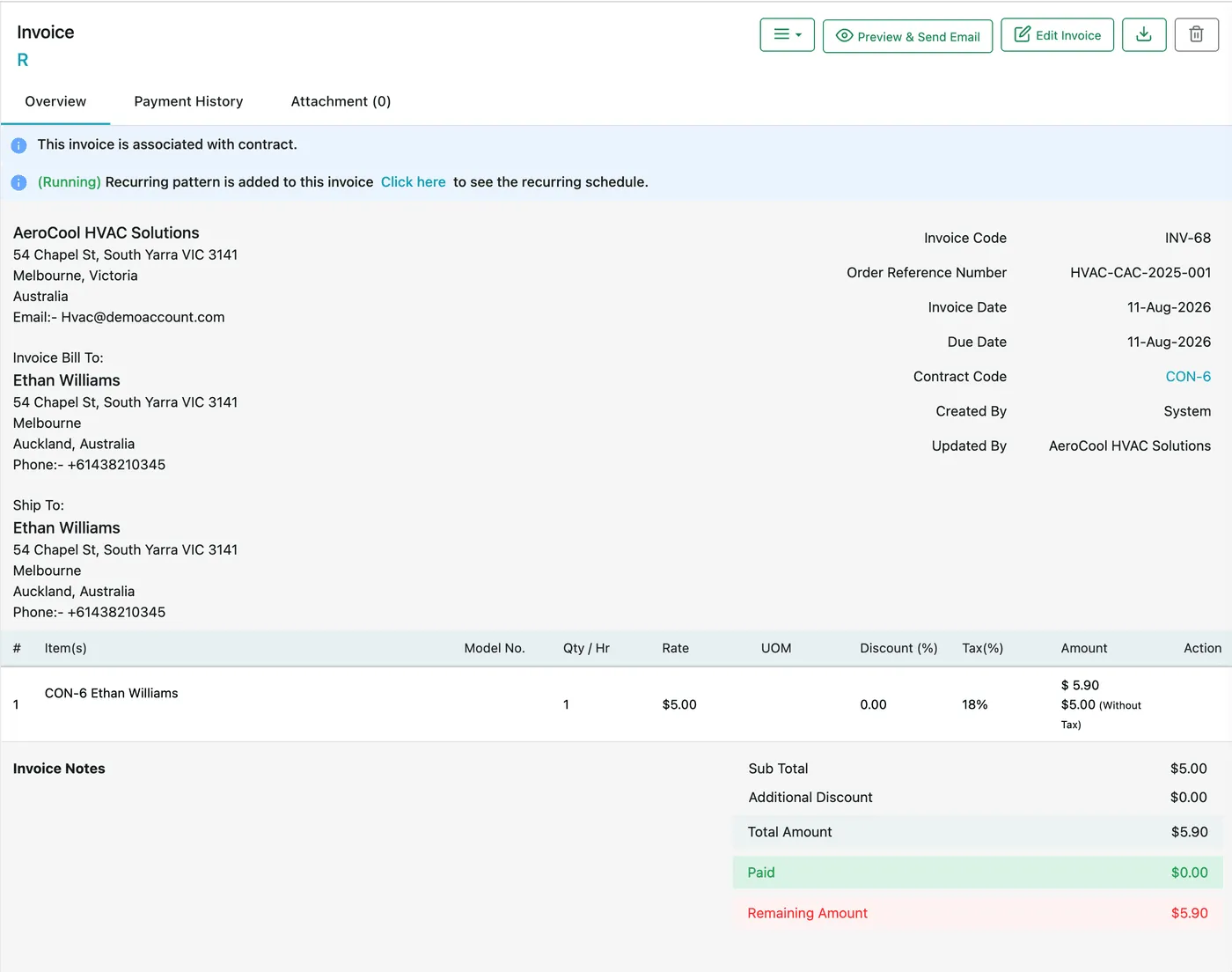
Invoice page, full view
An invoice opens on three tabs:
- Overview — the bill itself.
- Payment History — what has been received against it. See invoice payments.
- Attachment — files held with the invoice, with the count shown on the tab.
Banners
Section titled “Banners”Notices across the top tell you what this invoice is caught up in — that it is associated with a contract, or that a recurring pattern is adding to it, with a link through to the recurring schedule. If an invoice is behaving in a way you did not expect, read these first.

Invoice page → tabs and banners
An R beside the invoice title means it is a recurring invoice. See how recurring patterns work.
The invoice itself
Section titled “The invoice itself”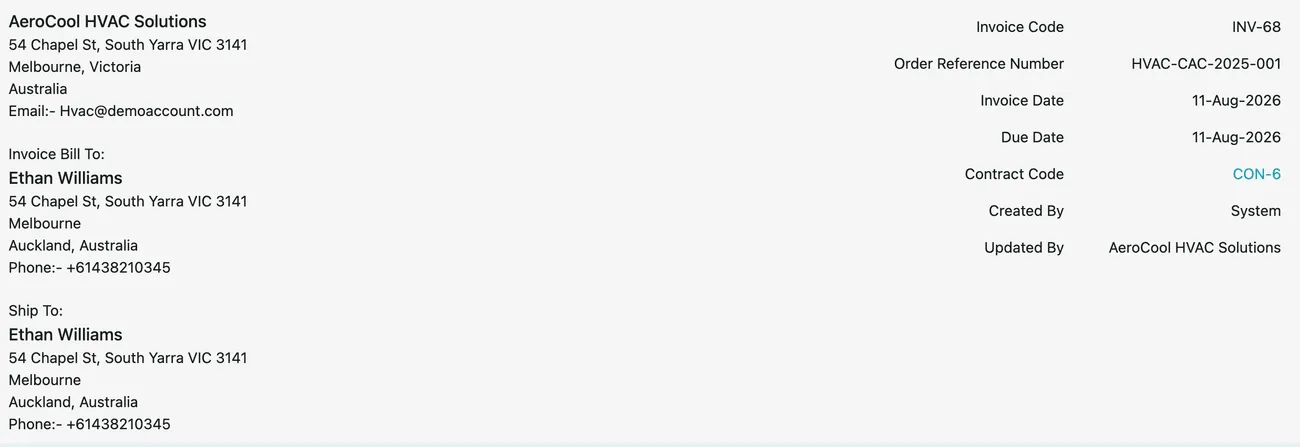
Invoice page → Overview
- Your company details head the document.
- Invoice Bill To is who is being charged; Ship To is where goods go, which can differ.
- The reference panel carries Invoice Code, Order Reference Number, Invoice Date, Due Date, and — where the invoice belongs to a contract — the Contract Code as a link through to it. Created By and Updated By record who raised it and who last touched it.
Then the line items, with Model No., Qty / Hr, Rate, UOM, Discount (%), Tax (%) and Amount — the amount shown with tax, and the without-tax figure beneath. See invoice line items.
The money
Section titled “The money”The totals run Sub Total → Additional Discount → Total Amount, and then the two that matter day to day:
- Paid — what has been received.
- Remaining Amount — what is still owed.
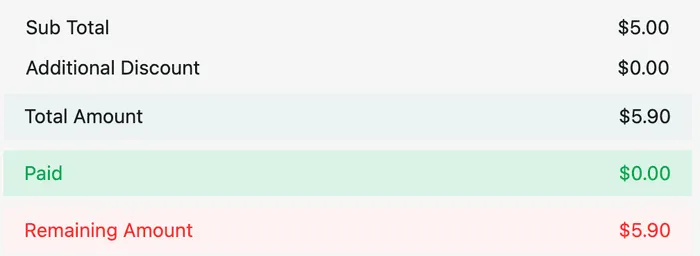
Invoice page → totals
A paid invoice cannot be deleted — once money is recorded against it, the invoice is a financial record rather than a draft. See managing invoices.
The action bar
Section titled “The action bar”
Invoice page → action bar
Alongside Preview & Send Email, Edit Invoice, download and delete, the ≡ menu holds everything else an invoice can do — payments, credit notes, recurring invoices, copying, converting to equipment, marking paid or sent, and syncing to your accounts package. See invoice actions.
Editing, downloading and deleting
Section titled “Editing, downloading and deleting”Edit Invoice reopens the invoice with everything filled in. Click any field to make it editable — client and address, Project Site, Invoice Code, Invoice Date, Due Date, Order Ref No, Discount on per Item, Currency and Tag(s). The lines are editable in place too, and Amount recalculates as you change quantity, rate, discount or tax. Update saves, confirming with “Invoice updated successfully.”
The Invoice Code is editable here, which matters if your accounts team needs a particular numbering. The Link With row and Fetch & Link also live on this form — see linking jobs to an invoice.
An invoice with no payment against it edits freely. Once a payment has been recorded, editing still goes through, but the app warns you first — you are changing a document the money has already been matched against. Take the warning seriously when the client holds a copy: they have a version that no longer agrees with yours, which is what credit notes exist for.
Download gives you the invoice as a PDF — the same document the client receives — either from the action bar or from the Download button inside Preview & Send. Printing is that same PDF; there is no separate print layout.
The search box on the list narrows it by client name or job code, and Table View adds sortable columns and filters for working through a long list.
The delete icon removes the invoice, asking first with Yes, delete it and No, keep it.
Where to go next
Section titled “Where to go next”| Page | What it covers |
|---|---|
| Creating an invoice | The Add Invoice form — bill-to and ship-to, dates, currency, discounts, tags, and unsaved clients |
| Invoice line items | Items and services, billable lines, free quota, and where labour is added |
| Invoicing from a job | Generating an invoice from the work, and linking jobs with Fetch & Link |
| Sending an invoice | Emailing or WhatsApping it, attaching the job card, and collecting a signature |
| Invoice payments | Recording what comes in, part payments, credit notes and the payment history |
| Invoice actions | Recurring invoices, copying, converting to equipment, marking paid or sent, and accounts sync |
| Questions and troubleshooting | Discounts before or after tax, why an invoice won’t delete, and other sticking points |
Settings behind this module
Section titled “Settings behind this module”- Invoice and accounts settings — Numbering, rounding, discounting method, tax rates and invoice columns