The equipment page
Clicking a unit in either list opens it beside that list. The page is the same for your equipment and a client’s — a client’s unit simply names its owner under the title.
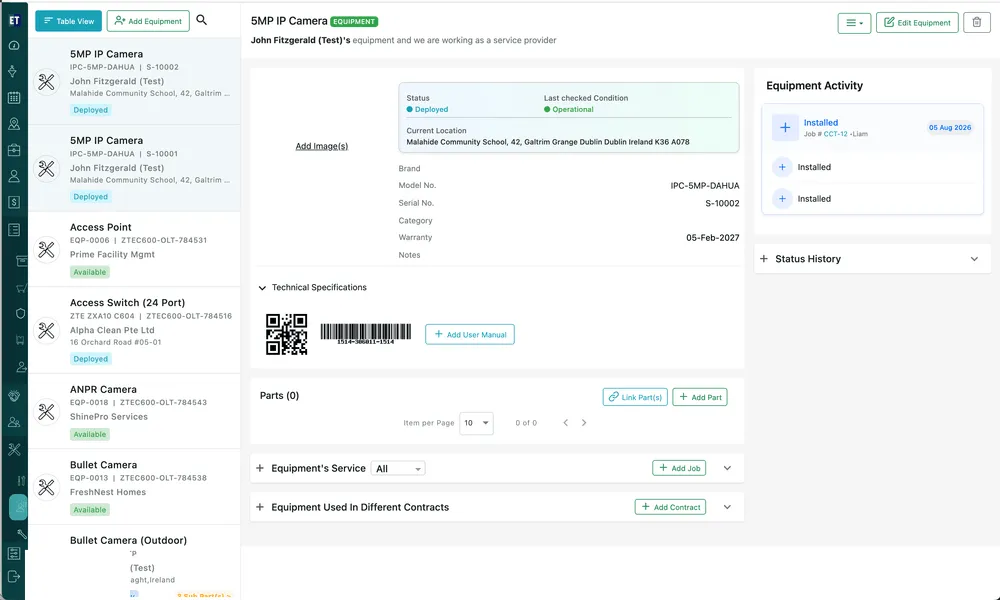
Equipment → Client’s Equipment → the selected unit
The header
Section titled “The header”The unit’s name sits at the top with an EQUIPMENT tag, and three controls on the right: the ≡ menu of actions, Edit Equipment, and the bin. All three are covered in equipment actions.
Status and current location
Section titled “Status and current location”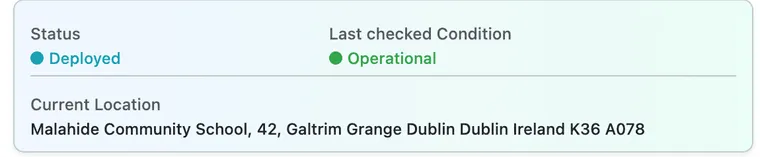
The selected unit → status card
The tinted card at the top holds the three facts you look up most often — what state the unit is in, what condition it was last found in, and where it is. The pencil opens Set Equipment Location.
Identifying details
Section titled “Identifying details”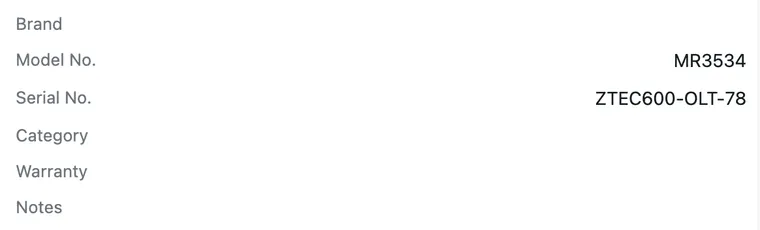
The selected unit → details
Underneath the card are the fields that describe the individual unit. Add Image(s) to the left of them holds its photographs.
Technical specifications
Section titled “Technical specifications”
The selected unit → Technical Specifications
A unit that has codes shows them here, ready to be printed and stuck on the asset. Scanning one on site brings up this page, which is the quickest way to identify a unit in a rack of identical ones.

The selected unit → Technical Specifications, before any code exists
A unit without codes offers Generate QR Code and Generate Barcode instead — one click each. Add User Manual attaches the documentation, so the engineer standing in front of the machine has it on their phone.
Parts lists the components inside the unit, each with its own model number, serial number and status. Add Part creates one, Link Part(s) attaches something that already exists. See parts on a piece of equipment.
The sections underneath
Section titled “The sections underneath”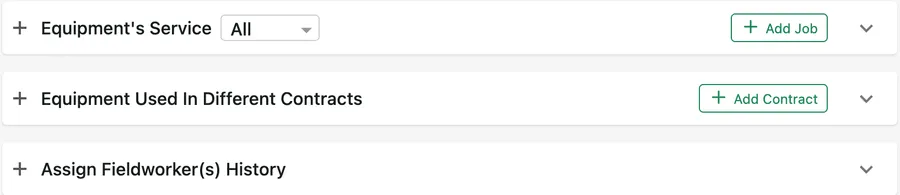
The selected unit → the collapsed sections
Three collapsed sections close the page. Each expands with the + or the chevron:
- Equipment’s Service — the jobs this unit has been on, with an All filter and an Add Job button. See service and history.
- Equipment Used In Different Contracts — the agreements it sits under, with Add Contract. See equipment on contracts.
- Assign Fieldworker(s) History — who has had the unit in their keeping.
The right-hand rail
Section titled “The right-hand rail”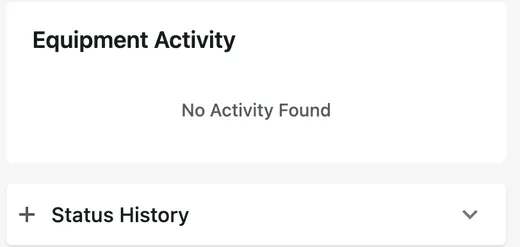
The selected unit → activity rail
Equipment Activity is the running record of what has happened to the unit; Status History records every status change with the date and who made it. A brand new unit reads No Activity Found until something is done to it.