The user page
Clicking someone in the user list opens their record on the Overview tab — who they are, how they are set up, and what has been given to them.

Users → a user
The person’s name is at the top with their type under it. Edit User in the corner opens everything on this page for changing, and the bin deletes them — see finding and managing users.
Contact Information
Section titled “Contact Information”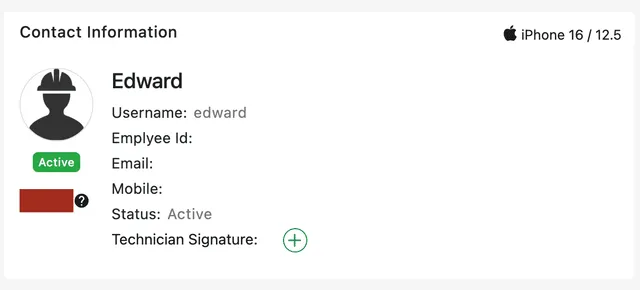
Users → a user → Overview
- Username — what they sign in with. It is not their email, and it is not their name.
- Employee Id — your own staff number for them, if you use one.
- Email and Mobile — how the system reaches them. The email is where their sign-in details are sent when the account is created.
- Status — Active or Inactive. Inactive people cannot sign in and drop out of the list until Show Inactive Users is ticked.
- Colour — the colour this person’s work is drawn in on the scheduler, so a board full of jobs can be read by who is on them.
- Technician Signature — their signature, added with the +. Once it is on the record it can be dropped onto the paperwork they complete, rather than being collected job by job.
The device the person last used the app on is shown in the corner of the card, with its operating system version — useful when somebody reports that something is missing from their app and it turns out they are several versions behind.
Other Information
Section titled “Other Information”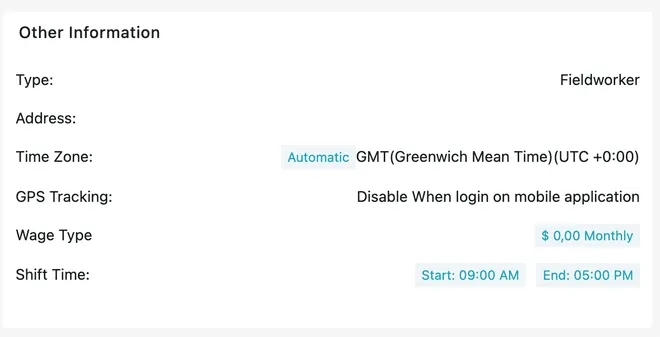
Users → a user → Overview
- Type — Admin, who works from both the desktop application and the app, or Fieldworker, who works from the app. Edit User changes it on an existing person, so converting an admin into a fieldworker or back is an edit rather than a new account. See how users work.
- Address — where they are based.
- Time Zone — the zone their times are shown and recorded in, marked Automatic when it follows their device and Manual when it has been set by hand. It is what makes a check-in at 9am read as 9am for someone working in another country.
- GPS Tracking — whether their position is tracked while they are signed in to the mobile app. It is what puts them on the map and on the scheduler’s location pin.
- Wage Type — how they are paid: hourly, weekly, fortnightly or monthly, with the amount. This is the rate the salary calculation and the worklog amount both run on.
- Shift Time — the start and end of their working day. Attendance is measured against it: hours beyond it are overtime, and a day short of it is a late arrival or an early departure, depending on the attendance policies.
The sections underneath
Section titled “The sections underneath”
Users → a user → Overview
Four sections sit below the two cards, each folded shut until you open it with the chevron.
- Fieldworker Mobile app permissions — what this person can do in the app, permission by permission. Edit opens them for changing. See fieldworker mobile app permissions.
- Equipment — the equipment assigned to them, with Assign Equipment to add more. See my equipment.
- Equipment Tools — the tools in their kit, with Assign Tool. Tools are assigned to a person rather than a place, which is what makes them different from equipment on a site. See my tools.
- Leave — their time off, with Add Leave to book some. Leave booked here shows on the scheduler as an absence, so nobody is scheduled into a day they were never going to work. See a user’s expenses and leave.