Email Log Report
EyeOnTask sends a lot of post on your behalf — a job confirmation, an invoice, a quote, a scheduled report. All of it goes out silently, and until something goes wrong nobody thinks about it.
Email Log Report is where you find out whether it arrived.
Open it from Add Report — see generating a report.
What it asks for
Section titled “What it asks for”
Reports → Email Log Report
Only Date Range is required, and it opens at Last 7 Days.
- Module Type — what the email was about: a job, an invoice, a quotation, a scheduled report.
- Client — everything sent to one client.
- Email Status — delivered, not sent, bounced. Set to anything other than delivered, this becomes the only screen you need.
- Show Column — which of the four columns to carry.
What comes back
Section titled “What comes back”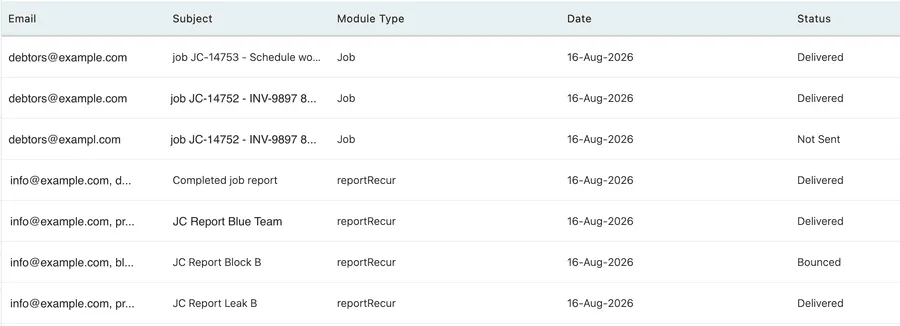
Reports → Email Log Report
One row per email: the recipient, the subject as it was sent, the module it came from, the date, and its status.
This is outgoing mail only, here and on the job’s own Email Log panel. Replies and anything else a client sends are not recorded — EyeOnTask logs what it sent, not a mailbox.
The three statuses are three different problems
Section titled “The three statuses are three different problems”This is the whole value of the report, and the three are not degrees of the same thing.
- Delivered — it left EyeOnTask and the receiving mail server accepted it. That is as far as delivery goes; it does not promise anybody read it, or that their own filters did not file it away. Where the recipient has actually opened it, the status reads Opened instead.
- Not Sent — it never left. The usual cause is that there was no usable address to send to: the field was empty, or what was in it was not a valid address.
- Bounced — it left, and the far end refused it. A mailbox that no longer exists, a full inbox, or a spam filter turning it away.
The distinction decides where you go looking. Not Sent is something to fix on your side, in the client’s record. Bounced is something at the other end, and usually needs a phone call rather than a retry.
In the table above, two rows carry the same job and the same subject: one was delivered, and the one below it reads Not Sent because the address it was sent to is a misspelling of the one above — a single missing letter. Nothing in the app would have told you. The client simply never heard from you.
When to look at it
Section titled “When to look at it”After a client says they never received something. Filter to that client and the period. The answer is one of three: it was delivered and is in their spam, it bounced, or it never went — and each of those is a different conversation.
When a scheduled report stops arriving. Reports sent by auto email appear here like any other message. A recipient who says the Monday report has gone quiet is usually a bounce nobody saw.
Once a week, filtered to anything that is not delivered. Saved under a name, this is a two-minute check that catches dead client addresses before they cost you a payment — see saved reports and auto email.
Related
Section titled “Related”- Saved reports and auto email — the scheduled sends that also show up here.
- How invoices work — sending an invoice to a client.
- Clients settings — where a client’s contact addresses are kept.