Integrations
Integrations connect EyeOnTask to the tools you already pay for — your accounting package, your payment processor, your SMS provider.
Settings → Integrations.
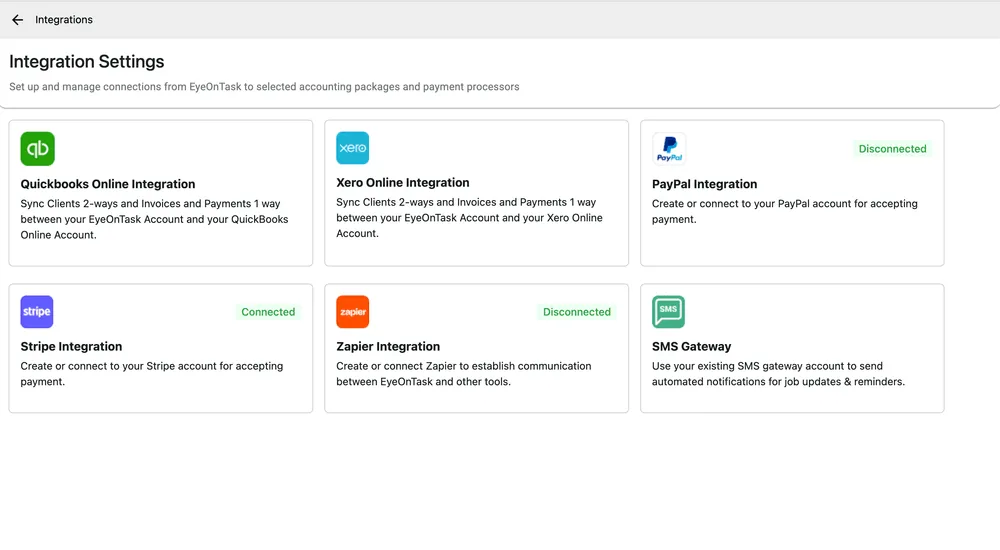
Settings → Integrations
Each card shows a badge — Connected or Disconnected — so the state of every connection is visible at a glance.
What each one does
Section titled “What each one does”| Integration | What it is for |
|---|---|
| QuickBooks Online | Syncs clients and payments both ways with QuickBooks, and invoices one way, out of EyeOnTask. |
| Xero Online | The same arrangement with Xero — clients and payments two-way, invoices one-way. |
| PayPal | Accepts customer payments through PayPal. |
| Stripe | Accepts card payments through Stripe. |
| Zapier | Connects EyeOnTask to other tools without code, so an event here can trigger an action somewhere else. |
| SMS Gateway | Sends your SMS templates through an SMS account you already hold. |
The two accounting integrations
Section titled “The two accounting integrations”QuickBooks and Xero work the same way and answer the same question: your accountant needs the invoices, and nobody wants to type them twice.
Clients sync in both directions. A customer added in either system appears in the other, so the two client lists stay the same list.
Invoices sync one way — out of EyeOnTask and into the accounting package. The work is scheduled, done and billed here, so an invoice raised directly in QuickBooks or Xero cannot come back the other way.
Items and services come in, never out on their own. The Inventory tab imports the products and services from QuickBooks or Xero so your item list matches your accountant’s. Your own items travel the other way only on the invoices that carry them — whatever is on an invoice is created in your accounts package when that invoice syncs, and there is no direct export of the item list.
Payments sync in both directions. A payment recorded in either system reaches the other, so a client who pays through your accountant and a client who pays a fieldworker on site both end up settled in both places. A payment can only cross once its invoice has — see what syncs, and which way.
Connect one, not both. A client cannot be synced to Xero and to QuickBooks at the same time — a customer record belongs to one accounting package, not to two. Beyond what the app allows, two packages receiving the same invoices is a reconciliation problem rather than a backup.
Payments
Section titled “Payments”PayPal and Stripe both let a customer pay an invoice you have sent rather than arranging a transfer. Which you use is usually decided by what you already have and what your customers expect; connecting both is reasonable if your customer base is split.
A payment taken through either is recorded against the invoice, so the outstanding balance is right without anyone marking it off by hand.
SMS gateway
Section titled “SMS gateway”The gateway is the account that actually sends text messages. EyeOnTask writes them; the gateway delivers them. Until one is connected, the SMS templates exist but nothing goes out — which is what the banner on the SMS template screen is telling you.
Select Provider offers Vonage and Twilio, and the credentials asked for change with the choice: an API key and API Secret for Vonage, an Account SID and Auth Token for Twilio. Both come from the provider’s own dashboard. There is also a From Number the messages arrive from, and a test message that proves the whole thing works before you rely on it.
The full walkthrough is SMS gateway.
Connecting something with no card
Section titled “Connecting something with no card”The cards cover the services EyeOnTask connects to itself. For your own systems — a CRM, an ERP, a booking form, an in-house tool — there are two routes and they suit different people:
- Zapier joins EyeOnTask to a few thousand apps by clicking rather than coding, and is the right answer when a ready-made connector exists.
- The API is for a developer building the integration properly: create jobs and requests from another system, with your own error handling and your own reference data. Keys are generated under Settings → Integrations → Developer API by the Super Admin.
Google Calendar and Outlook
Section titled “Google Calendar and Outlook”There is no calendar integration. The services EyeOnTask connects to itself are the cards above — QuickBooks, Xero, PayPal, Stripe, Zapier and an SMS gateway. There is no Google Calendar or Outlook card, and no calendar feed to subscribe to.
Zapier is the one route. A Zap starting from Job Created or Job Completed can create an event in Google Calendar or Outlook, and for a team that only wants new work to appear in a calendar, that is usually enough. Know what it does not do first: those two events are the only triggers, so an event made that way is not changed afterwards — reschedule, reassign or cancel the job and the calendar entry stays as it was.
The API cannot do it either, though it is often suggested. It is a way in: it creates jobs and requests, and it cannot read work back out or notify anything — see what it can do, and what it cannot. There is nothing to build a calendar feed from.
The live picture of who is doing what stays the scheduler itself.
Setting one up
Section titled “Setting one up”Each connection is made from its card, and each has its own steps because each is a different company’s account. The individual walkthroughs are:
In every case you are signing in to that service and authorising EyeOnTask, so have the account details to hand before you start — and use the account your business actually trades on, not a personal one set up to test with.
When a sync fails
Section titled “When a sync fails”A connection that has been working can still refuse an individual invoice or client, and the message you get back comes from QuickBooks or Xero rather than from EyeOnTask. QuickBooks and Xero sync errors covers what each one means and what to do about it.