Expenses on a job
The Expenses tab holds what the job cost you to carry out — fuel, tolls, parking, a part bought from a merchant on the way to site. It is mostly filled in by fieldworkers from the app as they spend, and it feeds the job’s estimated profit.
A job with nothing claimed against it shows Data Not Found.
Adding an expense
Section titled “Adding an expense”Add Expense opens the claim form.
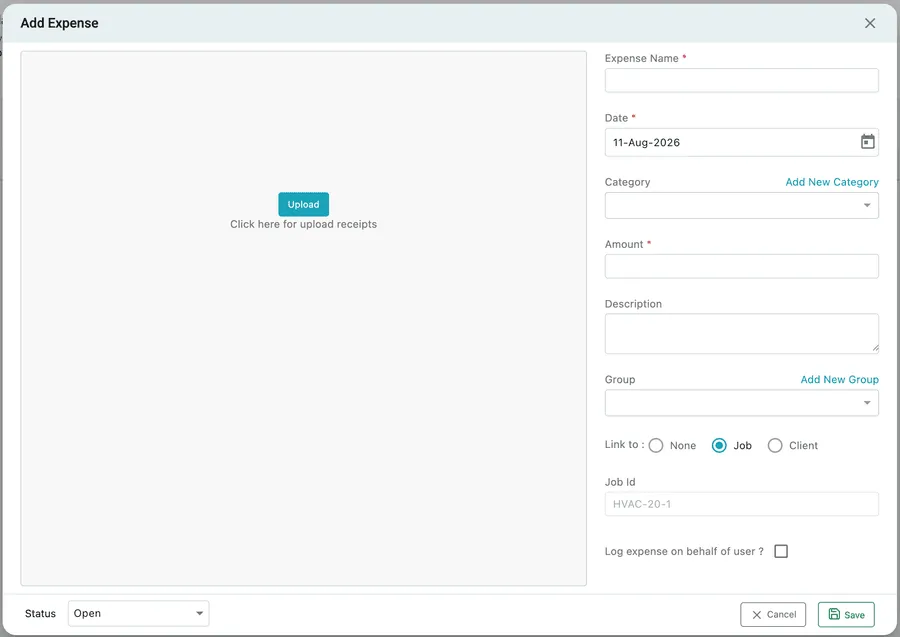
Job page → Expenses → Add Expense
- Upload takes a photo or scan of the receipt, which is what makes the claim stand up later.
- Expense Name, Date and Amount are required — what it was, when, how much.
- Category sorts it — fuel, food, materials, parking. Add New Category creates one without leaving the form.
- Description is the detail; Group collects related expenses together, with Add New Group alongside.
- Link to is already set to Job, with this job’s Job Id filled in, so the cost lands against the right work. It can be pointed at a Client instead, or left as None for a general company cost.
- Log expense on behalf of user? is the one to know about. Fieldworkers normally submit their own claims from the app; when someone cannot — no phone, no signal, or they have left the receipt on your desk — tick this and record it in their name so the claim still belongs to them.
- Status tracks the claim as it moves through approval.
Save records it against the job.
What the expense does
Section titled “What the expense does”A claim on the Expenses tab is money your side spent — it is not added to the job amount and does not go on the client’s invoice by itself.
Where it shows up is in the estimated profit for the job, as the Expenses line taken off the job’s value. That is the difference between a job that looked profitable and one that actually was, once the two-hour drive and the emergency part are counted.
Once approved, the claim is paid back to whoever spent the money. See approving and paying an expense.