Job type/services and categories
Job Type/Services is your price list for labour. Every job has at least one, and the entry you pick carries the money and the time with it — so a job priced correctly is mostly a matter of having this list right.
Settings → Modules → Work → Job Type/Services.
Adding a service
Section titled “Adding a service”Add Job Type/Services opens the dialog.
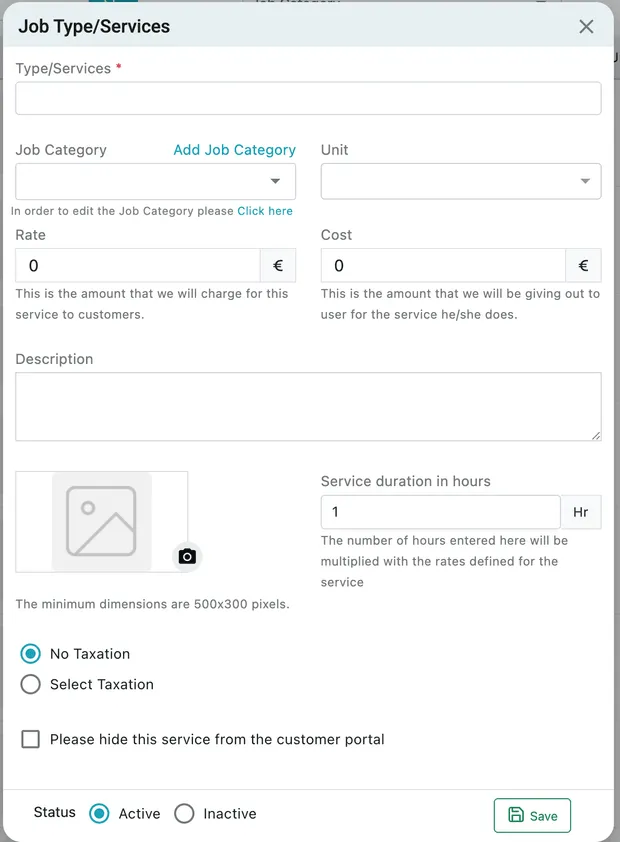
Settings → Modules → Work → Job Type/Services → Add Job Type/Services
| Field | What it is |
|---|---|
| Type/Services | What the work is called — CCTV Installation, Annual Maintenance. Required. |
| Job Category | The group it belongs to, from the category list. One service can sit in several. |
| Unit | What you are selling by — per unit, per hour, per metre. |
| Rate | What you charge the customer for it. |
| Cost | What it costs you — what the engineer doing it is paid. |
| Description | The detail that goes onto the job and onto the printed document. |
| Image | A picture of the service, shown in the customer portal. Minimum 500×300 pixels. |
| Service duration in hours | How long one of these takes. Leaving it at 1 matters for contracts: a service whose duration is more than 1 cannot be given a free quota on a contract’s rate card. |
| No Taxation / Select Taxation | Whether tax is added, and which tax rate applies. |
| Please hide this service from the customer portal | Keeps it off the list customers can book from — for work you only sell over the phone. |
| Status | Active offers it on new jobs; Inactive retires it without deleting the history. |
Save adds it to the list.
Rate, cost and duration together
Section titled “Rate, cost and duration together”The three multiply. Service duration in hours is multiplied by the rates you have set, so a service at a rate of 90 and a duration of 2 hours puts 180 on the job.
Rate is what the customer pays; cost is what you pay out. The gap between them is what makes job profitability work — leave cost at zero and every job looks perfectly profitable.
Editing, retiring and deleting
Section titled “Editing, retiring and deleting”The pencil on a row reopens the service; the bin deletes it. For anything you have already sold, set Status to Inactive instead of deleting — it disappears from the dropdown on new jobs while old jobs keep their history.
The list carries a search box, a Job Category filter, and download and print buttons for taking the price list off-system.
Taxing every service at once
Section titled “Taxing every service at once”The gear beside Add Job Type/Services sets the tax treatment for all your services in one go. It offers the same No Taxation / Select Taxation choice as the individual service dialog; pick a tax rate and Update, confirm, and it is applied across the list.
Use it when your whole price list is taxed the same way, rather than opening thirty services in turn. Setting it overwrites what the individual services carried, so check the exceptions afterwards if you have any.
Job category
Section titled “Job category”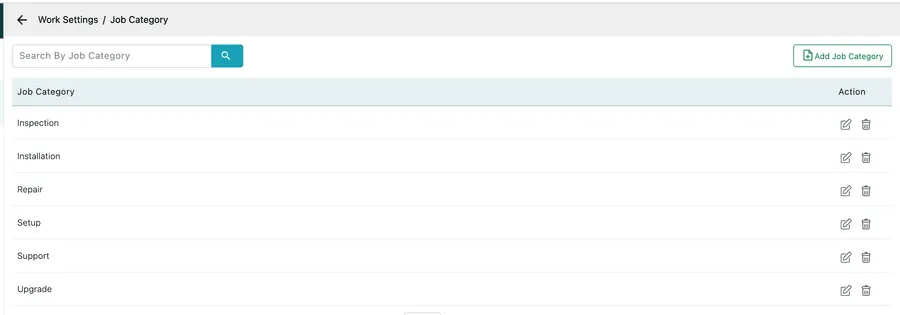
Settings → Modules → Work → Job Category
Categories group services into the kinds of work you do — Inspection, Installation, Repair, Setup, Support, Upgrade. They are what you report on when you want to know how much of the year went on repairs rather than new installs.
Add Job Category, type the name, Save. A category can also be created from the service dialog itself, through Add Job Category.
A service can belong to more than one category — CCTV Maintenance is reasonably filed under Inspection, Installation and Repair at once.
Adding one mid-job
Section titled “Adding one mid-job”You do not have to come here first. The job form carries Add Job Type/Services beside the dropdown, which creates the service without leaving the job you are writing.
Related
Section titled “Related”- Creating a job — where the service is chosen
- Job items and services — how the line behaves once it is on a job
- Labour billing rates — the other way to charge for time