Dispatching jobs from the scheduler
Scheduling a job and sending it out are two different acts. A job can sit on the board, assigned and timed, while neither the fieldworker nor the client can see it — until it is dispatched.
Dispatch, in the scheduler toolbar, is where the ones that have not been sent are rounded up. The badge on it counts how many are waiting, so the button itself tells you whether there is anything to do.
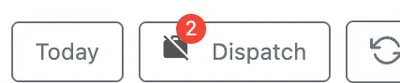
Scheduler → Dispatch
The Not Dispatched Jobs window
Section titled “The Not Dispatched Jobs window”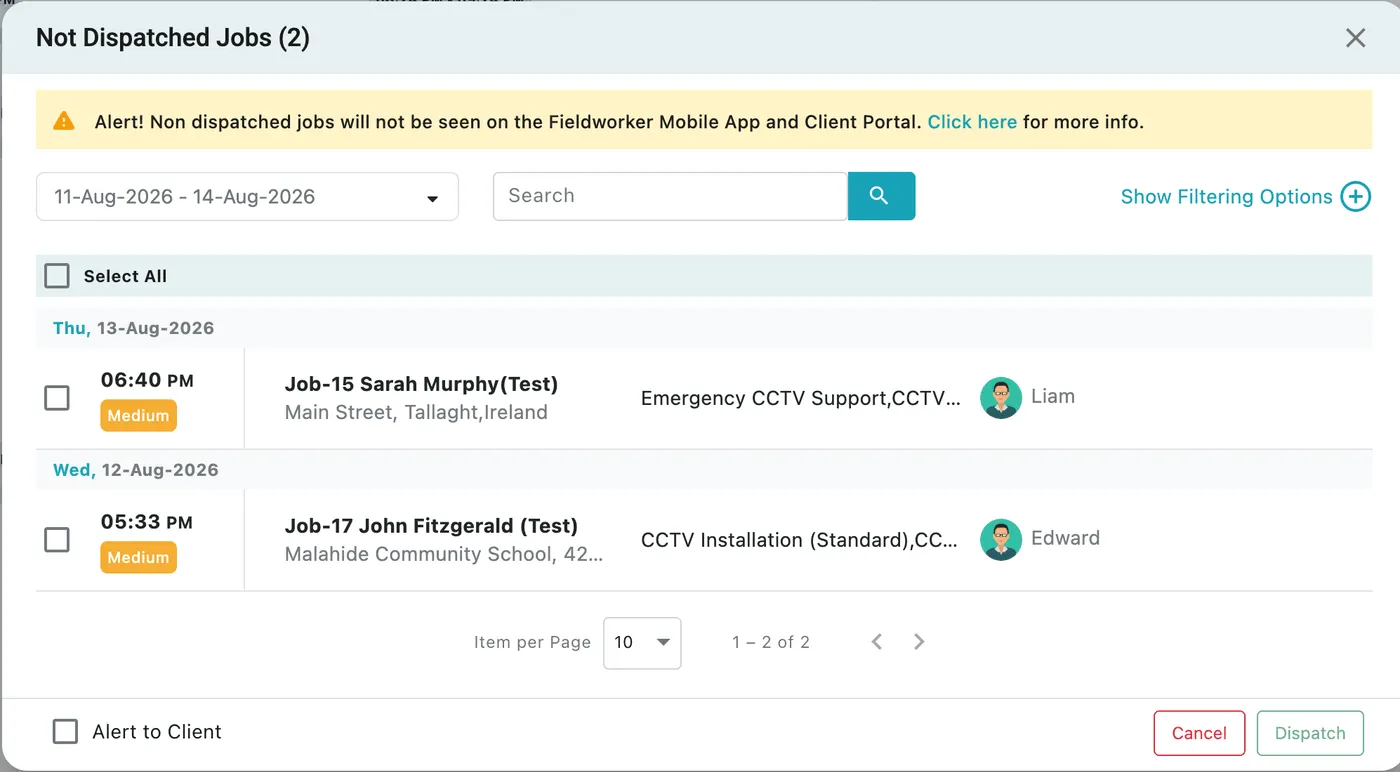
Scheduler → Dispatch → Not Dispatched Jobs
The title carries the count — Not Dispatched Jobs (2) — and the banner across the top states the consequence plainly:
Non dispatched jobs will not be seen on the Fieldworker Mobile App and Client Portal.
The list is grouped by date, newest first, and each row shows:
- the time the job starts, with its priority badge beneath — Medium, High or Low
- the job code and client, with the site address under it
- the services on the job
- the fieldworker it is assigned to
Item per Page and the pager at the bottom deal with a long backlog.
Narrowing it down
Section titled “Narrowing it down”- The date range dropdown picks the period: Today, Yesterday, Tomorrow, Last 7 Days, Last 15 Days, Last 30 Days, This Month, Last Month, or a custom range — then Apply.
- Search finds one job in a long list.
- Show Filtering Options adds filters for Priority, Users and Job Type/Services. Apply Filters runs them; Clear Filters resets.
Filtering to Today and one fieldworker is the everyday case: everything that person has, ready to go out in one action.
Sending them
Section titled “Sending them”Tick the jobs to send — or Select All at the top — and press Dispatch. A confirmation appears: Job updated successfully. Cancel closes the window without sending anything.
Alert to Client, bottom-left, tells the clients as well as the fieldworkers. Tick it when the client is expecting to hear their slot is confirmed; leave it clear for internal work, or where you have already spoken to them.
What the fieldworker receives, and what happens once they start, is covered in dispatching a job. The day you have just sent out appears on their phone like this:
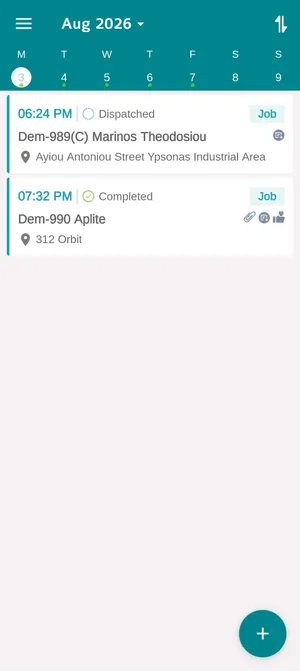
The app → Calendar